Audio & Video Converters
More tools in this category without leaving this page.
Free MP4 to WAV Converter
Convert to
How to Use the Converter
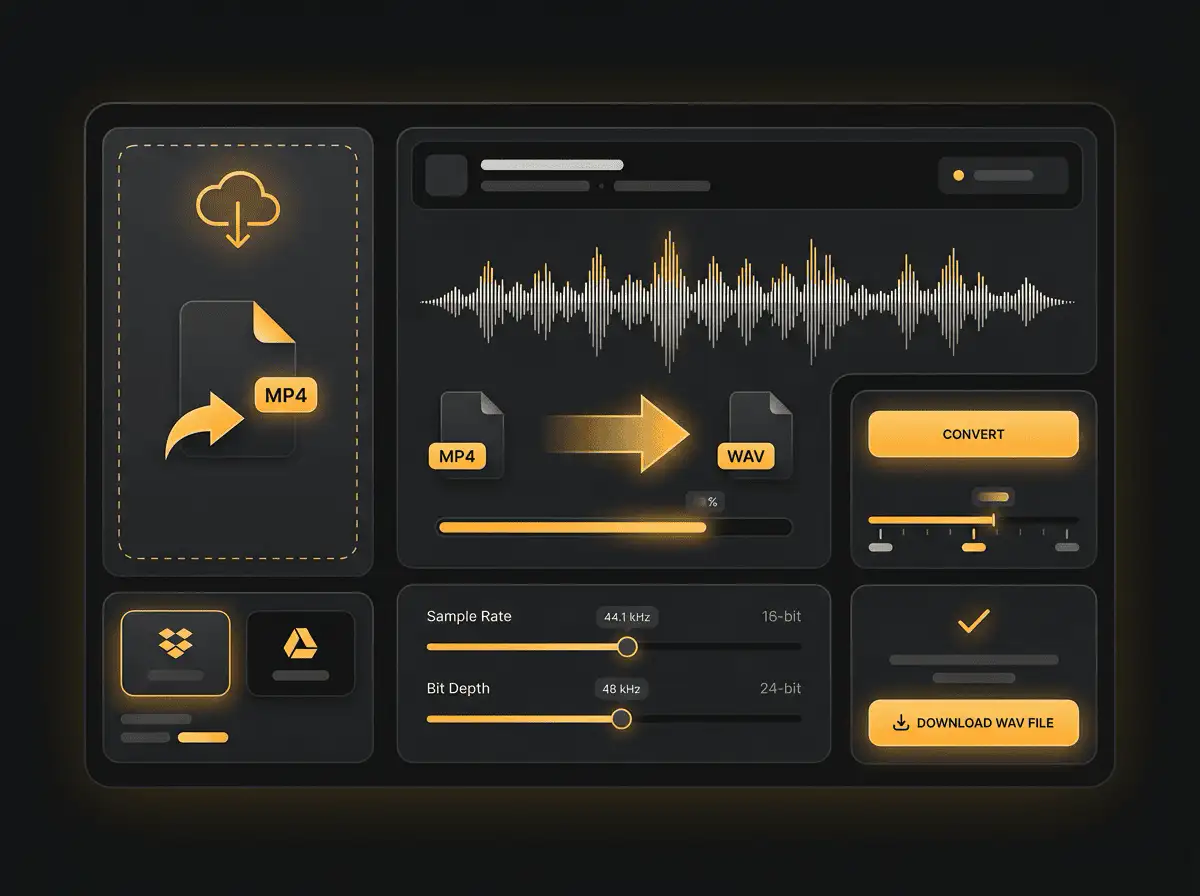
Drop your MP4 file into the upload area or click to browse your device. You can also import from cloud storage like Dropbox or Google Drive. Once the file loads, WAV is already selected as the output format. Adjust sample rate and bit depth if needed — 44.1 kHz at 16-bit works for most uses, while 48 kHz at 24-bit is ideal for professional audio work. Click convert, then download your new WAV audio file.

How to Convert MP4 to WAV in 3 Steps
Step 1: Upload Your Video File
Drag and drop your MP4 video into the converter, or click the upload button to select a file from your computer. Cloud imports from Dropbox, Google Drive, and OneDrive work too. The tool accepts MP4, MOV, AVI, WebM, MKV, and other common video formats.
Step 2: Configure WAV Settings
WAV is set as the default output format. You can adjust the audio settings based on your needs:
- Sample Rate: 44.1 kHz for music and general use, 48 kHz for video production, 96 kHz for high-resolution audio
- Bit Depth: 16-bit for standard quality (CD-level), 24-bit for professional audio editing and mastering
- Channels: Mono or stereo (preserves the original channel configuration by default)
Most users stick with 44.1 kHz at 16-bit — it delivers CD-quality audio that works perfectly for editing and playback. For professional production work, 48 kHz at 24-bit provides extra headroom for processing.
Step 3: Download Your Audio
Click convert. The tool extracts the audio from your video and generates the uncompressed WAV file. When it's done, download directly to your device or save to cloud storage. Your audio is ready for editing in any DAW or professional software.

Why Use This MP4 to WAV Converter?
Completely Free — No Hidden Costs
This video to audio converter costs nothing. No premium tier locking features behind a paywall. Convert as many videos as you need without paying a cent.
Works in Your Browser
No software to download. No plugins to install. The converter runs online, so you can convert files on Windows, Mac, Linux, Chromebook, or your phone. Open the page and go.
Extract Audio from Any Video
Not just MP4 — this tool handles MOV, AVI, WebM, MKV, FLV, WMV, and most other video formats. Upload whatever video you have, and the converter extracts the audio track and saves it as uncompressed WAV.
Professional-Grade Uncompressed Audio
WAV is a lossless, uncompressed format that preserves every detail of your original audio track. Unlike compressed formats like MP3 or AAC, WAV stores raw audio data without any quality loss. This makes it the industry standard for audio editing, mixing, mastering, and archival purposes.
Universal Compatibility
WAV files work everywhere. Every major DAW (Pro Tools, Logic Pro, Ableton, FL Studio, Cubase), audio editor (Audacity, Adobe Audition, GarageBand), and operating system supports WAV natively. When you need audio that opens in any professional software without compatibility issues, WAV is the answer.
Batch Conversion Support
Got multiple videos? Upload them all at once. The converter processes your entire batch and gives you individual WAV downloads for each file. Saves time when you're extracting audio from multiple clips or building an audio library.
Adjustable Audio Settings
Fine-tune your output. Set the sample rate anywhere from 22.05 kHz to 192 kHz. Choose 16-bit for standard use or 24-bit for professional work. Trim the audio to extract only the section you need. Adjust channel configuration from mono to stereo. Full control over your audio output.
Privacy Protected
Your files are encrypted during upload and stored only temporarily. They're deleted automatically after conversion — usually within a few hours. Nobody else accesses your videos or audio.

Understanding Video to Audio Conversion
What Happens During Conversion?
When you convert MP4 to WAV, the tool extracts the audio track from the video container and decodes it into uncompressed PCM (Pulse Code Modulation) audio data. The video portion is discarded completely, leaving only the raw audio stored in WAV format.
Most MP4 files contain audio encoded as AAC (Advanced Audio Coding), which is a compressed format. During conversion, this compressed audio is fully decoded and expanded into uncompressed WAV. The result is a larger file that contains all the audio information from your source, stored in a lossless container.
At high sample rates and bit depths (48 kHz/24-bit or higher), the WAV output can preserve studio-quality audio suitable for professional editing, mixing, and mastering work.
What is MP4?
MP4 (MPEG-4 Part 14) is a multimedia container format that stores video, audio, subtitles, and metadata in a single file. The video portion typically uses H.264 or H.265 compression, while the audio usually uses AAC encoding.
MP4 is the dominant video format online. YouTube, streaming platforms, social media sites, and video cameras all use it. Your phone recordings, downloaded videos, screen captures, and most digital video content comes in MP4 format.
The audio inside an MP4 file is compressed to save space. While AAC compression is efficient and sounds good, it removes some audio data to achieve smaller file sizes. This makes MP4 great for distribution and playback, but less ideal for professional audio editing where you need the full, uncompressed audio signal.
What is WAV?
WAV (Waveform Audio File Format) is an uncompressed audio format developed by Microsoft and IBM in 1991. It stores raw audio data using PCM encoding without any compression whatsoever.
A typical 3-minute song in WAV format at CD quality (44.1 kHz, 16-bit stereo) takes about 30 MB — roughly 10 times larger than the same audio in MP3 or AAC. At professional settings (48 kHz, 24-bit), that same file might be 60 MB or more.
The tradeoff is quality and flexibility. WAV preserves every single audio sample exactly as recorded, with zero quality loss. It's the standard format for recording studios, audio editing software, professional production work, and archival storage. Every major DAW, media player, and operating system supports WAV files natively.
Why Convert Video to WAV?
Several practical reasons make WAV the preferred format when extracting audio from video:
- Professional audio editing: Import video audio into Pro Tools, Logic Pro, Ableton, or any DAW without quality concerns. Uncompressed audio handles processing, EQ, compression, and effects better than compressed formats.
- Mastering work: Start with the highest quality source possible when preparing audio for final production or distribution.
- Archival quality: Preserve important audio from videos in lossless format for long-term storage without degradation.
- Prevent generation loss: Once in WAV, any future edits or exports won't degrade the audio further (assuming you stay in lossless formats).
- Sound design: Extract audio from videos for use in music production, sound libraries, or film scoring where pristine quality matters.
- Forensic analysis: Professional applications requiring exact audio reproduction benefit from uncompressed formats.
- Multi-track projects: Import video audio as stems or individual tracks for complex mixing projects.
Who Needs an MP4 to WAV Converter?
Music Producers and Audio Engineers
Working with audio from video sources? Converting to WAV before importing into your DAW ensures you're starting with the highest quality available. Whether you're extracting a live performance, sampling from a video, or pulling dialogue for production work, WAV gives you clean, uncompressed audio ready for editing, mixing, and mastering.
Content Creators and Podcasters
Need to repurpose video content? Extract the audio as WAV for professional-quality podcast versions, audio clips for social media, or sound bites for other projects. The uncompressed format imports cleanly into any audio editor and gives you maximum flexibility during post-production.
Video Editors
Sometimes you need to edit audio separately from video. Converting to WAV lets you process dialogue, music, or sound effects in dedicated audio software like Adobe Audition or Audacity, then sync the cleaned-up audio back to your video timeline.
Archivists and Librarians
Preserving audio from important video recordings? WAV format ensures the audio remains in pristine, uncompressed quality for decades. Unlike compressed formats that may become obsolete, WAV's widespread support and lossless nature make it ideal for long-term archival storage.
Musicians and Performers
Captured a great live performance on video? Extract the audio as WAV to create a high-quality recording. The uncompressed format preserves every nuance of the performance and can be edited, mixed, and distributed without compromising sound quality.
Educators and Researchers
Converting lecture videos, interviews, or research recordings to WAV provides clean audio for transcription, analysis, or archival purposes. The format's universal compatibility ensures the audio remains accessible across different platforms and software.
Common Use Cases
Live Performance Archiving: Extract audio from concert videos or live performances in lossless quality for archival or distribution.
Podcast Production: Convert video podcasts or interviews to WAV for professional editing and mastering before final publication.
Music Production Sampling: Pull audio from videos to use as samples, loops, or source material in music production.
Audio Restoration: Extract old or damaged video audio to WAV for professional restoration and noise reduction work.
Sound Design: Grab sound effects, ambience, or dialogue from videos for use in film, game, or music production.
Educational Content: Convert lecture or tutorial videos to high-quality audio files for offline listening or transcription.
Voiceover Work: Extract narration or dialogue from videos for editing, processing, or repurposing in other projects.
Conference Recording: Transform recorded presentations or webinars into professional-quality audio files.
Technical Considerations
Sample Rate Explained
Sample rate measures how many times per second the audio is sampled, expressed in Hertz (Hz) or kilohertz (kHz). Higher sample rates capture more audio detail:
- 44.1 kHz: CD quality standard, ideal for music and general audio work
- 48 kHz: Video production standard, used in film and television
- 96 kHz: High-resolution audio, useful for professional mastering and sound design
- 192 kHz: Ultra-high resolution, primarily for specialized professional applications
The sample rate of your source video determines the maximum quality possible. Choosing a higher sample rate during conversion won't add detail that wasn't captured originally.
Bit Depth Explained
Bit depth determines the dynamic range and noise floor of digital audio:
- 16-bit: 96 dB dynamic range, CD quality standard, suitable for most applications
- 24-bit: 144 dB dynamic range, professional standard for recording and editing
Higher bit depth provides more headroom for processing and better signal-to-noise ratio. For professional editing work, 24-bit offers advantages. For playback or casual use, 16-bit is entirely sufficient.
File Size Expectations
WAV files are large. A rough calculation:
- 1 minute of stereo audio at 44.1 kHz/16-bit = approximately 10 MB
- 1 minute of stereo audio at 48 kHz/24-bit = approximately 17 MB
- 1 hour of stereo audio at 44.1 kHz/16-bit = approximately 600 MB
Plan your storage accordingly. The uncompressed quality comes at the cost of larger file sizes compared to compressed formats like MP3 or AAC.
Alternative Methods for Converting MP4 to WAV
Using VLC Media Player
VLC is a free, open-source media player that can convert video to audio:
- Open VLC and go to Media > Convert/Save
- Add your MP4 file
- Click Convert/Save
- Choose WAV as the output format
- Select destination and click Start
VLC works offline and handles large files well, but the interface is less intuitive than online converters.
Using Audacity
Audacity is a free, open-source audio editor:
- Install the FFmpeg library for Audacity
- Open your MP4 file in Audacity
- The audio track loads automatically
- Go to File > Export > Export as WAV
- Choose your settings and export
Audacity gives you immediate editing capabilities along with conversion, but requires software installation.
Using FFmpeg Command Line
For advanced users comfortable with command line tools:
ffmpeg -i input.mp4 -vn -acodec pcm_s16le -ar 44100 output.wav
This extracts audio at 44.1 kHz, 16-bit. Adjust parameters for different settings. FFmpeg is powerful but requires technical knowledge.
Start Converting Your Videos to Professional Audio
Converting MP4 to WAV takes seconds and delivers professional-quality, uncompressed audio ready for any editing or production work. Upload your video file, choose your audio settings, and download pristine WAV audio. No software to install, no account to create, no cost.
Ready to convert? Try the free MP4 to WAV converter now.
Related Converters
Convert MP3 files to WMA format. Free, fast, and no sign-up required.
Convert WAV audio files to MP3. Reduce file size without losing quality.
Convert AAC audio files to OGG format quickly and for free.
Convert AAC files to M4A format. Fast and free online converter.
Convert WMA audio to AIFF format. No sign-up required.
Convert OGG files to uncompressed WAV audio. Free and fast.
Convert AAC audio files to WMA format online for free.
Convert AAC to lossless FLAC format. Free online converter.
Convert FLAC lossless audio to M4A format. Free and fast.
Extract MP3 audio from MPEG files. Fast, free, no sign-up.
Convert FLAC audio files to WMA format online for free.
Convert M4A audio files to MP3. Wide device compatibility guaranteed.
Convert FLAC audio to OGG format. Free and no sign-up needed.
Convert OGG files to AIFF audio format. Free online converter.
Convert MP3 files to uncompressed WAV audio. No quality loss.
Convert OGG audio to MP3 for maximum device compatibility.
Convert MP3 files to AIFF audio format. Free and fast.
Convert AAC audio to uncompressed WAV. No sign-up required.
Convert OGG audio files to WMA format online for free.
Convert OGG files to M4A audio format. Fast, free, online.
Convert Your Files Now
Upload your file, choose your settings, and download the result. No software, no sign-ups, no fees.