Free AI Tools

Audio & Video Converters

More tools in this category without leaving this page.

All tools

MP3 to WAV Converter - Convert Audio Files Online Free

Click to upload or drag and drop
MP3, AAC, FLAC, OGG, WMA, AIFF, WAV, M4A (Max 200 MB)

Convert to

Why Convert MP3 to WAV?

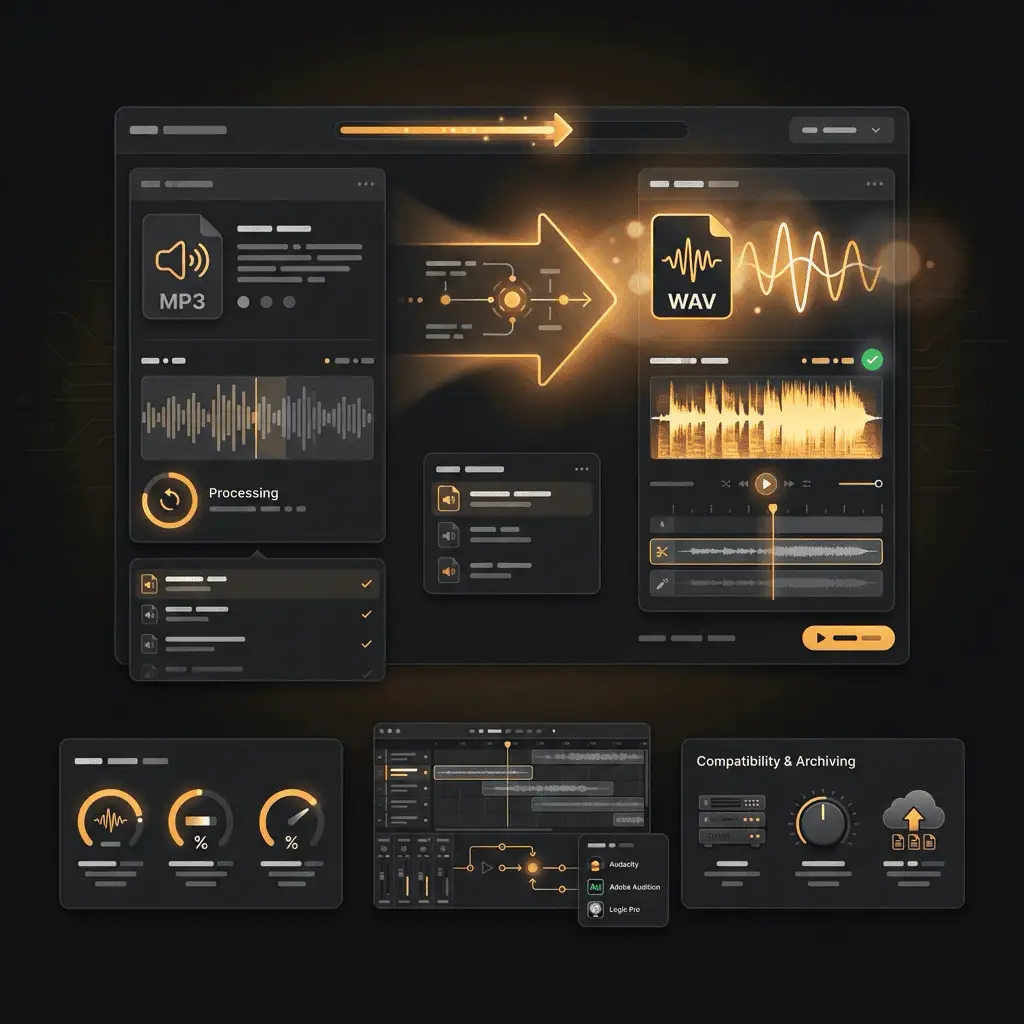
MP3 files use lossy compression to keep file sizes small, making them perfect for streaming and portable devices. But when you're working with audio editing software or need compatibility with professional equipment, WAV files are the better choice.

WAV (Waveform Audio File Format) stores audio without compression. This means larger file sizes but also means your audio editing software can process the files more efficiently. Every time you save an edited MP3 file, it gets recompressed and loses a bit more quality. WAV files avoid this problem entirely.

You'll want to convert MP3 to WAV when you're:

  • Editing audio in programs like Audacity, Adobe Audition, or Logic Pro
  • Working with older audio equipment that doesn't support compressed formats
  • Preparing files for professional audio production or mastering
  • Creating content where editing workflow matters more than file size
Why Convert MP3 to WAV?

How to Convert MP3 to WAV

Our online converter makes the process simple. Here's what you need to do:

Step 1: Upload Your MP3 File Click the upload button or drag your MP3 file directly into the converter. You can upload files from your computer, or paste a URL if your audio is hosted online. The converter accepts files up to 100MB.

Step 2: Select WAV as Output Format The converter automatically detects your MP3 file and sets WAV as the target format. You can adjust advanced settings like sample rate and bit depth if needed, but the defaults work great for most uses.

Step 3: Convert and Download Hit the convert button. The conversion typically takes just a few seconds, depending on your file size. Once it's done, click download to save your new WAV file.

That's it. No email verification, no account creation, no waiting.

How to Convert MP3 to WAV

Key Features

Fast Online Conversion

Upload your MP3 and get your WAV file in seconds. Our converter processes files instantly without making you wait in a queue. Most conversions finish in under 10 seconds.

No Software Installation Required

Everything happens in your browser. You don't need to download converter software that clutters your hard drive or slows down your computer. Works on Windows, Mac, Linux, and even mobile devices.

Secure File Processing

Your files are encrypted during upload and automatically deleted from our servers after conversion. We don't store, share, or access your audio content. What you upload stays private.

Batch Convert Multiple Files

Need to convert more than one MP3? Upload multiple files at once and convert them all in a single batch. Great when you're preparing an entire album or project folder for editing.

Adjust Audio Settings

Control the output quality with advanced options. Set your preferred sample rate (44.1kHz for music, 48kHz for video), choose bit depth (16-bit or 24-bit), and select mono or stereo channels. The converter handles the technical work while you focus on your project.

Free with No Limits

Convert as many files as you want without paying for premium features or hitting daily conversion caps. The tool is completely free, with no hidden costs or subscription requirements.

Key Features

Understanding MP3 and WAV Formats

What is MP3?

MP3 (MPEG-1 Audio Layer III) became the standard for digital music in the late 1990s. It uses lossy compression to reduce file sizes dramatically — typically to about one-tenth the size of an uncompressed audio file.

The compression works by removing audio frequencies that humans struggle to hear. Most people can't tell the difference between a high-quality MP3 (320 kbps) and lossless audio in casual listening. But when you start editing, those removed frequencies matter.

MP3 Characteristics:

  • Small file sizes (3-4 MB for a typical song)
  • Lossy compression (some audio data is permanently removed)
  • Universally supported across devices and platforms
  • Ideal for streaming, portable players, and storage

What is WAV?

WAV was developed by Microsoft and IBM in 1991 as the standard audio format for Windows. Unlike MP3, WAV files store audio data without any compression. You get the complete, unmodified audio signal.

This makes WAV files much larger than MP3s — sometimes 10 times bigger. A 3-minute song that fits in 4 MB as an MP3 might take 40 MB as a WAV file. But that size comes with benefits: no quality loss, no compression artifacts, and much better performance in audio editing software.

WAV Characteristics:

  • Large file sizes (30-40 MB for a typical song)
  • Lossless format (all audio data preserved)
  • Widely supported in professional audio software
  • Preferred format for editing, production, and archival

Audio Quality: What to Expect

Here's the truth about converting MP3 to WAV: the conversion won't improve your audio quality. It can't restore the data that was removed when the file was originally compressed to MP3.

Think of it like making a photocopy of a photocopy. The second copy can't add detail that was lost in the first copy. Converting an MP3 to WAV gives you a larger file, but the audio information is identical.

You won't hear any difference between:

  • Playing the original MP3 file
  • Playing the converted WAV file

But you will notice benefits when:

  • Editing the audio (no additional quality loss from re-compression)
  • Using the file with equipment that requires WAV format
  • Working with audio software that performs better with uncompressed files

The real value of MP3 to WAV conversion isn't about sound quality — it's about compatibility and workflow efficiency.

Who Needs MP3 to WAV Conversion?

Audio Engineers and Producers

Professional audio work demands lossless formats. DAWs (digital audio workstations) like Pro Tools, Logic Pro, and Ableton work more efficiently with WAV files. Converting your MP3 source material to WAV before editing prevents additional quality degradation from repeated compression cycles.

Podcasters and Content Creators

If you're editing podcast interviews recorded as MP3s, converting to WAV first gives you a cleaner editing workflow. You can cut, splice, and add effects without worrying about generation loss. Export to MP3 when you're done editing.

Musicians and DJs

Many DJ software programs and music production tools expect lossless audio files. Converting your MP3 music library to WAV ensures compatibility with professional equipment and software samplers.

Video Editors

Video editing software often prefers uncompressed audio formats. If you're adding music or voiceovers recorded as MP3, converting to WAV can prevent sync issues and simplify your editing timeline.

Archivists and Collectors

Preserving audio for the long term? WAV is a better archival format than MP3. While you can't recover lost quality from an MP3, converting to WAV at least puts it in a format that won't degrade further.

Common Use Cases

1. Audio Editing Projects You've downloaded a music track as MP3, but now you need to edit it for a video project. Convert to WAV first. Edit the WAV file in your audio editor. Apply effects, trim sections, adjust volume. When you're finished, export back to MP3 if needed. This prevents quality loss from editing and re-saving compressed files multiple times.

2. Professional Audio Production A client sends you MP3 files for a mixing project. Your DAW works better with uncompressed audio. Convert everything to WAV before importing into your session. You'll get better performance, cleaner edits, and no surprises from codec issues.

3. Hardware Compatibility You have an older audio device — maybe a sampler, a hardware recorder, or vintage playback equipment. It only accepts WAV files. Convert your MP3 collection to WAV and load them onto the device without compatibility headaches.

4. DJ Setlists You're preparing a DJ set and some tracks in your library are only available as MP3. Your DJ software recommends WAV for best performance and to avoid audio glitches during playback. Convert the MP3s to WAV and your set runs smoother.

5. Broadcast and Media Radio stations and TV production teams often require uncompressed audio formats for their workflows. If your submission or content is in MP3, you'll need to convert to WAV before delivery.

Comparing Converters: What Makes Ours Different

Most online audio converters do the same basic job: they take your MP3 and spit out a WAV. So what matters when you're choosing which one to use?

Speed: Some converters make you wait in a queue or process files slowly. Ours handles conversions in seconds, not minutes.

Privacy: A lot of free tools store your uploaded files or use them for other purposes. We delete files immediately after conversion and never access your content.

No registration hassle: Many converters force you to create an account or verify your email before downloading converted files. We don't. Upload, convert, download — that's it.

Batch support: If you need to convert multiple files, you shouldn't have to do them one at a time. Our tool supports batch conversions so you can process an entire folder at once.

Clean interface: No ads covering the upload button. No fake download links. No confusing menus. Just a straightforward converter that does the job.

Technical Settings Explained

When you open the advanced settings panel, you'll see a few technical options. Here's what they mean and when to adjust them:

Sample Rate

Sample rate (measured in kHz) determines how many audio samples are captured per second. Higher sample rates mean more accurate sound reproduction, but also larger files.

  • 44.1 kHz — CD quality, standard for music. Use this unless you have a specific reason to change it.
  • 48 kHz — Standard for video and film production. If you're syncing audio with video, use 48 kHz.
  • 96 kHz or higher — Only needed for professional mastering or high-end production. Most people won't hear the difference.

When converting MP3 to WAV, the converter will use the MP3's sample rate by default. Increasing the sample rate during conversion won't improve quality — the MP3 already determined the maximum quality.

Bit Depth

Bit depth affects dynamic range (the difference between the quietest and loudest sounds). More bits mean more detail in volume levels.

  • 16-bit — CD quality, perfectly fine for most uses. Gives you 96 dB of dynamic range.
  • 24-bit — Professional recording standard. Use this if you're doing serious audio work. Provides 144 dB of dynamic range.

Again, converting from MP3 won't magically add this extra detail — the bit depth you choose just determines the container format for the existing audio data.

Audio Channels

  • Mono — Single channel, combines left and right. Use for podcasts, voiceovers, or phone recordings.
  • Stereo — Two channels (left and right). Standard for music and most audio content.
  • Surround — Multiple channels for home theater systems. Rarely needed unless you're working on film audio.

Most conversions should stay stereo, which is the default.

File Size Considerations

One thing to keep in mind: WAV files are big. Really big compared to MP3.

A 3-minute MP3 at 128 kbps is about 3 MB. That same audio as a 16-bit/44.1kHz stereo WAV file is about 30 MB — ten times larger.

If you're converting a large music library, make sure you have enough storage space. A 1,000-song collection that takes 4 GB as MP3 will balloon to 40 GB as WAV.

This is fine if you're working with a few files for a project. But if you're converting your entire music library, think about whether you really need everything in WAV format. Most people only convert specific files they're actively editing, not their entire collection.

Browser Compatibility

Our converter works in all modern browsers:

  • Chrome (desktop and mobile)
  • Firefox (desktop and mobile)
  • Safari (macOS and iOS)
  • Edge (Windows)
  • Opera

You don't need to install browser extensions or enable special features. Just visit the page and start converting.

The converter uses client-side processing when possible, which means some of the work happens on your device rather than our servers. This speeds up conversion and adds an extra layer of privacy.

Mobile Device Support

You can convert MP3 to WAV files directly from your phone or tablet. The converter interface adapts to smaller screens and supports touch gestures for file upload.

On iOS, you can upload files from the Files app, iCloud Drive, or any connected cloud storage. On Android, you can access files from your device storage, Google Drive, Dropbox, and other services.

Converted files download directly to your device. On mobile, you'll be prompted to choose where to save the file or it will automatically save to your Downloads folder.

Get Started

Ready to convert your MP3 files to WAV? Upload your first file and see how fast and simple the process is. No registration, no hidden fees, no complicated settings to configure.

For professional-grade audio conversion and additional file format tools, explore more options at https://aiseo.ai

Related Converters

Convert Your Files Now

Upload your file, choose your settings, and download the result. No software, no sign-ups, no fees.