Audio & Video Converters
More tools in this category without leaving this page.
OGG to AIFF Converter
Convert to
Convert OGG to AIFF Quickly and Easily
Convert your OGG audio files to high-quality AIFF format in seconds. Our professional audio converter delivers lossless quality, perfect for professional audio production, archiving, and compatibility with Apple devices and software.
Why Convert OGG to AIFF?
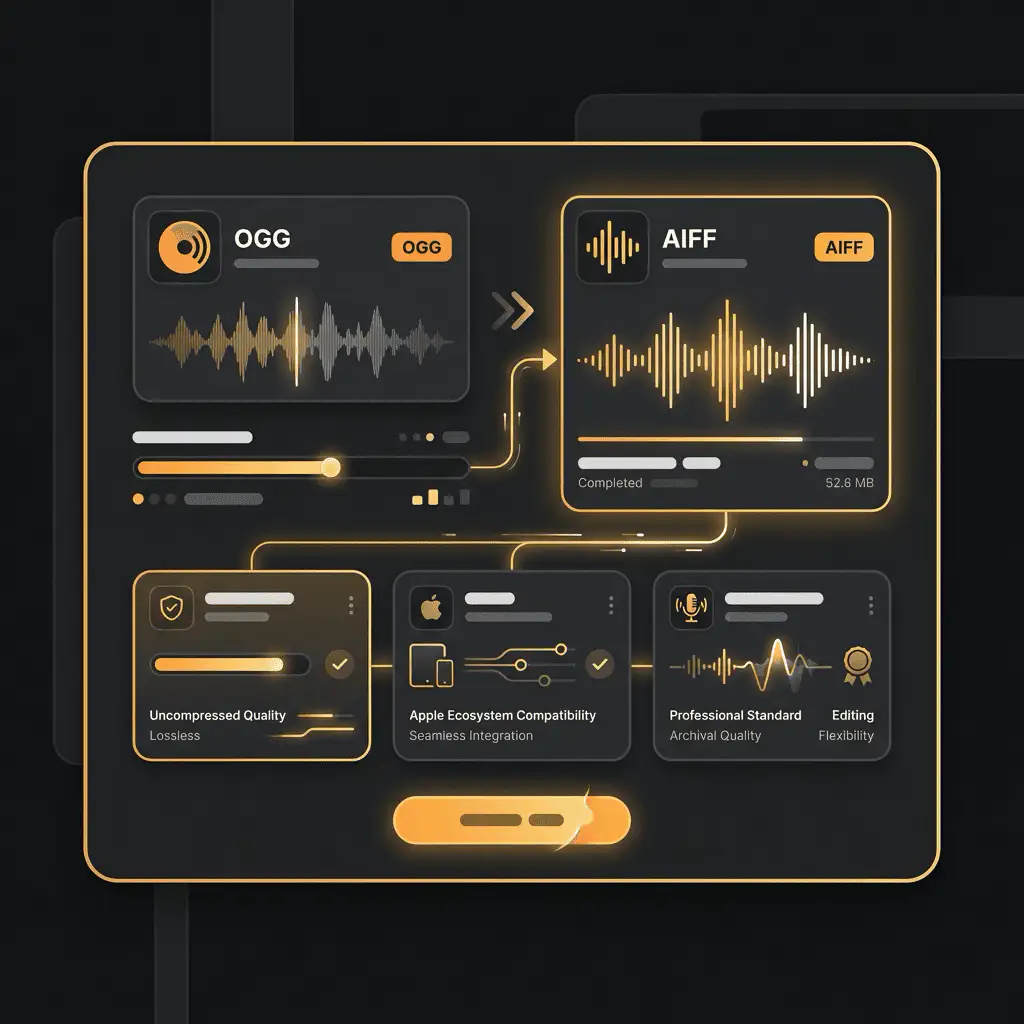
AIFF (Audio Interchange File Format) is the gold standard for uncompressed audio on macOS and iOS platforms. While OGG offers excellent compression, converting to AIFF gives you:
- Uncompressed Quality: Preserve every detail of your audio without lossy compression
- Apple Ecosystem Compatibility: Seamless integration with Logic Pro, GarageBand, iTunes, and all Apple devices
- Professional Standard: Industry-preferred format for audio editing and mastering
- Archival Quality: Long-term preservation without quality degradation
- Editing Flexibility: Non-destructive editing capabilities in professional audio software

Understanding OGG and AIFF Audio Formats
What is OGG Format?
OGG (Ogg Vorbis) is a free, open-source audio compression format developed by the Xiph.Org Foundation. Launched in 2000, OGG was designed as a patent-free alternative to proprietary formats like MP3 and AAC.
Key Characteristics of OGG:
- Compression Type: Lossy compression using Vorbis codec
- File Extension: .ogg, .oga
- Bitrate Range: Typically 45-500 kbps (variable bitrate)
- Quality: Excellent audio quality at lower bitrates compared to MP3
- File Size: Small to medium (compressed)
- Platform Support: Strong support on Android, Linux, and gaming platforms
- Metadata Support: Extensive tagging via Vorbis Comments
- Licensing: Completely free and open-source
Common Uses for OGG:
- Video game audio and sound effects
- Streaming audio services
- Web-based audio playback
- Android application development
- Podcast distribution
- Background music for multimedia projects
What is AIFF Format?
AIFF (Audio Interchange File Format) was developed by Apple Inc. in 1988 based on Electronic Arts' IFF format. It remains the standard uncompressed audio format for macOS environments.
Key Characteristics of AIFF:
- Compression Type: Uncompressed PCM audio (lossless)
- File Extension: .aiff, .aif
- Bitrate: Depends on sample rate and bit depth (typically 1411 kbps for CD quality)
- Quality: Maximum fidelity with no compression artifacts
- File Size: Large (uncompressed)
- Platform Support: Native support on macOS, iOS, and professional audio software
- Metadata Support: ID3 tags, AIFF-C chunks
- Professional Standard: Industry choice for audio production and mastering
Common Uses for AIFF:
- Professional music production and recording
- Audio mastering and post-production
- Sound design for film and television
- Archival storage of audio recordings
- Logic Pro and GarageBand projects
- Audio editing and restoration work
- High-fidelity music collections

When Should You Convert OGG to AIFF?
Converting from compressed OGG to uncompressed AIFF makes sense in several professional scenarios:
Professional Audio Production
If you're working with audio in a professional capacity, AIFF provides the uncompressed quality needed for:
- Mixing and Mastering: Start with the highest quality source material for professional results
- Audio Editing: Non-destructive editing without compression artifacts
- Sound Design: Layer and manipulate audio with maximum fidelity
- Post-Production: Meet broadcast standards and client specifications
- Archive Creation: Preserve recordings in their highest quality form
Apple Ecosystem Integration
AIFF is the native format for Apple's audio infrastructure:
- Logic Pro X: Import directly without conversion or quality loss
- GarageBand: Seamless integration for music creation
- Final Cut Pro: Professional video editing with high-quality audio
- iTunes/Music App: Organize and play lossless audio files
- iOS Devices: Maximum compatibility with iPhone and iPad apps
- macOS Audio Tools: Native support across all audio applications
Quality Requirements
Choose AIFF when audio quality is non-negotiable:
- Client Deliverables: Meet professional delivery standards
- Broadcast Media: Satisfy network quality requirements
- Music Distribution: Prepare masters for CD or digital release
- Academic Research: Preserve audio data without compression
- Legal Evidence: Maintain audio integrity for court proceedings
Long-Term Archiving
AIFF is ideal for preserving audio over time:
- No Generation Loss: Re-save without quality degradation
- Format Stability: Decades of industry support and compatibility
- Metadata Preservation: Maintain detailed information about recordings
- Professional Acceptance: Universally recognized archival format

How OGG to AIFF Conversion Works
Understanding the conversion process helps you make informed decisions about your audio workflow.
The Technical Conversion Process
Step 1: Decoding OGG The converter first decodes the compressed OGG file back to raw PCM (Pulse Code Modulation) audio data. This reverses the Vorbis compression algorithm, extracting the audio information as a stream of uncompressed samples.
Step 2: Sample Rate and Bit Depth Processing The decoded audio maintains its original sample rate (typically 44.1 kHz or 48 kHz) and is processed at the highest bit depth available. Professional converters may offer options to upsample or change bit depth.
Step 3: AIFF Encoding The uncompressed PCM data is wrapped in the AIFF container format, which adds:
- Header information specifying audio properties
- Chunk structure for metadata
- Optional ID3 tags for track information
- Format markers for compatibility
Step 4: Metadata Transfer Any metadata from the OGG file (artist, title, album, etc.) is mapped to AIFF-compatible tag formats, preserving your organizational information.
Quality Considerations
Important: Converting from lossy OGG to lossless AIFF does NOT restore lost audio information. The conversion creates an uncompressed file, but the quality ceiling is determined by the original OGG encoding.
Think of it this way:
- Original Recording → OGG (lossy compression removes data) → AIFF (uncompressed storage)
- The AIFF file will be larger but won't sound better than the OGG source
When This Makes Sense:
- You need AIFF for compatibility, not quality improvement
- You're standardizing your library to one format
- You need uncompressed files for editing workflow
- Future processing requires lossless starting point
When This Doesn't Make Sense:
- Expecting quality improvement from conversion alone
- Storage space is severely limited
- Final delivery format is compressed anyway
File Size Changes
Converting OGG to AIFF dramatically increases file size:
Example Comparison (3-minute song):
- OGG at 192 kbps: Approximately 4.3 MB
- AIFF at 16-bit/44.1kHz: Approximately 30.3 MB
- Size Increase: 7x larger
Typical Size Multipliers:
- OGG 128 kbps → AIFF: 10-12x increase
- OGG 192 kbps → AIFF: 7-8x increase
- OGG 320 kbps → AIFF: 4-5x increase
Best Practices for OGG to AIFF Conversion
Choose the Right Conversion Settings
Sample Rate:
- Keep Original: Maintain the OGG file's native sample rate (usually 44.1 kHz or 48 kHz)
- 44.1 kHz: Standard for music and CD production
- 48 kHz: Standard for video and film audio
- Avoid Upsampling: Converting 44.1 kHz to 48 kHz doesn't improve quality
Bit Depth:
- 16-bit: Standard for music distribution and general use
- 24-bit: Professional production and editing workflows
- 32-bit float: Advanced audio processing and maximum headroom
Recommendation: Use 16-bit/44.1 kHz unless you have specific professional requirements for higher specifications.
Preserve Metadata
Ensure your converter transfers important information:
- Track Title: Song or audio clip name
- Artist/Performer: Creator information
- Album: Collection or project name
- Genre: Musical or content category
- Year: Recording or release date
- Track Number: Position in album or collection
- Comments: Additional notes or descriptions
- Album Art: Cover images (if supported)
Organize Your Converted Files
Implement a systematic file management strategy:
Folder Structure Example:
Audio Library/
├── AIFF Masters/
│ ├── Music/
│ │ ├── Artist Name/
│ │ │ ├── Album Name/
│ │ │ │ ├── 01 - Track Name.aiff
│ │ │ │ ├── 02 - Track Name.aiff
│ ├── Sound Effects/
│ ├── Voiceovers/
│ └── Field Recordings/
Naming Conventions:
- Use consistent naming: "Artist - Track Title.aiff"
- Avoid special characters: / \ : * ? " < > |
- Include track numbers: "01 - Song Name.aiff"
- Be descriptive: "Interview_John_Doe_2024-03-15.aiff"
Batch Conversion Strategies
Converting multiple files efficiently:
Organize Before Converting:
- Group files by project or category
- Verify all source files are present
- Check for duplicate files
- Document your original file locations
Batch Processing Tips:
- Convert similar files together (same album, same project)
- Use consistent output settings for each batch
- Verify a few conversions before processing large batches
- Keep a conversion log for reference
Quality Control:
- Spot-check random conversions for quality
- Compare file sizes for consistency
- Verify metadata transferred correctly
- Listen to beginning, middle, and end of sample files
Common OGG to AIFF Conversion Scenarios
Music Production Workflow
Scenario: You've received OGG files from a collaborator but need to work in Logic Pro X, which prefers AIFF.
Solution:
- Convert all OGG stems and tracks to AIFF
- Maintain original folder structure
- Use 24-bit/48 kHz if working with video synchronization
- Preserve all metadata for organization
- Keep OGG originals as backup
Benefits:
- Seamless Logic Pro integration
- Non-destructive editing capabilities
- Consistent format across entire project
- No real-time conversion overhead
Archival Projects
Scenario: Converting a collection of OGG recordings to AIFF for long-term preservation.
Solution:
- Convert to AIFF at original sample rate
- Add comprehensive metadata (date, location, participants)
- Create multiple backup copies
- Document conversion settings used
- Store in climate-controlled environment
Benefits:
- Format longevity and stability
- Industry-standard archival format
- No compression artifacts in archive
- Widely supported by future software
Podcast Production
Scenario: Converting OGG interview recordings to AIFF for editing in professional audio software.
Solution:
- Convert all interview segments to AIFF
- Use 16-bit/44.1 kHz for podcast standard
- Organize by episode and segment
- Add metadata for each speaker/segment
- Edit in DAW, export to compressed format for distribution
Benefits:
- Professional editing capabilities
- No generation loss during editing
- Better noise reduction and EQ results
- Clean export to final podcast format
Game Audio Development
Scenario: Converting OGG game audio assets to AIFF for editing and processing before final implementation.
Solution:
- Convert OGG assets to AIFF for editing
- Process and edit in professional audio tools
- Normalize and optimize audio
- Export back to OGG or other game-friendly formats
- Implement in game engine
Benefits:
- Professional audio editing tools compatibility
- Better processing quality
- Easier batch processing and automation
- Cleaner final compressed output
Educational and Research Applications
Scenario: Converting lecture recordings or research audio from OGG to AIFF for analysis.
Solution:
- Convert all recordings to AIFF
- Preserve all temporal information in metadata
- Use consistent bit depth for analysis
- Document conversion parameters
- Analyze in specialized software
Benefits:
- Precise audio analysis without compression interference
- Consistent format for comparative studies
- Better compatibility with academic software tools
- Archival quality for long-term research projects
Tools and Methods for Converting OGG to AIFF
Online Conversion Services
Advantages:
- No software installation required
- Works on any device with a browser
- Quick for small batches
- Usually free for basic use
Disadvantages:
- Upload/download time for large files
- Privacy concerns with sensitive audio
- Internet connection required
- May have file size limitations
- Limited batch processing
Best For:
- Occasional conversions
- Single file conversions
- Users without technical expertise
- Quick compatibility fixes
Desktop Audio Converter Software
Popular Options:
FFmpeg (Free, Open Source)
- Command-line tool with powerful capabilities
- Supports batch conversion
- Highly customizable settings
- Available for Windows, macOS, Linux
XLD (X Lossless Decoder) - macOS
- Free, specialized for lossless audio
- Excellent metadata preservation
- Accurate ripping and conversion
- User-friendly interface
Audacity (Free, Open Source)
- Full-featured audio editor
- Import OGG, export AIFF
- Basic editing capabilities
- Cross-platform compatibility
Switch Audio Converter
- Simple interface
- Batch processing
- Metadata preservation
- Windows and macOS versions
dBpoweramp Music Converter
- Professional-grade conversion
- Extensive format support
- Batch conversion with CPU optimization
- Accurate ripping and tagging
Advantages:
- Work offline with complete privacy
- Batch process hundreds of files
- Precise control over settings
- Usually faster than online services
- One-time purchase or free options
Disadvantages:
- Software installation required
- Learning curve for advanced features
- Platform-specific limitations
- May require purchase for full features
Best For:
- Regular conversion needs
- Large file libraries
- Professional applications
- Privacy-sensitive material
Digital Audio Workstations (DAWs)
Many professional audio programs can import OGG and export AIFF:
Logic Pro X (macOS)
- Import OGG files directly
- Export as AIFF with full control
- Professional editing in between
- Excellent metadata handling
Pro Tools
- Industry-standard DAW
- Import and export capabilities
- Professional workflow integration
- Advanced processing options
Audacity (Free)
- Simple import/export workflow
- Basic editing capabilities
- Cross-platform availability
- No cost barrier
Advantages:
- Edit while converting
- Professional processing capabilities
- Precise quality control
- Part of existing workflow
Disadvantages:
- Overkill for simple conversion
- Requires DAW knowledge
- Not designed for batch processing
- Expensive for conversion alone
Best For:
- Users who already own DAWs
- Conversion with editing needed
- Professional production workflows
- Quality-critical applications
Automation and Scripting
For technical users, automation offers powerful batch capabilities:
FFmpeg Batch Script Example:
#!/bin/bash
for file in *.ogg; do
ffmpeg -i "$file" -acodec pcm_s16le "${file%.ogg}.aiff"
done
Advantages:
- Process hundreds of files automatically
- Consistent settings across all conversions
- Integration with larger workflows
- Can run unattended
Disadvantages:
- Requires technical knowledge
- Command-line interface
- Initial setup time
- Troubleshooting complexity
Best For:
- Large-scale conversions
- Regular automated workflows
- Technical users
- Production pipelines
Troubleshooting Common Conversion Issues
Problem: Converted File Won't Play
Possible Causes and Solutions:
Incomplete Conversion:
- Check if conversion process completed fully
- Look for error messages in converter log
- Verify file size is reasonable (not 0 bytes or suspiciously small)
- Re-convert the file with different settings
Corrupted Source File:
- Test the original OGG file in multiple players
- Try converting a different OGG file to isolate the issue
- Check for file corruption indicators
- Obtain a fresh copy of the source file if possible
Player Compatibility:
- Verify your player supports AIFF format
- Try opening in different applications (iTunes, VLC, Audacity)
- Check for software updates
- Use QuickTime or Apple Music on macOS for guaranteed support
Codec Issues:
- Ensure AIFF codec is installed on your system
- Update audio drivers and system components
- Try converting with different software
- Check system audio settings
Problem: Metadata Not Transferring
Solutions:
Use Software with Better Metadata Support:
- Try XLD on macOS for superior tagging
- Use dBpoweramp for comprehensive metadata preservation
- Consider dedicated tagging software like Mp3tag (also works with AIFF)
Manual Metadata Addition:
- Add tags after conversion using iTunes or Music app
- Use dedicated tagging software
- Edit metadata in audio editor like Audacity
- Create a spreadsheet to track metadata for bulk application
Verify Source File Has Metadata:
- Check OGG file in VLC or similar player
- Ensure original file contains the information you need
- Some OGG files may have minimal or no metadata
Format Limitations:
- Understand that some metadata fields don't translate directly
- AIFF supports fewer standard tags than some formats
- Consider using AIFF-C for enhanced metadata support
Problem: File Size Too Large
Solutions:
Optimize AIFF Settings:
- Use 16-bit instead of 24-bit if appropriate for your use
- Avoid unnecessary upsampling
- Keep original sample rate unless specifically needed
Consider Alternative Lossless Formats:
- FLAC: Lossless compression, smaller than AIFF
- ALAC (Apple Lossless): Apple's compressed lossless format
- WAV: Similar to AIFF but sometimes slightly smaller
Storage Solutions:
- Invest in larger hard drives (prices have decreased significantly)
- Use external storage for archive libraries
- Implement compression at filesystem level (macOS HFS+ compression)
- Cloud storage for backup with selective local storage
Workflow Optimization:
- Keep compressed versions for daily use
- Store AIFF masters separately for editing only
- Use symbolic links or aliases to organize without duplication
Problem: Quality Sounds Poor After Conversion
Understanding the Issue:
Remember: Converting lossy OGG to lossless AIFF doesn't improve quality. If the converted AIFF sounds poor, the most likely cause is the quality of the original OGG file.
Diagnostic Steps:
- Listen to Original OGG: Does it sound good in a quality player?
- Check OGG Bitrate: Is it encoded at a very low bitrate (below 128 kbps)?
- Compare Directly: Use audio comparison software to check if conversion introduced artifacts
- Verify Conversion Settings: Ensure no sample rate conversion or processing was applied
Solutions:
If Original OGG is Low Quality:
- Accept that AIFF will have the same quality ceiling
- Source higher-quality OGG files if possible
- Note that the AIFF provides format benefits (editing, compatibility) even if quality matches OGG
If Conversion Introduced Issues:
- Try different conversion software
- Disable any processing or enhancement features
- Use the simplest conversion path possible
- Verify output settings match input specifications
If Perception Issue:
- Conduct blind listening tests
- Use quality headphones or monitors
- Listen at appropriate volume levels
- Consider that expectation bias can affect perception
Problem: Conversion Takes Too Long
Solutions:
Optimize Converter Settings:
- Disable real-time preview features
- Close other applications to free up CPU
- Use software optimized for your platform
- Enable multi-threading if available
Hardware Upgrades:
- SSD significantly speeds up file operations
- More RAM helps with batch processing
- Faster CPU reduces conversion time
- Keep system clean and maintained
Batch Processing Strategies:
- Convert overnight for large libraries
- Process files in smaller batches
- Use dedicated conversion time when computer isn't needed
- Consider cloud processing for massive batches
Software Alternatives:
- Try FFmpeg for potentially faster conversion
- Use professional tools optimized for speed
- Consider format-specific converters
- Benchmark different options with your files
Advanced Considerations for Professional Users
Audio Quality Preservation
Dithering: When converting to AIFF, especially if changing bit depth, proper dithering is crucial:
- What it does: Adds low-level noise to prevent quantization distortion
- When to use: Converting from higher to lower bit depth (24-bit to 16-bit)
- When to skip: Maintaining same bit depth or increasing bit depth
- Recommended types: TPDF (Triangular Probability Density Function) or Shaped dithering
Sample Rate Considerations:
- Maintain Original: Keep the OGG file's native sample rate when possible
- 48 kHz to 44.1 kHz: Requires quality resampling algorithm (use SoX or professional software)
- Avoid Unnecessary Conversion: Each sample rate change can introduce subtle artifacts
- Match Destination: Use 48 kHz for video work, 44.1 kHz for music production
Bit Depth Selection:
- 16-bit: Sufficient for final music masters and distribution (96 dB dynamic range)
- 24-bit: Provides headroom for editing and processing (144 dB dynamic range)
- 32-bit float: Professional mixing and processing with maximum headroom
- Rule of Thumb: Work at higher bit depth than final delivery format
Workflow Integration
Logic Pro X Integration:
OGG Files → Convert to AIFF 24-bit/48kHz → Import to Logic Project →
Edit and Mix → Export Master AIFF 24-bit/48kHz →
Dither to 16-bit for distribution formats
Pro Tools Integration:
OGG Files → Convert to AIFF 24-bit/48kHz → Import to Session →
Consolidate and Edit → Mix at 24-bit →
Deliver as AIFF or convert to required format
Film/Video Post-Production:
OGG Dialog/Effects → Convert to AIFF 24-bit/48kHz →
Import to DAW synced with video → Edit and mix →
Deliver as OMF/AAF or final mix AIFF
Archive Workflow:
Original Recordings → Preserve as highest quality OGG →
Convert to AIFF 24-bit/96kHz for archive master →
Create access copies in compressed formats →
Store multiple copies in different locations
Automation for Production Pipelines
Watch Folder Automation: Set up automated workflows where OGG files dropped into a watched folder are automatically converted to AIFF:
Tools:
- Hazel (macOS): Automate file organization and conversion triggers
- Automator (macOS): Create folder actions for automatic conversion
- Bash Scripts: Custom automation with FFmpeg
- Python Scripts: Advanced processing with audio libraries
Example Use Case:
Sound designer drops OGG files into "To Convert" folder →
Automated script converts to AIFF →
Moves to "Ready for Edit" folder →
Sends notification when complete
Quality Assurance Testing
Verification Checklist:
- [ ] File plays correctly in multiple applications
- [ ] Duration matches original file
- [ ] File size is appropriate for uncompressed audio
- [ ] Metadata transferred correctly
- [ ] Sample rate and bit depth match specifications
- [ ] No audible clicks, pops, or artifacts
- [ ] Beginning and end of file are clean (no truncation)
- [ ] Stereo imaging preserved correctly
- [ ] Dynamic range maintained
Automated Quality Control:
- Use audio analysis tools to verify specs
- Create checksums for file integrity
- Compare waveforms visually
- Run null tests when possible (cancellation testing)
- Maintain conversion logs for traceability
Legal and Licensing Considerations
Copyright Awareness:
- Converting format doesn't change copyright status
- Ensure you have rights to convert and use the audio
- OGG's open-source nature doesn't mean content is copyright-free
- Maintain proper documentation of rights and licenses
Professional Deliverables:
- Verify client specifications before conversion
- Document conversion settings for project files
- Maintain chain of custody for legal evidence audio
- Follow broadcast standards for media delivery
Archive Standards:
- Follow institutional guidelines for format choice
- Document all conversion processes thoroughly
- Maintain preservation metadata
- Create multiple format copies for redundancy
The Future of Audio Formats
Current Trends
Lossless Streaming: Services like Apple Music Lossless and Amazon Music HD have popularized high-quality audio, increasing awareness of format quality among consumers.
Spatial Audio: Dolby Atmos and spatial audio formats are becoming mainstream, though they typically use different container formats than traditional stereo AIFF.
Higher Resolution Audio: 24-bit/96kHz and even 192kHz audio is becoming more common in professional and enthusiast circles, though the audible benefits remain debated.
Will AIFF Remain Relevant?
Strengths Ensuring Longevity:
- Deep integration with Apple ecosystem
- Decades of industry acceptance
- Simplicity and reliability
- Uncompressed transparency
- Professional tool compatibility
Competitive Formats:
- FLAC: Lossless compression, open-source, smaller files
- ALAC: Apple's compressed lossless alternative
- WAV: Microsoft equivalent, slightly different structure
- BWF (Broadcast Wave Format): Extended WAV for broadcast use
Prediction: AIFF will remain relevant in professional Apple-centric workflows for years to come. While compressed lossless formats like FLAC and ALAC offer storage advantages, AIFF's uncompressed nature and universal compatibility ensure its continued use in professional audio production, especially within the Logic Pro and Final Cut Pro ecosystems.
When to Choose AIFF Over Alternatives
Choose AIFF when:
- Working exclusively in Apple ecosystem
- Client specifically requires AIFF delivery
- Maximum compatibility with legacy Apple software is needed
- Simplicity and proven reliability are priorities
- Working with older systems that may not support newer formats
Choose FLAC when:
- Storage space is a concern
- Working in cross-platform environments
- Archiving large libraries
- Open-source philosophy is important
- Working outside Apple ecosystem
Choose ALAC when:
- Working in Apple ecosystem with storage concerns
- Streaming to Apple devices
- Want lossless with smaller files
- Using Apple Music or iTunes infrastructure
Related Converters
Convert MP3 files to WMA format. Free, fast, and no sign-up required.
Convert WAV audio files to MP3. Reduce file size without losing quality.
Convert AAC audio files to OGG format quickly and for free.
Convert AAC files to M4A format. Fast and free online converter.
Convert WMA audio to AIFF format. No sign-up required.
Convert OGG files to uncompressed WAV audio. Free and fast.
Convert AAC audio files to WMA format online for free.
Convert AAC to lossless FLAC format. Free online converter.
Convert FLAC lossless audio to M4A format. Free and fast.
Extract MP3 audio from MPEG files. Fast, free, no sign-up.
Convert FLAC audio files to WMA format online for free.
Convert M4A audio files to MP3. Wide device compatibility guaranteed.
Convert FLAC audio to OGG format. Free and no sign-up needed.
Convert MP3 files to uncompressed WAV audio. No quality loss.
Convert OGG audio to MP3 for maximum device compatibility.
Convert MP3 files to AIFF audio format. Free and fast.
Convert AAC audio to uncompressed WAV. No sign-up required.
Convert OGG audio files to WMA format online for free.
Convert OGG files to M4A audio format. Fast, free, online.
Convert FLAC to AIFF lossless audio. Free online converter.
Convert Your Files Now
Upload your file, choose your settings, and download the result. No software, no sign-ups, no fees.