Free AI Tools

Audio & Video Converters

More tools in this category without leaving this page.

All tools

FLAC to OGG Converter: Complete Guide to Audio Format Conversion

Click to upload or drag and drop
MP3, AAC, FLAC, OGG, WMA, AIFF, WAV, M4A (Max 200 MB)

Convert to

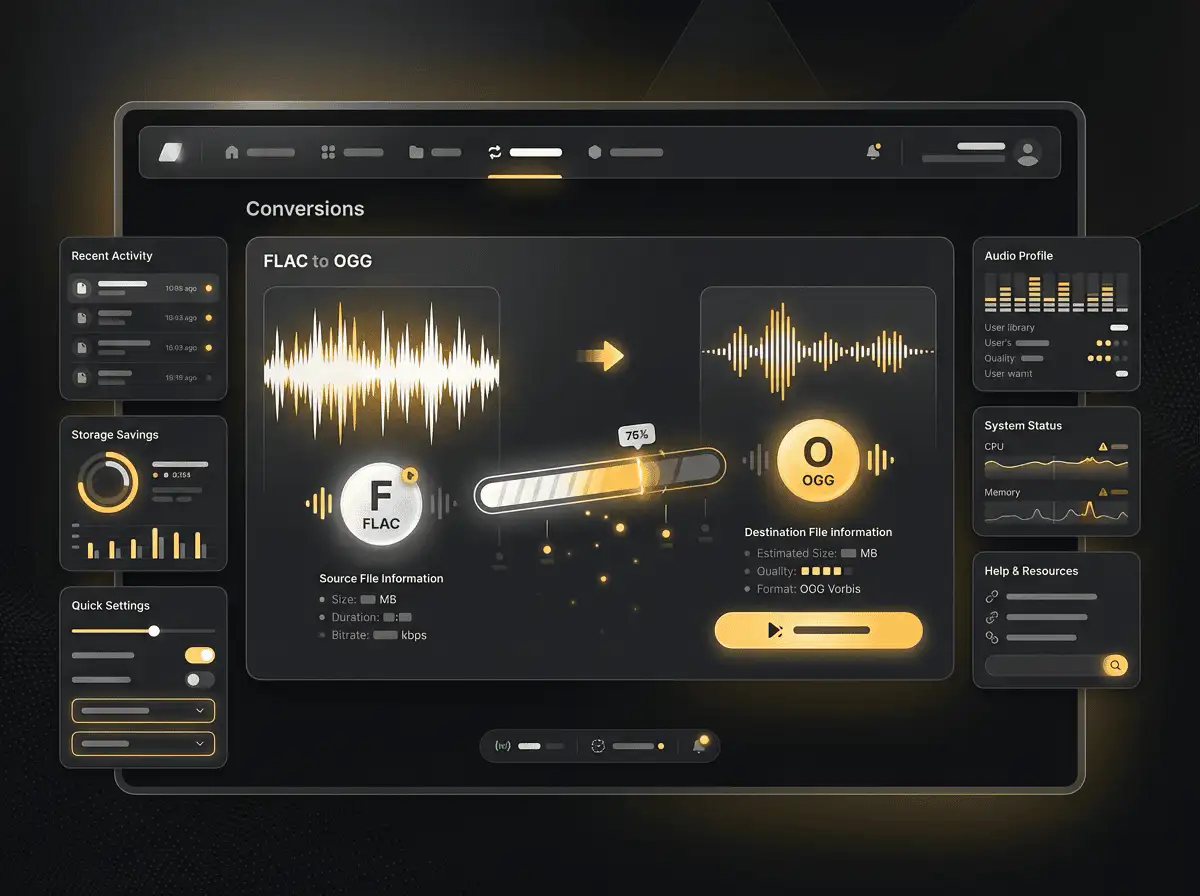
Convert FLAC to OGG Quickly and Easily

Converting FLAC files to OGG format has never been easier. Whether you're looking to save storage space, improve compatibility, or optimize your audio library for streaming, understanding the conversion process is essential for anyone working with digital audio files.

Convert FLAC to OGG Quickly and Easily

What is FLAC and Why Convert to OGG?

FLAC (Free Lossless Audio Codec) is a popular audio format that compresses audio files without losing any quality. It's the go-to choice for audiophiles and music enthusiasts who want to preserve the original sound quality of their recordings. However, FLAC files can be quite large, typically ranging from 20-40 MB per song, which can quickly consume storage space on your devices.

OGG Vorbis, commonly referred to as OGG, is an open-source, lossy audio compression format that offers excellent sound quality at smaller file sizes. By converting FLAC to OGG, you can reduce file sizes by up to 80% while maintaining near-CD quality audio that's perfect for everyday listening, streaming, and portable device playback.

Key Differences Between FLAC and OGG

FLAC Format Characteristics:

  • Lossless compression preserves 100% of original audio quality
  • File sizes typically 50-70% of original uncompressed WAV files
  • Supports high-resolution audio up to 32-bit/192kHz
  • Ideal for archiving and professional audio work
  • Limited compatibility with older devices and streaming platforms

OGG Format Characteristics:

  • Lossy compression creates smaller file sizes
  • Excellent quality-to-size ratio at 128-256 kbps bitrates
  • Open-source and patent-free format
  • Wide compatibility across modern devices and platforms
  • Perfect for streaming, gaming, and portable audio players
What is FLAC and Why Convert to OGG?

How to Convert FLAC to OGG: Step-by-Step Guide

Converting your FLAC audio files to OGG format is straightforward when you follow these simple steps:

Method 1: Using Online FLAC to OGG Converters

Online converters offer the quickest way to convert FLAC to OGG without installing software:

  1. Select Your FLAC Files: Choose the FLAC audio files you want to convert from your device storage
  2. Upload to Converter: Drag and drop your files into the online converter interface
  3. Choose Output Settings: Select OGG as your output format and configure quality settings (128-320 kbps recommended)
  4. Start Conversion: Click the convert button and wait for the processing to complete
  5. Download OGG Files: Save the converted OGG files directly to your device

Most online converters support batch processing, allowing you to convert multiple FLAC files to OGG simultaneously, saving valuable time when working with large music libraries.

Method 2: Desktop Software Conversion

For users who frequently convert audio files or prefer working offline, desktop software offers more control and advanced features:

Popular Desktop Converters:

  • Audacity: Free, open-source audio editor with robust conversion capabilities
  • foobar2000: Lightweight audio player with excellent conversion tools
  • dBpoweramp: Professional-grade converter with extensive format support
  • FFmpeg: Command-line tool for advanced users seeking maximum control

Desktop Conversion Process:

  1. Install your preferred audio conversion software
  2. Import FLAC files into the program
  3. Select OGG Vorbis as the output format
  4. Configure bitrate and quality settings (192-256 kbps for optimal quality)
  5. Choose output directory for converted files
  6. Execute batch conversion for multiple files
  7. Verify converted OGG files play correctly

Method 3: Command-Line Conversion with FFmpeg

For tech-savvy users and those needing to automate conversions, FFmpeg provides powerful command-line options:

ffmpeg -i input.flac -c:a libvorbis -q:a 5 output.ogg

This command converts a FLAC file to OGG with quality level 5 (approximately 160 kbps), offering a good balance between file size and audio quality.

Batch Conversion Script:

for file in *.flac; do
    ffmpeg -i "$file" -c:a libvorbis -q:a 6 "${file%.flac}.ogg"
done
How to Convert FLAC to OGG: Step-by-Step Guide

Choosing the Right Bitrate for FLAC to OGG Conversion

Selecting the appropriate bitrate is crucial for balancing audio quality and file size when converting FLAC to OGG:

Bitrate Recommendations

128 kbps (Quality Level 4)

  • File size: 4-6 MB per song
  • Quality: Good for casual listening
  • Best for: Streaming over limited bandwidth, older portable devices
  • Trade-off: Noticeable quality loss on high-end audio equipment

160 kbps (Quality Level 5)

  • File size: 5-7 MB per song
  • Quality: Very good for most listeners
  • Best for: General purpose listening, mobile devices
  • Trade-off: Minimal quality loss for most music genres

192 kbps (Quality Level 6)

  • File size: 6-9 MB per song
  • Quality: Excellent, near-transparent to FLAC
  • Best for: High-quality music libraries, discerning listeners
  • Trade-off: Slightly larger files than lower bitrates

256 kbps (Quality Level 8)

  • File size: 8-12 MB per song
  • Quality: Virtually indistinguishable from FLAC for most content
  • Best for: Audiophile collections, professional use
  • Trade-off: Larger files with diminishing returns on quality improvement

320 kbps (Quality Level 10)

  • File size: 10-15 MB per song
  • Quality: Maximum OGG quality, extremely close to FLAC
  • Best for: Archival purposes when FLAC isn't supported
  • Trade-off: Files approach 50% of original FLAC size

For most users, a bitrate of 192-256 kbps (Quality Level 6-8) provides the optimal balance between file size reduction and audio quality preservation.

Benefits of Converting FLAC to OGG

Storage Space Optimization

Converting FLAC to OGG can free up significant storage space on your devices. A typical music library of 1000 FLAC songs (approximately 30 GB) can be reduced to just 6-10 GB when converted to OGG at 192 kbps, saving 20-24 GB of valuable storage space.

Improved Compatibility

While FLAC support has grown in recent years, OGG Vorbis offers broader compatibility across:

  • Gaming consoles and handheld gaming devices
  • Older smartphones and portable music players
  • Web browsers and streaming applications
  • Open-source media players and software
  • Linux-based systems and embedded devices

Faster Streaming and Transfer

Smaller OGG files stream more efficiently over internet connections and transfer faster between devices. This makes OGG ideal for:

  • Cloud music libraries with limited upload bandwidth
  • Streaming personal music collections over home networks
  • Syncing large music libraries to mobile devices
  • Sharing audio files via email or messaging apps
  • Uploading background music for videos and podcasts

Open-Source Advantages

OGG Vorbis is completely free and open-source, meaning:

  • No licensing fees or patent restrictions
  • Transparent codec development and improvements
  • Community-driven support and documentation
  • Freedom to use in commercial and personal projects
  • Future-proof format with ongoing development

Common Use Cases for FLAC to OGG Conversion

Personal Music Library Management

Music enthusiasts often maintain FLAC libraries on their home computers for archival purposes while converting to OGG for portable device playback. This approach preserves the original quality while enabling convenient listening on smartphones, tablets, and portable players with limited storage.

Gaming Audio Assets

Game developers frequently use OGG format for in-game audio due to its excellent compression, open-source nature, and seamless looping capabilities. Converting high-quality FLAC recordings to OGG ensures professional audio quality while keeping game file sizes manageable.

Podcast and Audio Content Distribution

Podcasters and content creators who record in lossless formats like FLAC often convert to OGG for distribution. The format's efficient compression reduces hosting costs and download times while maintaining broadcast-quality audio for listeners.

Web Audio Integration

Web developers prefer OGG for website background music and audio elements because of its superior compression compared to MP3 and excellent browser support. Converting FLAC masters to OGG creates web-optimized audio files that load quickly without sacrificing quality.

Streaming Service Preparation

Many independent streaming platforms and internet radio stations accept OGG uploads. Musicians and labels converting their FLAC masters to OGG can ensure optimal streaming quality while meeting platform file size requirements.

Quality Considerations When Converting FLAC to OGG

Understanding Lossy Compression

It's important to understand that converting from FLAC to OGG is a one-way process. FLAC is lossless, meaning it preserves all the original audio data, while OGG is lossy, meaning it permanently discards some audio information to achieve smaller file sizes. Once converted, you cannot recover the discarded data by converting back to FLAC.

Avoiding Quality Degradation

To maintain the best possible audio quality during conversion:

Keep Original FLAC Files: Always retain your original FLAC files as master copies for future conversions Avoid Re-encoding: Never convert OGG to another lossy format, as this compounds quality loss Use Higher Bitrates for Complex Audio: Classical music, jazz, and recordings with wide dynamic range benefit from 256+ kbps Test Before Batch Converting: Convert a few sample tracks first and listen critically before converting your entire library Use Quality-Based Encoding: Variable bitrate encoding (VBR) often produces better results than constant bitrate (CBR)

Genre-Specific Recommendations

Different music genres have varying complexity levels that affect optimal conversion settings:

Simple Genres (Pop, Electronic, Hip-Hop)

  • Recommended: 160-192 kbps
  • Characteristics: Limited dynamic range, compressed production
  • Quality impact: Minimal audible difference from FLAC

Complex Genres (Classical, Jazz, Progressive Rock)

  • Recommended: 224-256 kbps
  • Characteristics: Wide dynamic range, acoustic instruments, spatial information
  • Quality impact: Higher bitrates preserve subtle details and ambience

Vocal-Focused Content (Podcasts, Audiobooks, A Cappella)

  • Recommended: 128-160 kbps
  • Characteristics: Limited frequency range, voice-centric content
  • Quality impact: Lower bitrates sufficient for speech clarity

Troubleshooting Common Conversion Issues

Conversion Errors and File Corruption

If you encounter errors during FLAC to OGG conversion:

Verify Source Files: Ensure your FLAC files aren't corrupted by playing them in a media player before conversion Check File Permissions: Verify you have read access to source files and write access to the destination folder Update Software: Use the latest version of your conversion software for best compatibility Free Up Disk Space: Ensure adequate free space on your drive for temporary files and output Disable Antivirus Temporarily: Some security software may interfere with file conversion processes

Metadata and Tag Preservation

Converting FLAC to OGG should preserve important metadata like artist, album, track titles, and cover art:

Verify Tag Transfer: Check that album information transfers correctly after conversion Use Unicode Encoding: Ensure proper handling of special characters in artist names and titles Preserve Cover Art: Configure your converter to embed album artwork in OGG files Maintain Replay Gain: Transfer volume normalization data if your playback software supports it Keep Custom Tags: Preserve ratings, play counts, and custom metadata fields when possible

Audio Synchronization Issues

If converted OGG files have synchronization problems:

Check Sample Rate Conversion: Ensure sample rates match between source and destination (44.1kHz or 48kHz standard) Verify Channel Configuration: Confirm stereo/mono settings transfer correctly Disable Audio Effects: Turn off any real-time audio processing during conversion Use Recommended Encoders: Stick with proven encoders like libvorbis for reliable results

Advanced Conversion Techniques

Batch Processing Large Libraries

When converting extensive music collections from FLAC to OGG:

Organize Before Converting: Sort files into logical folders (by artist, album, genre) before starting Use Folder Structure Preservation: Configure converters to maintain your existing directory hierarchy Enable Multi-Threading: Utilize multiple CPU cores for faster batch processing Monitor Progress: Use software that provides detailed progress reporting and estimated completion times Verify After Conversion: Implement automated checks to ensure all files converted successfully

Automating Conversion Workflows

Power users can create automated workflows for FLAC to OGG conversion:

Watch Folder Scripts: Set up automated conversion when new FLAC files appear in designated folders Integration with Music Managers: Connect converters to iTunes, MusicBee, or other library management software Cloud Storage Automation: Automatically convert and sync OGG files to cloud services Scheduled Conversions: Run batch conversions during off-hours to minimize system impact

Quality Assurance Testing

Professional audio workflows should include quality verification:

ABX Testing: Conduct blind listening tests comparing FLAC originals with OGG conversions Waveform Analysis: Visually compare frequency spectrums to ensure proper encoding Peak Level Checking: Verify that dynamic range and peak levels transfer correctly Multiple Device Testing: Test converted files on various playback devices to ensure compatibility

Software Recommendations for FLAC to OGG Conversion

Best Free Converters

Audacity

  • Platform: Windows, Mac, Linux
  • Features: Full-featured audio editor with conversion capabilities
  • Pros: Completely free, open-source, extensive editing tools
  • Cons: Slightly slower conversion than dedicated tools
  • Best for: Users who also need audio editing features

foobar2000

  • Platform: Windows
  • Features: Lightweight audio player with powerful conversion tools
  • Pros: Fast, customizable, excellent format support
  • Cons: Windows-only, learning curve for advanced features
  • Best for: Windows users managing large music libraries

MediaHuman Audio Converter

  • Platform: Windows, Mac
  • Features: Simple drag-and-drop conversion interface
  • Pros: User-friendly, batch processing, iTunes integration
  • Cons: Limited advanced options in free version
  • Best for: Beginners wanting simple, reliable conversion

Best Premium Converters

dBpoweramp Music Converter

  • Platform: Windows, Mac
  • Price: $39 (one-time purchase)
  • Features: Professional codec support, batch conversion, metadata handling
  • Pros: Industry-standard quality, accurate ripping, extensive format support
  • Best for: Audiophiles and professionals requiring maximum quality

XLD (X Lossless Decoder)

  • Platform: Mac
  • Price: Free (donations accepted)
  • Features: Bit-perfect conversion, extensive format support
  • Pros: Highly accurate, supports cue sheets, excellent for Mac users
  • Best for: Mac users seeking professional-grade free conversion

Performance Optimization Tips

Speeding Up Conversion Process

To maximize conversion speed when processing large FLAC to OGG batches:

Enable Multi-Core Processing: Modern converters can utilize all available CPU cores Use SSD Storage: Convert files stored on solid-state drives for faster read/write speeds Close Background Applications: Free up system resources by closing unnecessary programs Adjust Process Priority: Increase converter process priority in Task Manager (Windows) or Activity Monitor (Mac) Disable Real-Time Scanning: Temporarily disable antivirus real-time protection during conversion

Managing System Resources

Balance conversion speed with system usability:

Limit Simultaneous Conversions: Process 4-8 files at once on typical systems to prevent slowdowns Monitor CPU Temperature: Ensure adequate cooling during intensive batch conversions Schedule Resource-Intensive Conversions: Run large batches overnight or during work hours Use Power-Efficient Settings: Balance conversion speed with laptop battery life when on-the-go

Legal and Copyright Considerations

Understanding Fair Use

Converting FLAC to OGG for personal use is generally legal when:

  • You own the original FLAC files (purchased or personally recorded)
  • Conversions are for personal listening and backup purposes
  • You don't distribute converted files to others
  • Files aren't from illegally downloaded sources

Respecting Artist Rights

Ethical audio conversion practices include:

  • Supporting artists by purchasing music legally
  • Not sharing converted files on peer-to-peer networks
  • Respecting DRM restrictions where applicable
  • Understanding regional copyright laws in your jurisdiction

Future of Audio Formats: FLAC, OGG, and Beyond

Emerging Audio Technologies

While FLAC and OGG remain popular, newer formats are emerging:

Opus: Successor to Vorbis, offering better quality at lower bitrates AAC: Widely supported alternative with efficiency comparable to OGG Hi-Res Lossless: Growing support for 24-bit/192kHz and higher resolutions Spatial Audio: Formats supporting 3D audio and object-based mixing

When to Choose FLAC vs. OGG

Keep FLAC For:

  • Archival master copies of music collections
  • Professional audio production and editing
  • High-fidelity listening on quality audio equipment
  • Future-proofing against format changes
  • Situations where storage space isn't a constraint

Convert to OGG For:

  • Portable device playback with limited storage
  • Streaming over bandwidth-limited connections
  • Gaming and interactive media integration
  • Web audio applications and streaming
  • Sharing audio files with size restrictions

Frequently Asked Questions About FLAC to OGG Conversion

Can I convert OGG back to FLAC?

While you can technically convert OGG files back to FLAC format, this won't restore lost audio data. The conversion from FLAC (lossless) to OGG (lossy) permanently discards audio information. Converting back to FLAC creates a larger file without improving quality. Always keep your original FLAC files as master copies.

What's the best quality setting for FLAC to OGG conversion?

For most listeners, quality level 6 (approximately 192 kbps) provides excellent results with significant file size reduction. Audiophiles may prefer quality level 8 (256 kbps) for near-transparent conversion. If storage space is critical, quality level 5 (160 kbps) still delivers very good quality for casual listening.

How much smaller are OGG files compared to FLAC?

OGG files are typically 70-85% smaller than FLAC files, depending on the bitrate chosen. A 30 MB FLAC file converts to approximately 6-9 MB at 192 kbps OGG, or 4-6 MB at 128 kbps. Higher OGG bitrates (256-320 kbps) produce files 50-60% smaller than FLAC.

Will converting FLAC to OGG reduce audio quality?

Yes, converting from lossless FLAC to lossy OGG reduces audio quality to some degree. However, at appropriate bitrates (192+ kbps), the difference is minimal and often imperceptible to most listeners on typical playback equipment. The quality reduction becomes more noticeable at lower bitrates (128 kbps and below) or on high-end audio systems.

Can I batch convert multiple FLAC files to OGG simultaneously?

Yes, most FLAC to OGG converters support batch processing, allowing you to convert entire music libraries in one operation. Simply select all desired files or folders, configure your output settings once, and the converter will process all files sequentially or in parallel depending on the software and your system's capabilities.

Which devices support OGG playback?

OGG is widely supported on modern devices including Android smartphones, Windows and Linux computers, most web browsers (Chrome, Firefox, Edge), gaming consoles (PlayStation, Xbox), and various portable media players. Apple devices (iPhone, iPad) require third-party apps like VLC for OGG playback, as native iOS support is limited.

Is OGG better than MP3?

OGG Vorbis generally provides better sound quality than MP3 at equivalent bitrates, especially at lower bitrates (128 kbps and below). OGG also has the advantage of being completely open-source and patent-free. However, MP3 enjoys wider device compatibility, particularly on older hardware and Apple devices.

How long does it take to convert FLAC to OGG?

Conversion time depends on your computer's processing power, the number of files, and software efficiency. A typical computer can convert 100 FLAC songs (approximately 3 GB) to OGG in 10-30 minutes. Multi-core processors and modern conversion software can process files even faster, with some systems converting in real-time or faster.

Do I need special software to convert FLAC to OGG?

While specialized conversion software offers the best features and quality, you have several options including free online converters (no installation required), free desktop applications (Audacity, foobar2000), and command-line tools (FFmpeg). Choose based on your technical comfort level and conversion volume.

Will album art and metadata transfer during conversion?

Most modern FLAC to OGG converters preserve embedded metadata including artist, album, track titles, year, genre, and album artwork. However, verify that your chosen converter supports metadata transfer and check a few converted files to ensure tags transferred correctly before batch converting your entire library.

Related Converters

Convert Your Files Now

Upload your file, choose your settings, and download the result. No software, no sign-ups, no fees.

Frequently Asked Questions