Audio & Video Converters
More tools in this category without leaving this page.
WAV to MP4: Complete Guide to Converting Audio Files to Video Format
Convert to
Understanding WAV and MP4 Formats
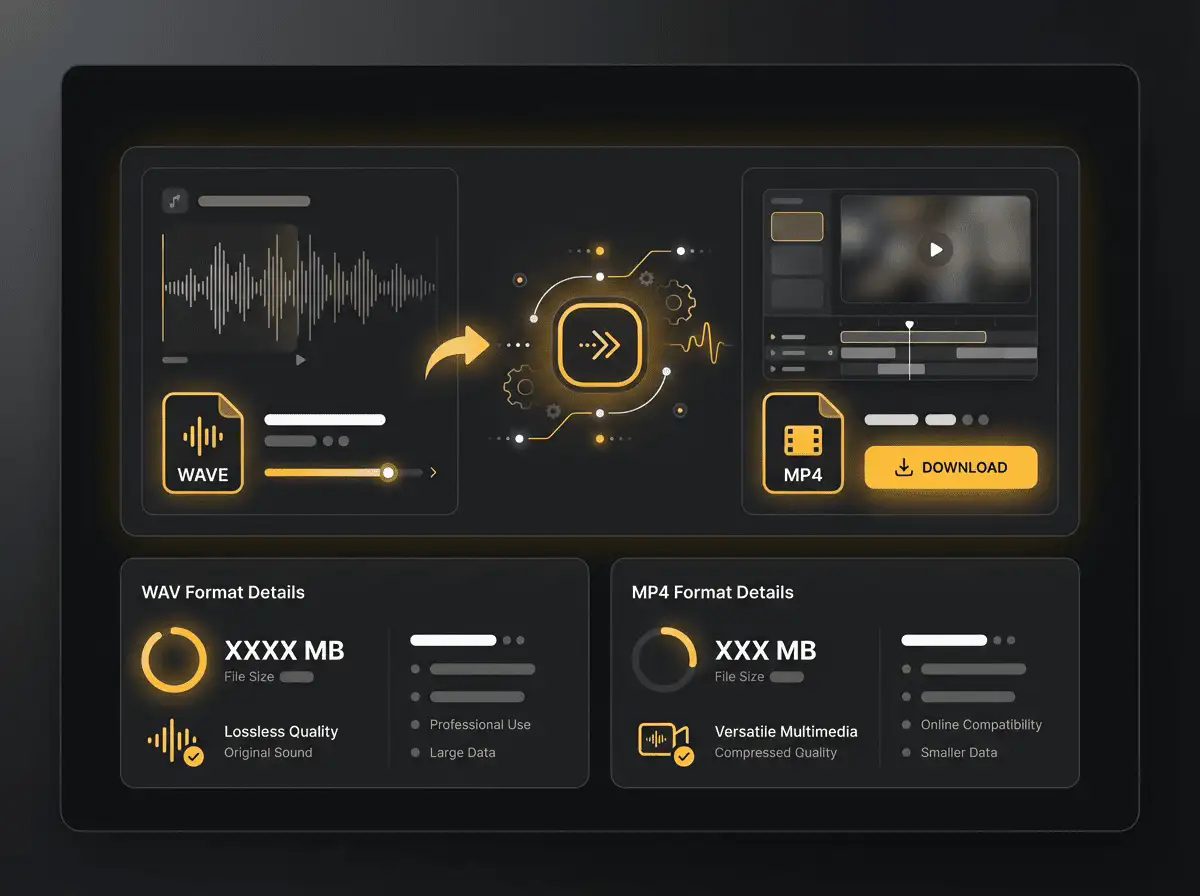
Before diving into the conversion process, it's important to understand the fundamental differences between WAV and MP4 formats and why conversion is necessary.
What is WAV Format?
WAV (Waveform Audio File Format) is an uncompressed audio format developed by IBM and Microsoft that stores audio in a lossless format, preserving the original sound quality with no data loss. This format is the gold standard in professional audio recording and editing because it retains all the original audio data.
Key characteristics of WAV files include:
- Lossless Quality: WAV files preserve 100% of the original audio data, making them ideal for professional audio production, music editing, and archival purposes
- Large File Size: Due to the lack of compression, WAV files tend to be large, averaging around 10 megabytes per minute of audio
- Professional Use: Commonly preferred in the music industry, sound engineering, and professional audio recording where audio quality is paramount
- Limited Compatibility: While most professional audio software supports WAV, not all consumer-grade media players and online platforms accept this format for direct uploads
What is MP4 Format?
MP4 is a versatile multimedia container format that can store both audio and video, along with subtitles and other multimedia elements. Unlike WAV, MP4 uses compression algorithms to reduce file size while maintaining acceptable quality.
Key characteristics of MP4 files include:
- Multimedia Support: Can contain video, audio, subtitles, images, and other data streams
- Compression: Uses lossy compression to create smaller file sizes, making them ideal for online sharing and streaming
- Wide Compatibility: Supported by virtually all hardware and software players, making it the most popular choice for content distribution across different platforms and devices
- Smaller File Size: Significantly smaller than WAV files due to compression, typically 10-20 times smaller for comparable content
Why Convert WAV to MP4?
The primary reason for converting WAV to MP4 is platform compatibility. Audio-only files like WAV cannot be directly uploaded to major video platforms such as YouTube, Instagram, TikTok, Facebook, and Twitter. These platforms require video format files, making MP4 the perfect solution.
Additional reasons include:
- Social Media Sharing: Video platforms require video format files, and MP4 is the universal standard
- Visual Enhancement: Adding images, waveforms, lyrics, or text animations to audio creates more engaging content
- Broader Reach: MP4 format ensures your content can be viewed on any device, from smartphones to smart TVs
- File Size Reduction: Converting to MP4 significantly reduces file size, making uploads and downloads faster
- Professional Presentation: Combining high-quality WAV audio with visual elements creates polished, professional content

How to Convert WAV to MP4: Step-by-Step Methods
Converting WAV files to MP4 format requires adding a visual component since MP4 is a video format. There are several methods available, ranging from simple online tools to professional desktop software.
Method 1: Using Online WAV to MP4 Converters
Online converters offer the fastest and most convenient way to convert WAV to MP4 without installing any software. These tools work directly in your browser and typically provide free basic conversions.
Top Online WAV to MP4 Converters
1. FreeConvert.com
FreeConvert is a powerful online converter that supports batch conversion and advanced settings.
How to use FreeConvert:
- Visit FreeConvert.com and navigate to the WAV to MP4 converter
- Upload your WAV file (maximum file size is 1GB for free users)
- Choose your desired output settings, including resolution and quality
- Select or upload an image to serve as the video background
- Click the "Convert" button
- Download your converted MP4 file once processing is complete
Benefits: Free, secure, batch conversion support, works on any browser, no registration required
2. Restream WAV to MP4 Converter
Restream offers a straightforward converter with minimal steps and 100% free access.
How to use Restream:
- Go to Restream's WAV to MP4 converter tool
- Upload your WAV audio file
- The tool automatically processes your file
- Add a static image or choose from default backgrounds
- Download your MP4 video file
Benefits: Simple interface, fast conversion, completely free, no software installation needed
3. Flixier
Flixier stands out by offering enhanced visual editing capabilities during conversion.
How to use Flixier:
- Access Flixier's WAV to MP4 converter from any device
- Drag and drop your WAV file into the browser interface
- Add images, video clips, text overlays, or lyric animations from the editor
- Customize your video with transitions, effects, and waveform visualizations
- Export your file as MP4
Benefits: No installation required, works on any device with internet access, advanced editing features, create engaging multimedia content
4. Kapwing
Kapwing provides a comprehensive multimedia editor with WAV to MP4 conversion capabilities.
How to use Kapwing:
- Navigate to Kapwing's convert WAV to MP4 tool
- Upload your .wav audio file
- Add an image, video background, or choose from stock media
- Optionally add text, subtitles, or visual effects
- Click "Export Project" in the top right corner
- Select MP4 format and download your file
Benefits: No account required for basic use, fast processing, intuitive interface, additional editing tools available
5. Clideo
Clideo offers a simple, straightforward conversion process that works on all devices.
How to use Clideo:
- Open Clideo's WAV to MP4 converter in your browser
- Click "Choose File" and upload your WAV audio
- Select an image to accompany your audio or choose a solid color background
- Adjust settings like aspect ratio and resolution
- Click "Convert" and wait for processing to complete
- Download your MP4 video file
Benefits: Works on any device, no app downloads needed, supports various file formats, free basic conversion
6. Descript
Descript provides non-destructive video conversion with additional editing and transcription features.
How to use Descript:
- Sign up for a free Descript account
- Upload your WAV file to the platform
- Add visual elements like images or video clips
- Use advanced features like automatic transcription or text-based editing
- Export your project as MP4
Benefits: Keeps original WAV files intact, offers transcription services, advanced editing capabilities, professional-grade features
Method 2: Desktop Software for WAV to MP4 Conversion
Desktop software typically offers more control, better quality settings, and advanced editing features compared to online tools. These applications are ideal for users who regularly convert files or need professional-grade results.
Windows Solutions
1. EaseUS Video Editor
EaseUS Video Editor is a comprehensive video editing tool with robust audio-to-video conversion capabilities.
How to use EaseUS Video Editor:
- Download and install EaseUS Video Editor from the official website
- Launch the software and create a new project
- Click "Import" and select your WAV audio file
- Import one or more images to use as video backgrounds
- Right-click the image and audio files in the media library
- Drag and drop them to the timeline in sequence
- Adjust timing and transitions as needed
- Click "Export" and select MP4 as the output format
- Choose your quality settings and export location
- Click "Export" to start the conversion process
Benefits: Feature-rich editor, supports all audio formats, batch processing, no watermark on exported videos, professional editing tools
2. VideoProc Vlogger
VideoProc Vlogger is a free, powerful video editor that excels at combining images with audio.
How to use VideoProc Vlogger:
- Download and install VideoProc Vlogger (free)
- Open the application and start a new project
- Import your WAV audio file and desired images
- Add images to the video track and audio to the audio track on the timeline
- Adjust the duration of images to match your audio length
- Apply effects, transitions, or text overlays as desired
- Export your project as MP4 with customized quality settings
Benefits: Completely free, powerful editing capabilities, intuitive interface, high-quality output, no watermarks
3. Movavi Video Converter
Movavi Video Converter is a versatile conversion tool supporting over 180 media formats.
How to use Movavi Video Converter:
- Download and install Movavi Video Converter for Windows
- Launch the program and click "Add Media" then "Add Audio"
- Select your WAV file from your computer
- Click "Add Media" again and select "Add Image"
- Choose an image to accompany your audio
- Select MP4 from the format list at the bottom
- Choose your quality preset (HD, Full HD, 4K, etc.)
- Click "Convert" and wait for the process to complete
Benefits: Supports 180+ formats, fast conversion speeds, high-quality output, user-friendly interface, batch conversion support
Mac Solutions
1. iMovie
iMovie is Apple's free video editing software, pre-installed on all Mac computers.
How to use iMovie:
- Open iMovie on your Mac
- Create a new project or open an existing one
- Click "Import Media" from the menu
- Select your WAV audio file and one or more images
- Drag the image to the timeline first
- Drag the WAV audio file to the audio track below the video track
- Adjust the image duration to match the audio length
- If your picture doesn't fit the frame, click the crop icon and select "Fit"
- Add transitions, text, or effects as desired
- Click "File" > "Share" > "File" and select MP4 as the format
- Choose your quality settings and export location
- Click "Next" to export your MP4 video
Benefits: Free with macOS, intuitive interface, professional features, seamless integration with Apple ecosystem, high-quality exports
2. Final Cut Pro
Final Cut Pro is Apple's professional-grade video editing software.
How to use Final Cut Pro:
- Open Final Cut Pro and create a new library and project
- Import your WAV audio file and images
- Add images to the primary storyline on the timeline
- Add your WAV audio to the audio track
- Adjust timing, apply effects, and customize as needed
- Select "File" > "Share" > "Master File"
- Choose MP4 as the output format with desired settings
- Click "Next" and select your save location
- Click "Save" to begin the export process
Benefits: Professional-grade features, advanced audio editing, high-quality output, extensive effects library, industry-standard tool
3. Adobe Premiere Pro
Adobe Premiere Pro is an industry-standard video editing application available for both Windows and Mac.
How to use Adobe Premiere Pro:
- Launch Premiere Pro and create a new project
- Import your WAV file and images via "File" > "Import"
- Drag your image to the video track on the timeline
- Drag your WAV audio to the audio track
- Extend the image duration to match the audio length
- Add effects, text, or animations as desired
- Go to "File" > "Export" > "Media"
- Select MP4 (H.264) as the format
- Choose your quality preset or customize settings
- Click "Export" to generate your MP4 file
Benefits: Industry standard, extensive features, cross-platform compatibility, integration with Adobe Creative Cloud, professional results
Method 3: Using VLC Media Player
VLC Media Player is a free, open-source media player with powerful conversion capabilities.
How to convert WAV to MP4 using VLC:
- Download and install VLC Media Player (free)
- Open VLC and click "Media" > "Convert/Save"
- Click "Add" and select your WAV audio file
- Click "Convert/Save" at the bottom
- In the "Profile" dropdown, select "Video - H.264 + MP3 (MP4)"
- Click the wrench icon to customize settings if needed
- Click "Browse" to choose your destination file and name it with .mp4 extension
- Click "Start" to begin the conversion
Note: VLC will create an MP4 with a blank black screen since WAV files contain no visual data. For adding custom images, use one of the other methods described above.
Benefits: Completely free, open-source, no ads, cross-platform, supports numerous formats, lightweight

Advanced Techniques for WAV to MP4 Conversion
For users who want to create more engaging and professional-looking videos, these advanced techniques can significantly enhance your audio-to-video conversions.
Adding Waveform Visualizations
Waveform visualizations create dynamic, moving graphics that respond to your audio, making static videos more engaging.
How to add waveform visualizations:
- Use tools like Kapwing, Flixier, or Adobe Premiere Pro
- Upload your WAV file and add it to the timeline
- Select "Add Waveform" or "Audio Visualization" from the effects menu
- Customize the waveform style, color, and animation
- Position the waveform over your background image or video
- Export as MP4
Benefits: Creates visual interest, professional appearance, helps viewers "see" the audio, perfect for music and podcasts
Creating Lyric Videos
Lyric videos are popular for music content and can significantly increase engagement on platforms like YouTube.
How to create lyric videos from WAV files:
- Use tools like Kapwing, Flixier, or video editing software
- Import your WAV audio file
- Add a background image or video
- Use the text tool to add lyrics synchronized with the audio
- Customize font, color, size, and animation effects
- Time each lyric line to appear at the correct moment
- Export as MP4
Benefits: Increases viewer engagement, helps with SEO, provides value to listeners, shareable content
Adding Image Slideshows
Creating slideshows with multiple images synchronized to your audio creates more dynamic content.
How to create image slideshows:
- Use iMovie, VideoProc Vlogger, or similar editing software
- Import your WAV audio file and multiple images
- Add images to the timeline in sequence
- Adjust the duration of each image to match sections of your audio
- Add transitions between images (fade, slide, dissolve, etc.)
- Synchronize image changes with audio beats or sections
- Export as MP4
Benefits: More engaging than static images, tells a visual story, professional appearance, versatile for various content types
Adding Subtitles and Captions
Subtitles make your content accessible and can improve engagement, especially on mobile devices where many users watch without sound.
How to add subtitles:
- Use Descript, Kapwing, or Adobe Premiere Pro
- Upload your WAV file
- Use automatic transcription features (if available) or manually add text
- Synchronize captions with the audio
- Customize caption style, position, and timing
- Export as MP4 with embedded or burned-in subtitles
Benefits: Improves accessibility, increases engagement, better SEO, reaches viewers in sound-off environments

Best Practices for WAV to MP4 Conversion
To ensure the best results when converting your WAV files to MP4, follow these professional best practices:
1. Choose the Right Image Resolution
Match your image resolution to your target platform:
- YouTube: 1920x1080 (Full HD) or 3840x2160 (4K)
- Instagram Feed: 1080x1080 (square) or 1080x1350 (portrait)
- Instagram Stories/Reels: 1080x1920 (9:16 vertical)
- TikTok: 1080x1920 (9:16 vertical)
- Facebook: 1280x720 (HD) or 1920x1080 (Full HD)
- Twitter: 1280x720 (HD) or 1920x1080 (Full HD)
Using the correct resolution ensures your video looks professional and avoids cropping or quality loss.
2. Optimize Audio Settings
Even though MP4 uses compression, you can maintain high audio quality:
- Bitrate: Use at least 192 kbps for music, 128 kbps for speech
- Sample Rate: Maintain 44.1 kHz or 48 kHz for best quality
- Audio Codec: Use AAC for better compression and quality balance
- Channels: Keep stereo (2 channels) for music, mono is acceptable for podcasts
3. Consider File Size vs. Quality
Balance file size with quality based on your needs:
- High Quality: H.264 codec, 8-10 Mbps video bitrate, 256 kbps audio
- Medium Quality: H.264 codec, 4-6 Mbps video bitrate, 192 kbps audio
- Compressed: H.264 codec, 2-3 Mbps video bitrate, 128 kbps audio
For online sharing, medium quality typically provides the best balance.
4. Use High-Quality Images
Your video is only as good as its visual components:
- Use high-resolution images (at least 1920x1080)
- Ensure images are properly licensed or original
- Avoid pixelated or low-quality images
- Use relevant, engaging visuals that complement your audio
- Consider creating custom graphics or album artwork
5. Test on Target Platforms
Before publishing, test your converted MP4 file:
- Upload to your target platform and preview
- Check audio quality and synchronization
- Verify visual elements display correctly
- Test on both desktop and mobile devices
- Ensure all text is readable at different screen sizes
6. Maintain Proper Aspect Ratios
Different platforms favor different aspect ratios:
- 16:9 (Landscape): YouTube, Facebook, Twitter (standard)
- 1:1 (Square): Instagram feed, Facebook feed
- 9:16 (Vertical): Instagram Stories, TikTok, YouTube Shorts, Reels
- 4:5 (Portrait): Instagram feed (alternative)
Choose the aspect ratio based on where you'll publish the content.
Common Use Cases for WAV to MP4 Conversion
Understanding when and why to convert WAV to MP4 can help you leverage this process effectively.
1. Music Distribution on YouTube
Musicians and audio artists commonly need to convert WAV recordings to MP4 for YouTube distribution.
Why it's important:
- YouTube doesn't accept pure audio file uploads
- Video format is required even for audio-only content
- Visual elements (album art, lyrics) increase engagement
- YouTube is the second-largest search engine, crucial for music discovery
Best practices:
- Use high-quality album artwork or music-related imagery
- Add song title, artist name, and lyrics as text overlays
- Include waveform visualizations for added interest
- Create consistent branding across all videos
2. Podcast Episodes for Social Media
Podcasters convert WAV recordings to MP4 to share clips or full episodes on video platforms.
Why it's important:
- Video platforms have larger audiences than audio-only platforms
- Visual content increases discoverability and engagement
- Clips can be shared on Instagram, TikTok, and YouTube Shorts
- Audiograms (audio with waveforms) perform well on social media
Best practices:
- Add podcast artwork or branded backgrounds
- Include episode title and guest information
- Use waveform visualizations or animated subtitles
- Create shorter clips (30-90 seconds) for social sharing
3. Educational Audio Content
Teachers, trainers, and course creators convert audio lessons to video format.
Why it's important:
- Students prefer video content on learning platforms
- Visual aids enhance comprehension and retention
- Video format enables hosting on YouTube, Vimeo, and LMS platforms
- Captions improve accessibility for all learners
Best practices:
- Add relevant images, diagrams, or slides
- Include synchronized subtitles or transcripts
- Use chapter markers for easy navigation
- Brand videos with course or institution logos
4. Audiobook Samples and Previews
Authors and publishers create video versions of audiobook samples for marketing.
Why it's important:
- Video previews can be shared on YouTube, Instagram, and Facebook
- Visual elements attract more attention than audio-only posts
- Book covers and author information provide context
- Increases discoverability through video search
Best practices:
- Feature the book cover prominently
- Add author name, book title, and narrator information
- Include purchase links in video description
- Keep samples 2-5 minutes for optimal engagement
5. Voice-Over and Narration Projects
Voice actors and narrators convert WAV recordings for portfolio and demo purposes.
Why it's important:
- Video format showcases work more professionally
- Easier to share on professional networking sites
- Demonstrates versatility with different project types
- Creates more engaging portfolio pieces
Best practices:
- Add project-specific imagery or graphics
- Include context about the project type (commercial, documentary, etc.)
- Use professional branding and watermarks
- Organize demos by category or style
6. Live Performance Recordings
Musicians and performers convert live audio recordings to video for sharing.
Why it's important:
- Preserves and shares memorable performances
- Increases artist visibility and fan engagement
- Provides content for social media and websites
- Documents artistic evolution and achievements
Best practices:
- Use photos from the performance or venue
- Add performance date, venue, and setlist information
- Include credits for band members and collaborators
- Consider creating highlight reels or full performance videos
Troubleshooting Common WAV to MP4 Conversion Issues
Even with the best tools and practices, you may encounter issues during conversion. Here are solutions to common problems:
Issue 1: Audio and Video Out of Sync
Symptoms: The audio plays at a different speed than expected, or there's a delay between audio events and visual elements.
Solutions:
- Ensure your video frame rate matches standard rates (24, 25, 30, or 60 fps)
- Check that your audio sample rate is consistent (44.1 kHz or 48 kHz)
- Re-import files and ensure they're properly aligned on the timeline
- Use dedicated sync tools in professional editing software
- Export using recommended presets rather than custom settings
Issue 2: Poor Audio Quality After Conversion
Symptoms: Audio sounds compressed, muffled, or has artifacts after conversion to MP4.
Solutions:
- Increase the audio bitrate to at least 192 kbps for music
- Use AAC audio codec instead of MP3 for better quality
- Ensure you're not converting from WAV to MP4 multiple times (each conversion degrades quality)
- Check that your source WAV file is high quality
- Use lossless or high-quality export settings
Issue 3: Image Appears Stretched or Cropped
Symptoms: Your background image doesn't fit properly in the frame, appearing distorted or cut off.
Solutions:
- Match image aspect ratio to your target output (16:9, 1:1, 9:16, etc.)
- Use "Fit" or "Scale to Fit" options instead of "Fill" or "Crop to Fill"
- Resize images before importing using photo editing software
- Use editing tools to manually adjust image position and scale
- Create images specifically designed for your target aspect ratio
Issue 4: File Size Too Large
Symptoms: The exported MP4 file is too large to upload or share easily.
Solutions:
- Reduce video bitrate (try 4-6 Mbps for good quality)
- Use H.264 codec instead of H.265 (better compatibility, reasonable size)
- Lower the resolution if appropriate (1080p instead of 4K)
- Reduce audio bitrate to 128-192 kbps
- Use two-pass encoding for better compression
- Compress the final file using tools like HandBrake
Issue 5: Conversion Takes Too Long
Symptoms: The conversion process is extremely slow, taking much longer than expected.
Solutions:
- Use online tools for quick, single-file conversions
- Close other applications to free up system resources
- Use hardware acceleration features in desktop software
- Convert to a lower resolution or quality setting
- Update your software to the latest version
- Consider upgrading computer hardware (RAM, processor) for regular conversions
Issue 6: Exported Video Won't Play on Certain Devices
Symptoms: The MP4 file works on some devices but not others.
Solutions:
- Use H.264 codec (most universally compatible)
- Ensure audio codec is AAC
- Keep resolution at standard sizes (720p, 1080p, 4K)
- Use standard frame rates (24, 25, 30, or 60 fps)
- Export using platform-specific presets (YouTube, Instagram, etc.)
- Test files using VLC Media Player to identify codec issues
Related Converters
Convert MP3 files to WMA format. Free, fast, and no sign-up required.
Convert WAV audio files to MP3. Reduce file size without losing quality.
Convert AAC audio files to OGG format quickly and for free.
Convert AAC files to M4A format. Fast and free online converter.
Convert WMA audio to AIFF format. No sign-up required.
Convert OGG files to uncompressed WAV audio. Free and fast.
Convert AAC audio files to WMA format online for free.
Convert AAC to lossless FLAC format. Free online converter.
Convert FLAC lossless audio to M4A format. Free and fast.
Extract MP3 audio from MPEG files. Fast, free, no sign-up.
Convert FLAC audio files to WMA format online for free.
Convert M4A audio files to MP3. Wide device compatibility guaranteed.
Convert FLAC audio to OGG format. Free and no sign-up needed.
Convert OGG files to AIFF audio format. Free online converter.
Convert MP3 files to uncompressed WAV audio. No quality loss.
Convert OGG audio to MP3 for maximum device compatibility.
Convert MP3 files to AIFF audio format. Free and fast.
Convert AAC audio to uncompressed WAV. No sign-up required.
Convert OGG audio files to WMA format online for free.
Convert OGG files to M4A audio format. Fast, free, online.
Convert Your Files Now
Upload your file, choose your settings, and download the result. No software, no sign-ups, no fees.