Free AI Tools

Audio & Video Converters

More tools in this category without leaving this page.

All tools

MPEG to MP4 Converter: The Complete Guide to Converting Your Videos

Click to upload or drag and drop
MP4, AVI, MOV, FLV, MKV, WebM, 3GP, MPEG, GIF, WMV, TS (Max 500 MB)

Convert to

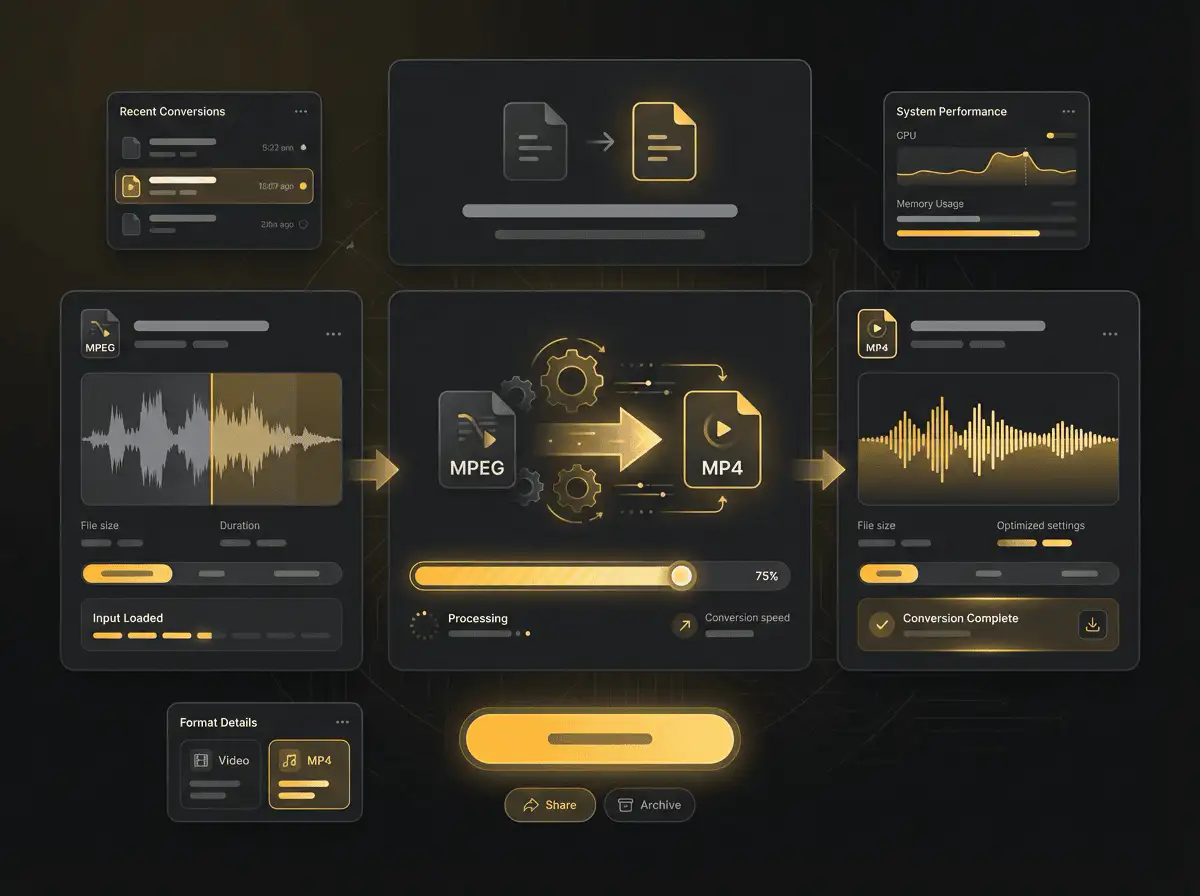
Convert MPEG to MP4 Quickly and Easily

Converting MPEG files to MP4 format has never been easier. Whether you're working with old video footage, archiving content, or preparing videos for modern devices, understanding how to convert MPEG to MP4 is essential for anyone working with digital video. This comprehensive guide will walk you through everything you need to know about MPEG to MP4 conversion, including the best methods, tools, and practices to ensure your videos look stunning in their new format.

Convert MPEG to MP4 Quickly and Easily

What is MPEG and Why Convert to MP4?

MPEG (Moving Picture Experts Group) is a family of video compression standards that have been around since the early 1990s. While MPEG formats like MPEG-1 and MPEG-2 were revolutionary in their time, they've largely been superseded by more modern formats. MP4, on the other hand, is the current standard for digital video, offering superior compression, quality, and compatibility across virtually all devices and platforms.

Understanding MPEG Format

MPEG files typically come in several varieties. MPEG-1 was designed for VCDs and early digital video, offering moderate quality at low bitrates. MPEG-2, used for DVDs and broadcast television, provides better quality but requires more storage space. Both formats were groundbreaking when introduced, but they lack the efficiency and compatibility of modern video containers.

The MPEG format uses a specific compression algorithm that, while effective for its time, doesn't match the efficiency of newer codecs. Files in MPEG format often have larger file sizes compared to MP4 files of equivalent quality. This means that converting MPEG to MP4 can significantly reduce file size while maintaining or even improving visual quality.

Why MP4 is the Superior Choice

MP4 has become the universal standard for digital video for several compelling reasons. First and foremost is compatibility. An MP4 file will play on virtually any device manufactured in the last decade, from smartphones and tablets to smart TVs and gaming consoles. This universal compatibility eliminates the frustration of format incompatibility that plagued earlier video formats.

Beyond compatibility, MP4 offers superior compression efficiency. Using advanced codecs like H.264 or H.265 (HEVC), MP4 files can maintain high visual quality while occupying significantly less storage space than equivalent MPEG files. This efficiency is crucial in today's world where we're constantly sharing videos online, streaming content, and managing storage across multiple devices.

MP4 also supports advanced features that MPEG formats don't handle as well. These include multiple audio tracks, subtitles, chapter markers, and metadata. For content creators, educators, and professionals, these features make MP4 the clear choice for modern video distribution.

What is MPEG and Why Convert to MP4?

The Benefits of Converting MPEG to MP4

Converting your MPEG files to MP4 format offers numerous practical advantages that go beyond simple compatibility. Understanding these benefits will help you appreciate why making the conversion is worth the effort.

Universal Device Compatibility

The single biggest advantage of converting MPEG to MP4 is universal playback compatibility. MP4 files work seamlessly on iOS devices like iPhones and iPads, Android phones and tablets, Windows PCs, Macs, Linux systems, smart TVs, streaming devices, and gaming consoles. This means you can convert your MPEG videos once and play them anywhere without worrying about format support.

For anyone managing a video library, this compatibility is invaluable. Instead of maintaining multiple versions of the same video in different formats, you can have a single MP4 version that works everywhere. This simplifies organization, reduces storage requirements, and eliminates the confusion of tracking which format works on which device.

Reduced File Size Without Quality Loss

Modern video codecs used in MP4 containers are remarkably efficient. When you convert MPEG to MP4 using codecs like H.264, you can often reduce file size by 40-60% or more while maintaining the same visual quality. This compression efficiency comes from more sophisticated algorithms that better eliminate redundant information without degrading the actual image.

Smaller file sizes have practical implications for everyone working with video. Videos load faster when streaming, take less time to upload and download, consume less bandwidth when sharing online, require less storage space on your devices, and are easier to backup and archive. For anyone working with large video libraries, these benefits compound significantly.

Better Streaming and Online Sharing

MP4 is optimized for streaming and progressive download, meaning videos can start playing before the entire file has downloaded. This makes MP4 the preferred format for online platforms. When you upload videos to YouTube, Facebook, Instagram, TikTok, or virtually any other social media or video platform, MP4 is either required or strongly preferred.

Converting MPEG to MP4 ensures your videos are ready for immediate upload to these platforms without requiring additional processing. Many platforms will automatically re-encode videos uploaded in other formats, which can degrade quality and take time. By converting to MP4 first, you maintain control over the encoding quality and ensure the best possible result.

Future-Proofing Your Video Library

Technology evolves rapidly, and video formats that were standard a decade ago may not be supported on future devices. MP4 has emerged as the dominant standard and is likely to remain compatible for the foreseeable future. By converting your MPEG files to MP4 now, you're future-proofing your video library and ensuring these memories and content remain accessible.

This is particularly important for archival footage, family videos, and professional content you want to preserve long-term. Rather than worrying about whether you'll be able to play MPEG files on devices manufactured ten years from now, converting to MP4 provides peace of mind that your videos will remain accessible.

The Benefits of Converting MPEG to MP4

How to Convert MPEG to MP4: Methods and Tools

There are several approaches to converting MPEG files to MP4 format, each with its own advantages depending on your specific needs, technical expertise, and the number of files you're converting.

Online MPEG to MP4 Converters

Online converters offer the simplest, most accessible way to convert MPEG to MP4. These web-based tools require no software installation and work directly in your browser. The process is straightforward: upload your MPEG file, select MP4 as the output format, choose your quality settings, and download the converted file.

The main advantage of online converters is convenience. You can use them from any device with a web browser, whether it's a Windows PC, Mac, Chromebook, or even a tablet. There's no software to install or update, and you can access the tool from anywhere with an internet connection.

However, online converters have limitations. Upload and download speeds depend on your internet connection, which can be slow for large files. There are often file size limits, typically ranging from 100MB to 2GB depending on the service. Privacy is another consideration since you're uploading your videos to a third-party server, which may not be ideal for sensitive or personal content.

When choosing an online converter, look for services that offer secure connections (HTTPS), don't require registration for basic conversions, clearly state their privacy policies, and don't add watermarks to converted videos. Many free online converters are ad-supported, which is acceptable as long as the ads aren't intrusive and the service remains functional.

Desktop Conversion Software

For regular video conversion or working with large files, desktop software provides more power and flexibility. Applications like HandBrake, VLC Media Player, FFmpeg, and various commercial converters offer extensive control over the conversion process.

Desktop software provides several advantages over online tools. There are no file size limits beyond your computer's storage capacity, conversion happens locally so there are no privacy concerns about uploading files, processing is typically faster since it uses your computer's full power, and you have extensive control over encoding settings for optimal quality.

Free, open-source options like HandBrake and VLC are excellent choices for most users. HandBrake, in particular, is widely regarded as one of the best free video converters available. It offers presets for different devices and use cases, making it easy for beginners while providing advanced options for experienced users who want fine-grained control over encoding parameters.

To convert MPEG to MP4 using HandBrake, download and install the application, open your MPEG file, select an MP4 preset or customize your settings, choose your output location, and start the conversion. The software provides real-time feedback on encoding speed and estimated completion time, and the resulting MP4 file will be optimized for quality and compatibility.

Command-Line Tools for Advanced Users

For users comfortable with command-line interfaces, FFmpeg is the most powerful and flexible tool for video conversion. FFmpeg is the underlying engine that powers many video converters, both online and desktop. Using it directly provides maximum control and is ideal for batch processing multiple files.

A basic FFmpeg command to convert MPEG to MP4 looks like this: ffmpeg -i input.mpg -c:v libx264 -c:a aac -strict experimental output.mp4. This command takes the input MPEG file, encodes the video using the H.264 codec, encodes the audio using AAC, and outputs an MP4 file.

FFmpeg's power comes from its extensive options. You can control bitrate, resolution, frame rate, codec settings, and virtually every other aspect of the video. For batch conversion, you can create scripts that automatically process entire folders of MPEG files, applying consistent settings to all of them.

While FFmpeg has a learning curve, it's invaluable for anyone regularly working with video conversion, especially professionals managing large video libraries or automating video processing workflows.

Mobile Apps for On-the-Go Conversion

Smartphones and tablets can also handle MPEG to MP4 conversion through dedicated apps. While mobile devices are less powerful than computers, modern smartphones are surprisingly capable of video conversion for reasonable file sizes.

Mobile conversion apps are useful when you need to quickly convert a video while away from your computer, perhaps for immediate uploading to social media or sharing with others. Apps like Video Converter for Android or media converter apps on iOS can handle basic conversion tasks efficiently.

The limitations of mobile conversion are processing power and battery consumption. Converting large video files can drain your battery quickly and may take considerably longer than desktop conversion. Mobile apps also typically offer fewer advanced settings compared to desktop software.

Best Practices for MPEG to MP4 Conversion

Getting the best results when converting MPEG to MP4 requires understanding some key principles of video encoding and following best practices that ensure optimal quality and compatibility.

Choosing the Right Video Codec

MP4 is a container format, meaning it can hold video encoded with different codecs. The most common and recommended codec is H.264 (also known as AVC), which offers an excellent balance of quality, file size, and compatibility. H.264 is supported on virtually every device and platform, making it the safest choice for general-purpose video.

For even better compression efficiency, H.265 (HEVC) can reduce file sizes by 30-50% compared to H.264 at the same quality level. However, H.265 requires more processing power to encode and decode, and older devices may not support it. Use H.265 when file size is a primary concern and you know your target devices support it.

For most MPEG to MP4 conversions, H.264 remains the best choice. It provides excellent quality, universal compatibility, and efficient compression that significantly improves upon the original MPEG encoding.

Setting Appropriate Bitrate and Resolution

Bitrate determines the amount of data used per second of video and directly affects both quality and file size. Higher bitrates mean better quality but larger files. When converting MPEG to MP4, you need to balance quality against file size based on your intended use.

For 1080p video, a bitrate of 5-8 Mbps typically provides excellent quality for most content. For 720p video, 3-5 Mbps is usually sufficient. For standard definition content, 1-2 Mbps works well. These are starting points; action-heavy content with lots of motion may benefit from higher bitrates, while static content like presentations can use lower bitrates without noticeable quality loss.

Regarding resolution, maintain the source resolution unless you have a specific reason to change it. If your MPEG file is 720p, keep the MP4 output at 720p. Upscaling lower-resolution video to higher resolution doesn't improve quality and only increases file size. Downscaling can reduce file size but obviously reduces quality as well.

Audio Settings for Optimal Results

Don't overlook audio quality when converting MPEG to MP4. The AAC audio codec is the standard for MP4 files and offers superior quality to older audio formats at the same bitrate. For most content, an audio bitrate of 128-192 kbps provides excellent quality that's indistinguishable from higher bitrates for typical listening conditions.

Stereo audio is standard for most content, but if your source has surround sound and you want to preserve it, ensure your conversion settings maintain the multichannel audio. Most conversion tools allow you to specify audio channels, sample rate, and bitrate independently.

Handling Aspect Ratio and Cropping

MPEG files may have different aspect ratios than modern content. Older MPEG-1 and MPEG-2 files might be 4:3 (traditional television format), while modern displays and devices expect 16:9 (widescreen). When converting, you have options: maintain the original aspect ratio with letterboxing or pillarboxing, crop to fit a different aspect ratio (which cuts off parts of the image), or stretch the video (which distorts the image).

The best approach is usually to maintain the original aspect ratio. Modern players and devices will automatically add black bars as needed to display the video correctly. Stretching video to fit a different aspect ratio creates obvious distortion that's visually unappealing.

Batch Processing Multiple Files

If you have many MPEG files to convert, batch processing saves enormous time. Most desktop conversion tools support batch processing, allowing you to queue up multiple files and convert them all with the same settings.

When batch processing, create a consistent organizational system. Use clear naming conventions for output files, organize converted files into dedicated folders, keep source files in a separate location, and maintain a log of conversion settings used for future reference. This organization becomes increasingly important as your video library grows.

Common Issues and Troubleshooting

Even with the best tools and practices, you may encounter issues when converting MPEG to MP4. Understanding common problems and their solutions helps ensure smooth conversion.

Quality Loss During Conversion

If your converted MP4 videos look noticeably worse than the MPEG originals, you're likely using bitrate settings that are too low. Remember that you're re-encoding the video, which is a lossy process. To minimize quality loss, use bitrates that match or exceed the original file's bitrate, avoid converting the same file multiple times, and use high-quality presets in your conversion software.

Some quality loss is inevitable when re-encoding, but it should be minimal and not noticeable during normal viewing. If you see obvious compression artifacts, blocking, or blurriness, increase your bitrate settings and reconvert.

Audio Sync Issues

Occasionally, converted videos may have audio that's out of sync with the video. This frustrating issue typically stems from frame rate mismatches or improper handling of variable frame rate content. To fix audio sync problems, ensure your conversion settings match the source video's frame rate, try using a constant frame rate rather than variable frame rate, and use a different audio codec or bitrate.

If audio sync issues persist, tools like HandBrake have specific settings for audio delay/offset that can manually adjust timing.

Large File Sizes

If your converted MP4 files are larger than expected or even larger than the original MPEG files, you're likely using settings that are too high or not taking advantage of modern compression. Ensure you're using H.264 or H.265 codecs, not older codecs, adjust your bitrate to appropriate levels for the resolution, enable advanced encoding options like two-pass encoding for better efficiency, and verify you're actually creating MP4 files and not accidentally using a different container.

Conversion Takes Too Long

Video conversion is processor-intensive and can take time, especially for long videos or high-resolution content. However, if conversion seems abnormally slow, you can speed things up by using hardware acceleration if your computer and software support it, closing other applications to free up system resources, using faster presets that sacrifice some compression efficiency for speed, and ensuring your computer isn't overheating or thermal throttling.

As a rough benchmark, converting a one-hour MPEG video to MP4 on a modern computer should take anywhere from 10 minutes to an hour depending on the complexity of the encoding settings and your hardware capabilities.

MPEG to MP4 for Different Use Cases

Different scenarios require different approaches to MPEG to MP4 conversion. Understanding your specific use case helps you choose the right settings and achieve optimal results.

Archiving Old Video Footage

If you're digitizing and preserving old MPEG video files from VCDs, DVDs, or camcorders, quality preservation is your primary concern. Use high bitrates to maintain quality, preserve the original resolution rather than upscaling, keep the original aspect ratio, and consider using H.265 for better compression while maintaining quality. Create multiple backups of your converted files, as digital preservation requires redundancy.

For archival purposes, storage space is less critical than ensuring the best possible quality for future viewing. You can always create smaller, compressed versions later for everyday use while maintaining high-quality archives.

Preparing Videos for Social Media

Social media platforms have specific requirements and recommendations for video uploads. While most platforms accept various formats and resolutions, providing optimized MP4 files ensures the best quality and fastest processing. Use H.264 codec for maximum compatibility, match the aspect ratio to the platform (9:16 for Instagram Stories and TikTok, 16:9 for YouTube, 1:1 for Instagram feed posts), and stay within recommended file size limits.

Each platform has specific guidelines, but converting to MP4 with standard H.264 encoding ensures your videos will be accepted and processed quickly. Many platforms re-encode uploaded videos anyway, but providing properly formatted MP4 files minimizes quality loss during that re-encoding.

Educational and Business Content

For webinars, training videos, presentations, and corporate content, balance quality with file size for easy distribution. These videos often contain text or detailed graphics that require adequate bitrate to remain clear and readable. Use moderate to high bitrates to ensure text clarity, maintain high audio quality since clear speech is crucial, and consider adding chapter markers or metadata in the MP4 file for easy navigation.

Business content is often distributed through learning management systems, email, or shared drives, so reasonable file sizes help with delivery while maintaining professional quality.

Personal Video Collections

Converting personal MPEG videos from family events, vacations, or special occasions requires balancing quality, storage, and ease of sharing. Most people want good quality that looks great on modern TVs and devices without consuming excessive storage space. Standard H.264 encoding at moderate bitrates typically provides excellent results for personal content, preserving memories while keeping file sizes manageable.

Understanding Video Metadata and Subtitles

MP4 files can contain much more than just video and audio. Metadata and subtitles add functionality and improve the viewing experience, especially for professional or educational content.

Adding and Preserving Metadata

Metadata includes information like title, artist, description, creation date, and copyright information. When converting MPEG to MP4, some tools preserve existing metadata while others strip it out. If metadata is important for your content organization, use conversion tools that preserve and allow editing of metadata.

Proper metadata makes videos easier to organize, search, and catalog, especially in large libraries. Media management applications and smart TVs use metadata to display information about your videos, making your library more navigable and professional.

Including Subtitles and Captions

MP4 supports embedded subtitles, which is valuable for accessibility, multilingual content, and improved engagement. Research shows that videos with subtitles have higher engagement rates and are more accessible to deaf and hard-of-hearing viewers, people watching without audio, and non-native speakers.

When converting MPEG to MP4, you can add subtitle tracks if your conversion software supports it. Tools like HandBrake allow you to embed SRT subtitle files directly into the MP4 container, making them available for viewers who need or want them.

The Technical Side: Understanding Codecs and Containers

For those wanting deeper understanding, it's worth clarifying the relationship between codecs, containers, and how they work together in video files.

Containers vs. Codecs

A common point of confusion is the difference between a container and a codec. MP4 is a container format, like a box that holds different contents. The codec is what's actually used to compress the video and audio data inside that container. When you convert MPEG to MP4, you're changing both the container and typically the codec.

MPEG files use older compression methods (MPEG-1 or MPEG-2 codecs), while MP4 files typically use modern codecs like H.264 or H.265. The combination of the MP4 container with these efficient modern codecs is what makes MP4 files smaller and more compatible than MPEG files.

How Video Compression Works

Video compression works by eliminating redundant information. In a typical video, most of the image doesn't change significantly from one frame to the next. Modern codecs identify these similarities and only store the differences, dramatically reducing file size. This is why video files are much smaller than storing each frame as an individual image would be.

The codec also reduces information within each frame by analyzing which details the human eye is most likely to notice and prioritizing quality in those areas while applying more compression to less noticeable areas. This perceptual encoding is why well-encoded video can look excellent despite being compressed to a fraction of its raw size.

Lossless vs. Lossy Compression

Most practical video compression, including both MPEG and MP4 with H.264/H.265, uses lossy compression. This means some original information is permanently discarded to achieve smaller file sizes. The trade-off is that you can't perfectly reconstruct the original from the compressed version.

However, with appropriate settings, lossy compression can reduce file sizes by 90% or more while maintaining quality that's visually indistinguishable from the original to most viewers. This is why lossy compression dominates video delivery despite being technically "lossy."

Security and Privacy Considerations

When converting videos, especially personal or sensitive content, security and privacy deserve attention.

Using Online Converters Safely

If using online converters, understand that you're uploading your videos to a third-party server. Read the service's privacy policy to understand how they handle uploaded files, look for services that delete files shortly after conversion, use HTTPS connections to ensure encrypted uploads, and avoid uploading sensitive or private content to free online services.

For truly sensitive content, desktop software that converts locally on your computer is the safer choice, as your files never leave your control.

Protecting Original Files

When converting video files, maintain proper backups. Never delete original MPEG files until you've verified the converted MP4 files play correctly and meet your quality expectations. Consider maintaining both formats, at least temporarily, to ensure you don't lose content due to conversion issues or corrupted files.

A good practice is keeping original files in archival storage (external drives or cloud backup) while using converted MP4 files for everyday access and sharing.

The Future of Video Formats

While MP4 and H.264 dominate today, video technology continues evolving. Understanding emerging trends helps future-proof your video library.

Next-Generation Codecs

H.265 (HEVC) already offers significant improvements over H.264, and newer codecs like AV1 promise even better compression efficiency with free, open-source licensing. However, adoption takes time as devices, browsers, and platforms need to add support.

For now, H.264 in MP4 containers remains the safest choice for universal compatibility. As H.265 and AV1 support becomes more widespread, you may eventually want to re-encode your library to these formats, but that transition is still years away for most users.

Cloud-Based Video Management

Cloud storage and streaming services are changing how we store and access video. Services like Google Photos, iCloud, and dedicated media servers can automatically transcode videos to optimal formats for streaming to different devices.

Converting your MPEG files to MP4 now ensures compatibility with these cloud services, as MP4 is the standard format they expect and work with most efficiently.

Related Converters

Convert Your Files Now

Upload your file, choose your settings, and download the result. No software, no sign-ups, no fees.