Free AI Tools

Audio & Video Converters

More tools in this category without leaving this page.

All tools

MP4 to AVI Converter: Complete Guide to Video Format Conversion

Click to upload or drag and drop
MP4, AVI, MOV, FLV, MKV, WebM, 3GP, MPEG, GIF, WMV, TS (Max 500 MB)

Convert to

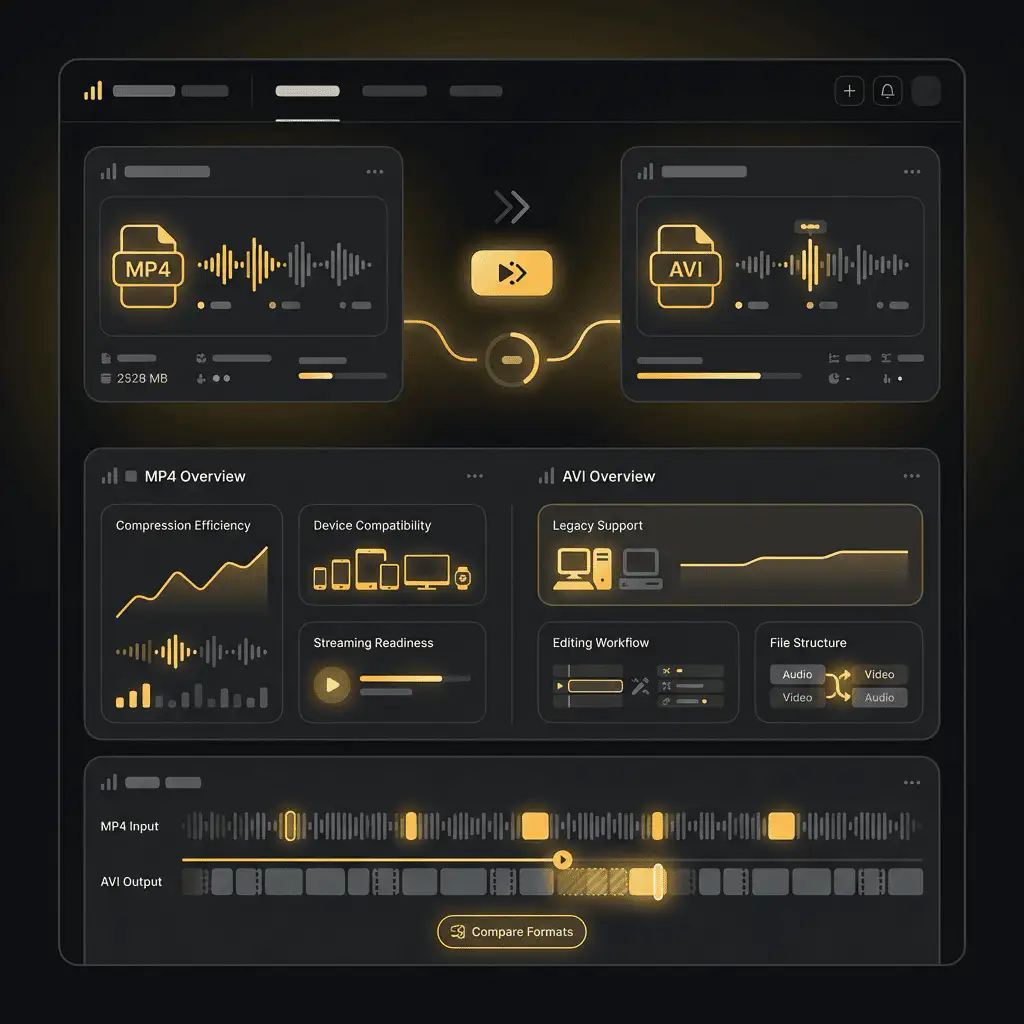
What is MP4 and AVI? Understanding Video Formats

Before diving into conversion methods, it's essential to understand what makes these video formats different and why you might need to convert between them.

MP4 Format Overview

MP4, or MPEG-4 Part 14, is currently the most popular video format worldwide. Developed by the Moving Picture Experts Group, MP4 has become the standard for online video streaming, mobile devices, and digital content distribution. The format uses advanced compression algorithms that maintain high video quality while keeping file sizes relatively small.

MP4 files are container formats that can hold video, audio, subtitles, and still images. They typically use H.264 or H.265 (HEVC) video codecs and AAC audio codecs, providing excellent quality-to-size ratios. This makes MP4 ideal for streaming platforms like YouTube, social media, and mobile playback.

The widespread adoption of MP4 stems from its versatility and broad compatibility. Nearly every modern device, from smartphones to smart TVs, supports MP4 playback without requiring additional software. However, some legacy systems and professional editing software still prefer or require AVI format.

AVI Format Overview

AVI, which stands for Audio Video Interleave, was introduced by Microsoft in 1992 as part of its Video for Windows technology. Despite being older than MP4, AVI remains widely used, particularly in professional video editing environments and on Windows-based systems.

AVI files are also container formats that can use various codecs for compression. Unlike MP4, AVI files often use less compression, resulting in larger file sizes but potentially higher quality, especially for professional editing workflows. Common codecs used in AVI include DivX, Xvid, and uncompressed formats.

One significant advantage of AVI is its compatibility with professional video editing software, particularly older versions of programs like Adobe Premiere, Sony Vegas, and various Windows-based editing tools. Many professional cameras and capture devices also output video in AVI format, making it a standard in production environments.

What is MP4 and AVI? Understanding Video Formats

Why Convert MP4 to AVI?

Understanding when and why to convert MP4 to AVI helps you make informed decisions about your video workflow. Here are the primary reasons users convert between these formats:

Compatibility with Legacy Software

Many established video editing programs, particularly older versions, were designed when AVI was the dominant format. While newer versions often support MP4, some legacy installations or specialized software still require AVI files for proper functionality. Converting MP4 to AVI ensures your content works seamlessly with these tools.

Professional editing suites like older versions of Adobe Premiere, Final Cut Pro (pre-X versions), and Avid Media Composer sometimes perform better with AVI files. The format's structure allows for frame-accurate editing and better scrubbing performance in timeline-based editing workflows.

Hardware Device Requirements

Certain hardware devices, including DVD players, digital video recorders, and older media players, may not support MP4 playback but work perfectly with AVI files. If you're creating content for distribution on physical media or for playback on specific devices, converting to AVI might be necessary.

Professional video equipment, including broadcast servers, video switchers, and capture cards, often requires AVI format for compatibility. This is particularly true in television production, live event broadcasting, and professional video archiving environments.

Quality Preservation for Editing

While MP4 files are excellent for final distribution, AVI files using less compression or lossless codecs can be preferable during the editing process. Converting MP4 to AVI with minimal compression can help preserve quality through multiple editing rounds, color grading sessions, and effects processing.

Professional colorists and effects artists often prefer working with AVI files because they can use higher-quality codecs that maintain more image information. This becomes crucial when working with green screen footage, complex compositing, or high-end color grading that requires maximum image data.

Archival and Backup Purposes

For long-term archival storage, some professionals prefer AVI format with lossless compression. While the files are larger, they ensure no quality degradation over time and maintain compatibility with a wide range of playback and editing tools across different operating systems and software versions.

Why Convert MP4 to AVI?

How to Convert MP4 to AVI: Methods and Tools

Converting MP4 to AVI can be accomplished through various methods, each with its own advantages. Here's a comprehensive look at your options:

Online MP4 to AVI Converters

Online conversion tools offer the quickest and most accessible way to convert MP4 to AVI without installing software. These web-based converters work directly in your browser, making them ideal for occasional conversions or when working on devices where you can't install applications.

To use an online MP4 to AVI converter, simply upload your MP4 file, select AVI as your output format, choose your quality settings, and download the converted file. The process typically takes just a few minutes, depending on your file size and internet connection speed.

The advantages of online converters include zero installation requirements, cross-platform compatibility (works on Windows, Mac, and Linux), and no storage space consumed on your device. However, consider that uploading and downloading large video files can be time-consuming with slower internet connections.

Privacy-conscious users should note that online converters require uploading your files to external servers. While reputable services delete files after conversion, sensitive or confidential video content might be better converted using offline desktop software.

Desktop Conversion Software

Desktop applications provide the most powerful and flexible MP4 to AVI conversion options. These programs offer advanced settings, batch conversion capabilities, and typically faster processing speeds since they leverage your computer's full processing power without internet limitations.

Popular desktop converters include HandBrake (free and open-source), Any Video Converter, Format Factory, and professional solutions like Adobe Media Encoder. These applications allow you to customize codec settings, adjust video and audio parameters, and maintain precise control over output quality.

Desktop software excels when converting multiple files, processing large video files, or when you need consistent conversion settings across many projects. The ability to save custom presets makes repetitive conversion tasks much more efficient.

Most desktop converters also support GPU acceleration, dramatically speeding up conversion times by utilizing your graphics card's processing power. This feature becomes particularly valuable when converting high-resolution 4K or 8K video files.

Using Video Editing Software

Professional video editing applications like Adobe Premiere Pro, Final Cut Pro, DaVinci Resolve, and Sony Vegas can convert MP4 to AVI through their export or render functions. This method is ideal when you're already editing video and want to output in a specific format.

The advantage of using editing software for conversion is the extensive control over output parameters. You can select specific codecs, adjust bitrates, modify resolution, and fine-tune audio settings to match your exact requirements. This level of control ensures optimal quality for your specific use case.

Video editing software also allows you to make minor adjustments or edits during the conversion process. You can trim clips, adjust color balance, add watermarks, or make other modifications while simultaneously converting from MP4 to AVI.

Command Line Tools

For advanced users and automation purposes, command-line tools like FFmpeg provide powerful MP4 to AVI conversion capabilities. FFmpeg is a free, open-source multimedia framework that can decode, encode, transcode, and convert virtually any video format.

While FFmpeg requires command-line knowledge, it offers unmatched flexibility and can be scripted for batch processing large numbers of files. The tool supports every codec and container format imaginable, making it the ultimate solution for complex conversion requirements.

System administrators and developers often integrate FFmpeg into automated workflows, content management systems, and video processing pipelines. Its ability to run without a graphical interface makes it perfect for server-based video processing.

How to Convert MP4 to AVI: Methods and Tools

Step-by-Step Guide: Converting MP4 to AVI

Follow this detailed process to convert your MP4 files to AVI format successfully:

Step 1: Select Your Conversion Tool

Choose a conversion method based on your needs. For quick, one-time conversions, an online converter works perfectly. For regular conversions or large files, desktop software provides better performance. Professional projects benefit from video editing software or FFmpeg's advanced capabilities.

Consider factors like file size, conversion frequency, quality requirements, and privacy concerns when selecting your tool. Download and install desktop software if needed, or bookmark your preferred online converter for easy access.

Step 2: Prepare Your MP4 File

Before converting, ensure your source MP4 file is properly prepared. Check the file for corruption by playing it completely to verify smooth playback. Note the video's original resolution, frame rate, and audio settings, as you'll want to maintain these specifications in your AVI output.

If your video is very large, consider whether you need the full resolution or can reduce file size by lowering resolution or bitrate. However, remember that quality lost during conversion cannot be recovered later, so maintain the highest quality necessary for your intended use.

Organize your files in a dedicated folder if converting multiple videos. This makes it easier to manage source files and converted outputs, especially when batch processing numerous videos simultaneously.

Step 3: Configure Conversion Settings

Access your converter's settings panel and select AVI as your output format. Choose the appropriate codec for your AVI file based on your needs. DivX and Xvid offer good compression with decent quality, while uncompressed or lossless codecs maintain maximum quality at the expense of larger file sizes.

Set your video resolution to match your source MP4 file unless you specifically need to change it. Maintaining the original resolution prevents unnecessary quality loss from scaling. Adjust the bitrate to balance file size and quality higher bitrates mean better quality but larger files.

Configure audio settings by selecting an appropriate audio codec (MP3 is widely compatible, while PCM offers lossless audio). Match the audio sample rate and bitrate to your source file or the requirements of your destination device or software.

Step 4: Start the Conversion Process

Initiate the conversion by clicking the convert or start button. Depending on your file size and computer specifications, conversion can take anywhere from a few seconds to several hours. Most converters display a progress bar showing estimated completion time.

During conversion, avoid running resource-intensive applications that might slow down the process. Modern converters can utilize multiple CPU cores and GPU acceleration, so ensure these features are enabled in your converter's settings for optimal speed.

Step 5: Verify the Converted File

After conversion completes, thoroughly verify your new AVI file before deleting the original MP4. Play the entire video to check for quality issues, synchronization problems between audio and video, or corruption.

Compare the AVI output against the original MP4 to ensure quality meets your expectations. Check that the file size is appropriate AVI files are typically larger than MP4 files, so expect a size increase, especially with less compressed codecs.

Test the AVI file in your intended destination software or device. This final verification step ensures compatibility before committing to the conversion and potentially deleting source files.

Understanding Quality and File Size in MP4 to AVI Conversion

Quality and file size are crucial considerations when converting MP4 to AVI. Understanding how these factors interact helps you make informed decisions.

Quality Considerations

Video quality in digital files is primarily determined by the codec used for compression, the bitrate allocated to the video stream, and the resolution and frame rate maintained during conversion. When converting MP4 to AVI, you're essentially recompressing already compressed video, which can potentially reduce quality.

To minimize quality loss, use the highest bitrate your storage allows and choose codecs known for quality preservation. When possible, convert from the highest quality source available rather than from heavily compressed MP4 files.

Resolution and frame rate should generally match your source file. Increasing resolution doesn't add detail it only makes the file larger. Similarly, increasing frame rate during conversion creates interpolated frames that don't improve the actual motion quality.

File Size Management

AVI files, particularly those using older codecs or less compression, tend to be significantly larger than equivalent MP4 files. A one-hour video that occupies 1GB in MP4 format might expand to 4GB or more in AVI, depending on codec and quality settings.

Managing file size while maintaining acceptable quality requires balancing bitrate, resolution, and codec selection. Modern codecs like H.264 in AVI containers offer better compression than older codecs while maintaining quality, though this somewhat defeats the purpose of converting from MP4 in the first place.

If file size becomes prohibitive, consider whether you truly need AVI format or if there's an alternative solution to your compatibility problem. Sometimes updating software or using different tools that support MP4 proves more practical than working with enormous AVI files.

Codec Selection Impact

Different codecs dramatically affect both quality and file size. DivX and Xvid provide reasonable compression with good quality, making files moderately larger than MP4 but manageable. Uncompressed AVI maintains perfect quality but creates enormous files suitable only for short clips or professional workflows with ample storage.

Lossless codecs like Lagarith or UT Video offer a middle ground, compressing video without quality loss but still creating larger files than lossy formats. These work well for intermediate editing files where quality preservation is paramount.

Common Issues and Troubleshooting

Converting MP4 to AVI can sometimes encounter problems. Here are common issues and their solutions:

Audio-Video Sync Problems

Sometimes converted AVI files exhibit audio-video synchronization issues where audio plays ahead of or behind the video. This typically occurs when frame rates aren't properly maintained during conversion or when the converter incorrectly handles variable frame rate (VFR) source files.

To fix sync issues, ensure your converter is set to maintain constant frame rate (CFR) matching your source video. Some converters have specific options for handling VFR content. Alternatively, try a different conversion tool, as some handle frame rate conversion better than others.

Corrupted Output Files

Occasionally, converted AVI files won't play correctly or appear corrupted. This can result from incomplete conversions, software crashes during processing, or codec compatibility problems with your playback software.

Prevent corruption by ensuring adequate free disk space during conversion, avoiding system interruptions while converting, and using reliable, updated conversion software. If corruption occurs, re-run the conversion after addressing these factors.

Unsupported Codec Errors

Some playback devices or software may not support certain AVI codecs. If your converted AVI file won't play, try converting again using a more universally compatible codec like DivX or Xvid, which have broad support across devices and software.

Large File Sizes

If converted AVI files are impractically large, adjust your codec settings to use more compression, or reduce bitrate while monitoring quality. Alternatively, consider whether you can accomplish your goal with MP4 format using different encoding settings rather than converting to AVI.

Best Practices for MP4 to AVI Conversion

Following these best practices ensures optimal results when converting video formats:

Always Keep Original Files

Never delete your original MP4 files until you've thoroughly verified the converted AVI files work correctly in your intended application. Consider maintaining backups of important source files even after successful conversion, as you may need to reconvert with different settings in the future.

Match Technical Specifications

When converting, match the resolution, frame rate, and aspect ratio of your source file unless you have specific reasons to change them. Unnecessary modifications during conversion can introduce quality loss or compatibility problems.

Use Appropriate Codecs

Select codecs based on your specific needs. For playback compatibility, use widely-supported codecs like DivX or Xvid. For editing workflows, consider higher-quality or lossless codecs. For archival purposes, uncompressed or lossless compression ensures long-term quality preservation.

Batch Process When Possible

If converting multiple files, use batch processing features available in most desktop converters. This saves time and ensures consistent settings across all conversions. Set up your conversion queue before starting to process files efficiently.

Monitor Quality

Regularly check output quality by comparing converted files against originals. This helps you identify optimal settings for your specific needs and prevents quality degradation from going unnoticed across multiple conversions.

Advanced Conversion Techniques

For users requiring more sophisticated conversion capabilities, these advanced techniques provide additional control:

Two-Pass Encoding

Two-pass encoding analyzes the entire video during the first pass, then uses that information to optimize compression during the second pass. This produces better quality at the same file size compared to single-pass encoding, though it takes approximately twice as long.

Most professional conversion tools support two-pass encoding through advanced settings. Enable this option for important conversions where quality is paramount and processing time is less critical.

Custom Codec Parameters

Advanced users can fine-tune codec parameters beyond basic bitrate settings. Parameters like B-frames, GOP size, and quantization settings allow precise control over compression characteristics, balancing quality and file size according to specific requirements.

Experimenting with these settings requires understanding codec technology, but can yield superior results for specialized applications. Document successful settings as presets for future use.

Audio Processing

During conversion, you can adjust audio independently from video. Consider increasing audio bitrate for better sound quality, converting to different audio codecs for compatibility, or even replacing audio tracks entirely.

Some converters allow you to extract audio separately, process it in audio editing software, then recombine it with video during conversion. This workflow enables advanced audio enhancements impossible through simple conversion alone.

MP4 to AVI Conversion for Different Use Cases

Different scenarios require different conversion approaches:

For Video Editing

When converting MP4 to AVI for editing purposes, prioritize quality over file size. Use high bitrates or lossless codecs to maintain maximum image quality through editing, color grading, and effects processing. The larger file sizes are worthwhile to prevent generation loss across multiple editing rounds.

Choose codecs optimized for editing workflows, such as uncompressed or lossless options. These maintain frame accuracy and provide better scrubbing performance in editing software timelines.

For Archival Storage

Archival conversion requires balancing quality preservation with reasonable file sizes for long-term storage. Lossless codecs offer perfect quality retention while providing some compression to reduce storage requirements compared to uncompressed formats.

Document your conversion settings and codec choices to ensure future accessibility. Technology changes over time, so maintaining records of how files were created helps ensure they remain playable decades later.

For Device Compatibility

When converting for specific device playback, research the device's supported codecs and specifications. Some devices have maximum bitrate limitations or specific resolution requirements. Tailoring your conversion settings to device specifications ensures smooth playback.

Test converted files on the actual target device when possible, as specifications don't always tell the complete compatibility story. Some devices handle certain codec variations better than others.

For Online Sharing

If you're converting MP4 to AVI for online distribution, consider that most modern platforms actually prefer MP4. However, if AVI is required, use efficient codecs that balance quality and file size, as large files are impractical for online sharing.

Optimize bitrates for streaming rather than archival quality. Excessive bitrates only create larger files without noticeable quality improvements when viewed on typical displays through streaming.

Free vs Paid Conversion Tools

Understanding the differences between free and paid conversion options helps you choose the right tool:

Free Conversion Tools

Free converters like HandBrake, Format Factory, and various online tools provide excellent functionality for most users. These tools handle standard MP4 to AVI conversion with quality results and sufficient customization options for typical needs.

Limitations of free tools sometimes include restricted batch processing, fewer codec options, slower conversion speeds without GPU acceleration, and occasional advertising or promotional content. However, for occasional conversions or personal use, free tools are entirely adequate.

Open-source tools like FFmpeg and HandBrake benefit from active developer communities, regular updates, and extensive documentation. Their free status doesn't indicate inferior quality many professionals use these tools for production work.

Paid Conversion Software

Commercial converters offer advantages including faster conversion speeds through optimized code and GPU acceleration, broader codec support including proprietary formats, professional technical support, and advanced features like subtitle handling and video enhancement filters.

Paid tools often provide more polished user interfaces, making them easier for less technical users. Batch processing capabilities are typically more robust, with advanced queue management and scheduling features.

Whether paid software justifies its cost depends on your conversion volume and requirements. Professional users converting large numbers of files regularly benefit from time savings and advanced features. Casual users find free tools perfectly sufficient.

Maintaining Quality Through Multiple Conversions

Understanding generation loss helps preserve quality across video workflows:

Understanding Generation Loss

Each time video is compressed using lossy codecs, quality degrades slightly. Converting MP4 (already compressed) to AVI with another lossy codec compounds this degradation. Multiple conversion rounds progressively reduce quality, introducing artifacts and reducing sharpness.

Minimizing generation loss requires careful planning of your video workflow. When possible, work backward from your final required format, determining the minimum number of conversions necessary to achieve your goal.

Working with Intermediate Formats

Professional workflows often use high-quality intermediate formats during editing, converting to compressed distribution formats only at the final stage. If you're converting MP4 to AVI for editing, use lossless or high-quality codecs for the AVI file to prevent quality loss during editing.

Only convert to heavily compressed formats when creating final distribution copies. This preserves maximum quality through the creative process, with compression applied once at the end.

Source File Quality Importance

Your conversion results can never exceed your source quality. Starting with the highest-quality source files available ensures optimal results after conversion. If possible, work from original camera files rather than compressed intermediates.

When receiving files from others for conversion, request the highest-quality version available. Converting from a compressed web-optimized MP4 yields poorer results than converting from a high-bitrate archival copy.

Future of Video Formats and Conversion

Understanding format evolution helps you make long-term decisions:

Format Trends

While AVI remains relevant for specific applications, the industry trend favors more modern formats. MP4 continues dominating web and mobile video, while new formats like WebM and AV1 gain traction for streaming applications due to superior compression efficiency.

Professional workflows increasingly adopt formats like ProRes, DNxHD, and other intermediate codecs designed specifically for editing rather than distribution. These formats handle conversion differently than consumer formats.

Conversion Tool Evolution

Conversion software continues improving, with AI-enhanced tools emerging that can upscale resolution, improve quality, and remove artifacts during conversion. These technologies may eventually mitigate some quality loss inherent in format conversion.

Cloud-based conversion services are growing, offering powerful server-side processing without requiring local software installation. These services can handle large files and multiple conversions efficiently, though they require internet connectivity and raise privacy considerations.

Maintaining Compatibility

As technology evolves, ensuring long-term file accessibility becomes increasingly important. Choose widely-supported codecs and maintain detailed documentation of conversion settings to ensure files remain playable as software and systems change.

Consider converting archival files to multiple formats rather than relying on a single format's longevity. Storage is increasingly affordable, making format redundancy a practical insurance against future compatibility problems.

Related Converters

Convert Your Files Now

Upload your file, choose your settings, and download the result. No software, no sign-ups, no fees.

Frequently Asked Questions