Free AI Tools

Audio & Video Converters

More tools in this category without leaving this page.

All tools

MOV to MP3 Converter: Extract Audio from Video Files Instantly

Click to upload or drag and drop
MP4, AVI, MOV, FLV, MKV, WebM, 3GP, MPEG, GIF, WMV, TS (Max 500 MB)

Convert to

Why Convert MOV to MP3?

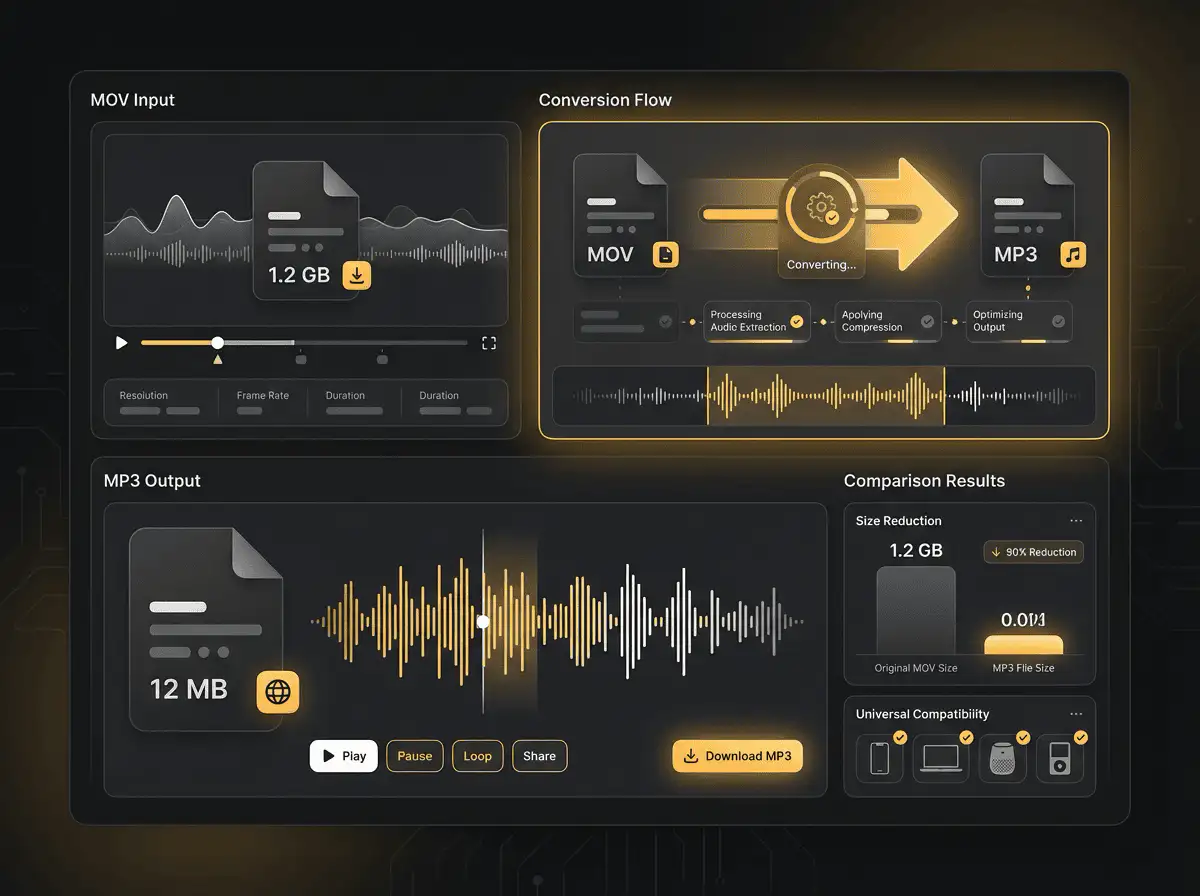
Did you know that converting a MOV video file to MP3 can reduce the file size to roughly 10% of its original size? This dramatic reduction makes it easier to store, share, and play your audio content across any device. Whether you're extracting a podcast from a video recording, saving music from a concert clip, or creating an audio version of your video content, converting MOV to MP3 gives you a lightweight, universally compatible audio file that plays on anything with an MP3 logo.

MOV files, developed by Apple for QuickTime, are excellent for storing high-quality video content. However, when you only need the audio, these large video files become impractical. Converting MOV to MP3 allows you to keep the sound while shedding the unnecessary video data, creating a compact audio file perfect for music players, smartphones, and audio editing software.

Why Convert MOV to MP3?

Understanding MOV and MP3 Formats

What is a MOV File?

MOV is a multimedia container format developed specifically by Apple for use with QuickTime Player. Known for its ability to store high-quality multimedia content, MOV files can contain multiple tracks holding video, audio, text, and other data within a single file. This makes MOV ideal for storing movies, music videos, and other large multimedia files.

The MOV format is often favored for complex editing needs due to its ability to support a broader range of codecs and tracks within a single file. Its support for lossless quality and multiple tracks makes it perfect for high-end video production where every pixel and audio detail matters. Most MOV files carry AAC audio, which provides excellent sound quality but requires conversion to work with MP3-only devices.

However, MOV files come with trade-offs. They are not widely playable across all devices, and the high quality comes at the cost of large file sizes. This is where conversion to MP3 becomes valuable.

What is an MP3 File?

MP3, short for MPEG-1 Audio Layer 3, is a digital audio format designed to compress sound files while maintaining acceptable quality. It reduces file size by removing audio data that is less perceptible to the human ear, making it ideal for efficient storage and fast distribution.

MP3 remains one of the most universally supported audio formats, compatible with virtually every device, operating system, and media player. From smartphones to car stereos, from Windows PCs to Mac computers, MP3 files play everywhere. This universal compatibility makes MP3 the go-to format for audio distribution and personal music libraries.

The compression used in MP3 files is lossy, meaning some audio information is discarded to achieve smaller file sizes. However, with proper bitrate settings, the quality loss is minimal and often imperceptible to most listeners. For music, a bitrate of 192–256 kbps keeps quality high with guitars still ringing and cymbals still shimmering. For spoken word content like podcasts or audiobooks, 96–128 kbps in mono is typically sufficient.

Understanding MOV and MP3 Formats

How to Convert MOV to MP3: Step-by-Step Guide

Converting MOV files to MP3 format is a straightforward process that takes just seconds with the right tool. Here's how to extract audio from your MOV video files:

Using an Online MOV to MP3 Converter

  1. Find Your MOV File: Locate the MOV video file on your device that contains the audio you want to extract. This could be a video recorded on your iPhone, downloaded from the internet, or exported from video editing software.

  2. Visit the Converter Tool: Open your preferred online MOV to MP3 converter in your web browser. No software installation or registration required.

  3. Upload Your MOV File: Click the upload button or drag and drop your MOV file into the converter interface. Most modern converters support files up to 1GB in size.

  4. Select MP3 as Output Format: Choose MP3 as your desired output format. Many converters will automatically detect that you want to extract audio and select MP3 by default.

  5. Adjust Quality Settings (Optional): If available, select your preferred audio quality. For music, choose 192 kbps or higher. For voice recordings, 128 kbps is usually sufficient. Higher bitrates preserve more audio detail but create larger files.

  6. Convert and Download: Click the convert button and wait a few seconds while the tool extracts the audio from your MOV file and converts it to MP3 format. Once complete, download the MP3 file to your device.

The entire process typically takes less than a minute, depending on the size of your MOV file and your internet connection speed. The best converters read the MOV container and directly extract or transcode the audio track, allowing you to choose bitrate and sample rate for minimal quality loss.

Converting MOV to MP3 on Mac

Mac users have several built-in options for converting MOV to MP3 without additional software:

QuickTime Player Method: Open your MOV file in QuickTime Player, which comes pre-installed on every Mac. Select "File" from the menu bar, then choose "Export As" and select "Audio Only." Choose your save location and click "Save." QuickTime will extract the audio and save it as an M4A file, which you can then convert to MP3 using an online converter or iTunes/Music app.

iMovie Method: Open iMovie on your Mac and create a new project. Import your MOV file by dragging it into the timeline. Right-click on the video clip in the timeline and select "Detach Audio." This separates the audio track from the video. Go to "File" > "Share" > "File" and choose the audio format. While iMovie exports to AAC by default, you can use this audio file with an online converter to create your final MP3.

Finder Method: Navigate to a folder on your Mac containing the MOV file. Right-click on the file and choose "Encode Selected Video Files." While this primarily creates video formats, you can use it as a first step before extracting audio with QuickTime.

Converting MOV to MP3 on Windows

Windows users can convert MOV to MP3 using several methods:

VLC Media Player: VLC is a free, cross-platform media player that provides excellent audio extraction features. Open VLC and go to "Media" > "Convert/Save." Add your MOV file, click "Convert/Save," then select "Audio - MP3" as the output format. Choose your destination folder and click "Start" to begin the conversion.

Online Converters: The easiest method for Windows users is using an online MOV to MP3 converter through any web browser. This requires no software installation and works identically to the process described in the general guide above. Simply upload your MOV file, select MP3 as the output, and download the converted audio.

Third-Party Software: Several free and paid applications offer MOV to MP3 conversion on Windows, including Movavi Video Converter, Cisdem VideoPaw, and various other multimedia tools. These applications often provide more control over audio quality settings and batch conversion capabilities.

Converting MOV to MP3 on iPhone and iPad

iOS and iPadOS users have multiple options for converting MOV files to MP3 directly on their mobile devices:

Shortcuts App: Apple's Shortcuts app can be configured to extract audio from video files. Create a shortcut that takes a video input, extracts the audio, and exports it as an audio file. While the native export might be M4A, you can combine this with an online converter for MP3 output.

Third-Party Apps: The MP3 Converter – Audio Extractor app is a standout free option available for both iPhone and iPad. Download the app from the App Store, import your MOV file, select MP3 as the output format, and convert. The app handles the entire process on your device.

Online Converters: Safari and other iOS browsers can access online MOV to MP3 converters. Simply visit the converter website, upload your MOV file from your Photos app or Files app, convert, and download the MP3 back to your device. This method works equally well on both iPhone and iPad.

How to Convert MOV to MP3: Step-by-Step Guide

Benefits of Converting MOV to MP3

Massive File Size Reduction

One of the most compelling reasons to convert MOV to MP3 is the dramatic reduction in file size. Shedding the video portion of a MOV file chops the file down to approximately 10% of its original size. A 100 MB MOV video might become a 10 MB MP3 audio file, making it far easier to store on devices with limited space, upload to cloud storage, or share via email and messaging apps.

This size reduction is especially valuable when dealing with large video collections. Converting just the audio from multiple MOV files can free up gigabytes of storage space on your smartphone, tablet, or computer.

Universal Compatibility

MP3 files play on virtually every device and platform imaginable. Whether you're using a Windows PC, Mac computer, iPhone, Android smartphone, smart speaker, car stereo, or dedicated MP3 player, your converted audio will work without compatibility issues.

This cross-device compatibility means you can convert a MOV file once and play the resulting MP3 audio anywhere. No need to worry about whether your device supports the MOV format or has the right codecs installed. MP3 simply works everywhere.

Perfect for Offline Listening

Converting MOV videos to MP3 creates audio files perfect for offline listening. Take your favorite podcast episodes, music performances, or educational content with you wherever you go without requiring an internet connection or eating through your mobile data plan.

This is particularly valuable for situations with limited or no internet access: flights, road trips through rural areas, gym workouts, or commutes through subway tunnels. Download and convert your content once, then enjoy unlimited offline playback.

Easier to Share and Transfer

MP3 files are significantly easier to share than large MOV video files. Email attachments often have size limits that make sharing video files impossible, but the same content as an MP3 audio file slips through easily. Messaging apps, cloud storage services, and file transfer tools all handle MP3 files more efficiently than large video files.

This makes MP3 ideal for sharing music, voice recordings, interviews, podcast episodes, and any other audio content with friends, family, colleagues, or online audiences.

Optimized for Audio Players and Editing

If you only need the audio from a video file, MP3 provides a format optimized specifically for audio playback and editing. Audio players offer better organization, playlist creation, and playback controls for MP3 files compared to playing audio from video files. Audio editing software works more efficiently with dedicated audio formats like MP3.

Converting MOV to MP3 also allows you to take advantage of audio-specific features like equalizers, audio effects, normalization, and other processing tools designed specifically for sound files.

Battery Life Benefits

Playing audio-only MP3 files consumes significantly less battery power than playing video files. Your device doesn't need to power the screen or decode video data, leading to extended battery life during long listening sessions. This makes MP3 ideal for situations where you need your device battery to last as long as possible.

Quality Considerations When Converting MOV to MP3

Choosing the Right Bitrate

Bitrate is the most important factor affecting MP3 audio quality. It determines how much data is used to represent each second of audio. Higher bitrates preserve more audio detail but create larger files. Here's how to choose:

For Music and Musical Content: Use 192–256 kbps to preserve quality. At these bitrates, guitars still ring clearly, cymbals still shimmer naturally, and the overall listening experience remains excellent even on good headphones or speakers. Audiophiles might prefer 320 kbps for the highest possible MP3 quality, though the difference becomes minimal at that level.

For Spoken Word Content: Use 96–128 kbps in mono for podcasts, audiobooks, voice recordings, and interviews. Speech doesn't require the same frequency range or dynamic range as music, so lower bitrates work perfectly well while keeping file sizes minimal. Mono (single channel) rather than stereo further reduces file size for voice content where stereo imaging provides no benefit.

For Mixed Content: When your MOV file contains both speech and music, lean toward the upper end of the bitrate range (192–256 kbps) to ensure the music sections sound good. The larger file size is worth the improved audio quality.

Understanding Lossy Conversion

Since most MOV files carry AAC audio and re-encoding that stream to MP3 means one more lossy hop, it's important to understand the implications. Both AAC and MP3 use lossy compression, meaning they discard some audio information to achieve smaller file sizes. Converting from AAC to MP3 involves decoding the AAC audio and then encoding it again as MP3, which can result in some quality degradation.

To minimize quality loss, select a high bitrate (192–320 kbps) when converting from MOV to MP3. This ensures that even with the additional lossy compression step, the resulting audio quality remains excellent for most listening situations.

For professional audio work or archival purposes, you might consider extracting audio from MOV files to lossless formats like FLAC or WAV first, then converting to MP3 only when needed for distribution or playback on devices that don't support lossless formats.

Sample Rate Considerations

Sample rate determines how many times per second the audio is sampled during conversion. Most MOV files contain audio sampled at 48 kHz (48,000 samples per second), which is the standard for video. When converting to MP3, you can typically choose between 44.1 kHz (CD quality) or 48 kHz.

For most purposes, 44.1 kHz is perfect and is the standard for music distribution. If your MOV file contains 48 kHz audio, converting to 44.1 kHz involves a sample rate conversion that has minimal impact on perceived quality. Some converters maintain the original 48 kHz sample rate in the MP3, which is also fine and may actually avoid an additional processing step.

Best Free Online MOV to MP3 Converters

Features to Look For

When choosing an online MOV to MP3 converter, several key features distinguish excellent tools from mediocre ones:

Security and Privacy: Reputable converters guarantee file security and privacy with 256-bit SSL encryption during upload and download. Files should automatically delete from the server after a few hours, with no third-party access to your content. This ensures your personal videos and audio remain private.

No Software Installation Required: The best online converters work directly in your web browser without requiring any software downloads or installations. This provides convenience, works on any operating system, and eliminates concerns about installing potentially unwanted software on your device.

No Registration or Sign-Up: Top-tier free converters don't require account creation, email addresses, or any personal information. You should be able to visit the website, upload your file, convert it, and download the result without creating an account.

Ad-Free Experience: While many free converters rely on advertising revenue, the best ones provide a clean, ad-free interface that doesn't bombard you with pop-ups, redirects, or intrusive advertisements that interfere with the conversion process.

Fast Conversion Speed: Modern converters should process your MOV files in seconds, not minutes. Look for tools that leverage efficient conversion algorithms and adequate server resources to provide quick results.

File Size Limits: The maximum file size supported varies between converters. Look for tools that support at least 1 GB files to handle most personal video content without issues.

Batch Conversion: Some converters allow you to upload and convert multiple MOV files at once, saving time when you need to extract audio from several videos.

Quality Control: Advanced converters allow you to adjust parameters like bitrate, sample rate, and audio quality to fine-tune the output according to your needs.

Recommended Online Converters

Several platforms stand out for converting MOV to MP3 in 2026:

CloudConvert has earned its reputation as a trusted converter since 2012. It's ISO 27001 certified, supporting nearly all audio and video formats. The platform works entirely in your browser without requiring software downloads, making it accessible from any device.

FreeConvert protects files with 256-bit SSL encryption and automatically deletes them after a few hours. It supports batch conversion capabilities for multiple MOV files at once, with a maximum file size of 1 GB. The interface is straightforward and user-friendly.

Restream provides an ad-free experience that's minimal effort and 100% free to use. You can easily and securely convert your MOV files to MP3 directly from your browser without interruptions.

AudioConvert.ai runs everything directly in your browser, meaning you don't need to install apps, create accounts, or deal with hidden limits. It's completely free with no watermarks added to files and no artificial restrictions.

VEED.io offers an online MOV to MP3 converter that's free to use and works seamlessly in your web browser without downloads or installations.

All these converters provide reliable, secure conversion with various features suited to different needs. Choose based on your priorities: file size limits, batch processing, advanced quality settings, or the cleanest interface.

Advanced MOV to MP3 Conversion Tips

Preserving Maximum Audio Quality

To ensure the best possible audio quality when converting MOV to MP3, follow these best practices:

Select the highest bitrate your converter offers, ideally 256 or 320 kbps for music content. While this creates larger MP3 files, the quality improvement is worth it if you have adequate storage space and want the best listening experience.

If your converter allows sample rate selection, choose 44.1 kHz for music or maintain the original sample rate if possible. Avoid unnecessary sample rate conversions that can introduce artifacts.

Convert as few times as possible. Each conversion through a lossy format like MP3 degrades quality slightly. If you need multiple formats, convert from the original MOV file each time rather than converting from an already-converted MP3 file.

Batch Processing Multiple Files

When you need to convert multiple MOV files to MP3, batch processing saves significant time:

Look for converters that support batch uploads. Upload all your MOV files at once, configure the output settings once, and let the converter process all files sequentially or in parallel.

Organize your files before starting. Rename your MOV files with clear, descriptive names so the resulting MP3 files are easy to identify and organize.

Check if your converter maintains file names during conversion. Most good converters will name the output MP3 files identically to your input MOV files (just with the .mp3 extension), making organization straightforward.

Extracting Specific Audio Segments

Some advanced converters and software tools allow you to extract specific portions of the audio rather than the entire MOV file:

Use online video editors that combine trimming and conversion features. Import your MOV file, select the specific time range you want to keep, then export as MP3. This creates an MP3 file containing only your desired audio segment.

For more precise control, use audio editing software like Audacity (free) or professional tools. Convert the full MOV to an audio format first, then use the editor to select, trim, and export specific portions as MP3 files.

Converting Protected or DRM Content

Some MOV files may contain digital rights management (DRM) protection that prevents conversion. Legitimate personal content you've created yourself won't have this issue, but purchased or downloaded content might.

Only convert content you have the legal right to convert. Personal videos, recordings you've created, and content explicitly licensed for personal use are fine. Attempting to strip DRM from copyrighted content may violate copyright laws and terms of service.

If you encounter a MOV file that won't convert, check whether it contains DRM protection. Legal alternatives include finding DRM-free versions of the content or using authorized platforms that provide audio downloads directly.

Common Issues and Troubleshooting

Conversion Fails or Produces Errors

If your MOV to MP3 conversion fails, try these solutions:

Check file size: Ensure your MOV file doesn't exceed the converter's size limit. If it does, try a different converter that supports larger files, or use video editing software to split the file into smaller segments first.

Verify file integrity: Make sure your MOV file isn't corrupted. Try playing it in QuickTime or VLC Media Player to confirm it works properly before conversion.

Try a different converter: If one online converter fails, others might succeed. Different converters use different processing methods and may handle specific MOV file variations better.

Check your internet connection: Unstable internet can interrupt uploads or downloads. Ensure you have a stable connection before starting the conversion process.

Disable browser extensions: Some browser extensions, particularly ad blockers or privacy tools, might interfere with converter websites. Try temporarily disabling them during the conversion.

Poor Audio Quality After Conversion

If your MP3 audio sounds worse than expected:

Increase the bitrate: Try converting again with a higher bitrate setting. Move from 128 kbps to 192 or 256 kbps for noticeable quality improvements.

Check the source quality: The MP3 can only be as good as the audio in the original MOV file. If the source audio was poor quality, the MP3 will be too.

Avoid multiple conversions: If you've converted the file multiple times through lossy formats, quality degradation accumulates. Return to the original MOV file and convert fresh.

Try different converters: Some converters use better encoding algorithms than others. Experiment with different online tools to find one that produces the best results.

File Won't Play After Conversion

If your converted MP3 file won't play:

Download again: The download may have been interrupted or corrupted. Try downloading the converted file again from the converter website.

Try different media players: Test the MP3 in multiple players (VLC, Windows Media Player, QuickTime, iTunes, etc.) to rule out player-specific issues.

Check file extension: Ensure the file actually has the .mp3 extension and wasn't accidentally saved with a different extension.

Verify the conversion completed: Some converters show a download button before conversion actually finishes. Make sure the conversion process completed successfully before downloading.

Upload Takes Too Long

Large MOV files can take significant time to upload, especially on slower internet connections:

Use a wired connection: If possible, connect via Ethernet rather than Wi-Fi for faster, more stable upload speeds.

Convert during off-peak hours: Internet speeds often improve during late night or early morning hours when fewer people are online.

Compress the MOV file first: Some video compression tools can reduce MOV file size before conversion without significantly affecting the audio quality.

Use desktop software instead: For very large files, desktop conversion software might be faster since it doesn't require uploading to a server.

Legal and Copyright Considerations

Converting Your Own Content

Converting MOV files you've created yourself to MP3 format is perfectly legal and appropriate. This includes:

  • Videos you've recorded on your iPhone, camera, or other devices
  • Screen recordings you've captured
  • Content you've created through video editing software
  • Personal recordings of events, vlogs, tutorials, etc.

You own the copyright to content you create, giving you full rights to convert, modify, and distribute it as you see fit.

Converting Licensed Content

When converting MOV files containing content from other sources, consider the licensing:

Royalty-Free Content: MOV files using royalty-free music, stock footage, or creative commons licensed content can generally be converted to MP3, but check the specific license terms. Some licenses permit audio extraction while others may have restrictions.

Purchased Content: Content you've legally purchased may have terms of service restricting conversion. Read the license agreement to understand your rights.

Educational Use: Many educational institutions have special licensing agreements that may permit format conversion for educational purposes. Check with your institution's media services or legal department.

Copyright and Fair Use

Converting copyrighted content without permission generally violates copyright law, even if you're only extracting audio. The fact that you're converting from video to audio doesn't change copyright protections.

Fair use exceptions might apply in limited circumstances, such as criticism, commentary, news reporting, teaching, scholarship, or research, but these are narrow exceptions that depend on multiple factors. When in doubt, seek legal advice or obtain proper permissions.

Personal backups of content you legally own in physical format (DVDs, Blu-rays) may be permitted in some jurisdictions for personal use only, but laws vary significantly by country.

Best Practices

To stay on the right side of copyright law:

  • Only convert content you've created or have explicit permission to convert
  • Don't distribute converted audio files from copyrighted sources
  • When using content with creative commons or other licenses, respect the terms
  • For commercial projects, obtain proper licensing for all audio and video content
  • When in doubt, consult with a legal professional familiar with copyright law

Getting Started with MOV to MP3 Conversion

Converting MOV video files to MP3 audio format opens up a world of possibilities for enjoying your content. Whether you're extracting music from video clips, creating audio versions of video podcasts, or simply saving space on your devices, MOV to MP3 conversion provides a fast, free, and effective solution.

With the tools and knowledge provided in this guide, you're equipped to convert MOV files to MP3 quickly and easily across any device. Remember to choose appropriate quality settings for your content type, select reputable converters that protect your privacy, and only convert content you have the legal right to convert.

The universal compatibility, massive file size reduction, and offline listening convenience of MP3 files make conversion worthwhile for anyone dealing with MOV video content who only needs the audio. Start converting your MOV files to MP3 today and enjoy your audio content anywhere, anytime, on any device.


Related Converters

Convert Your Files Now

Upload your file, choose your settings, and download the result. No software, no sign-ups, no fees.

Frequently Asked Questions