Audio & Video Converters
More tools in this category without leaving this page.
Free MKV to MP3 Converter
Convert to
How to Use the Converter
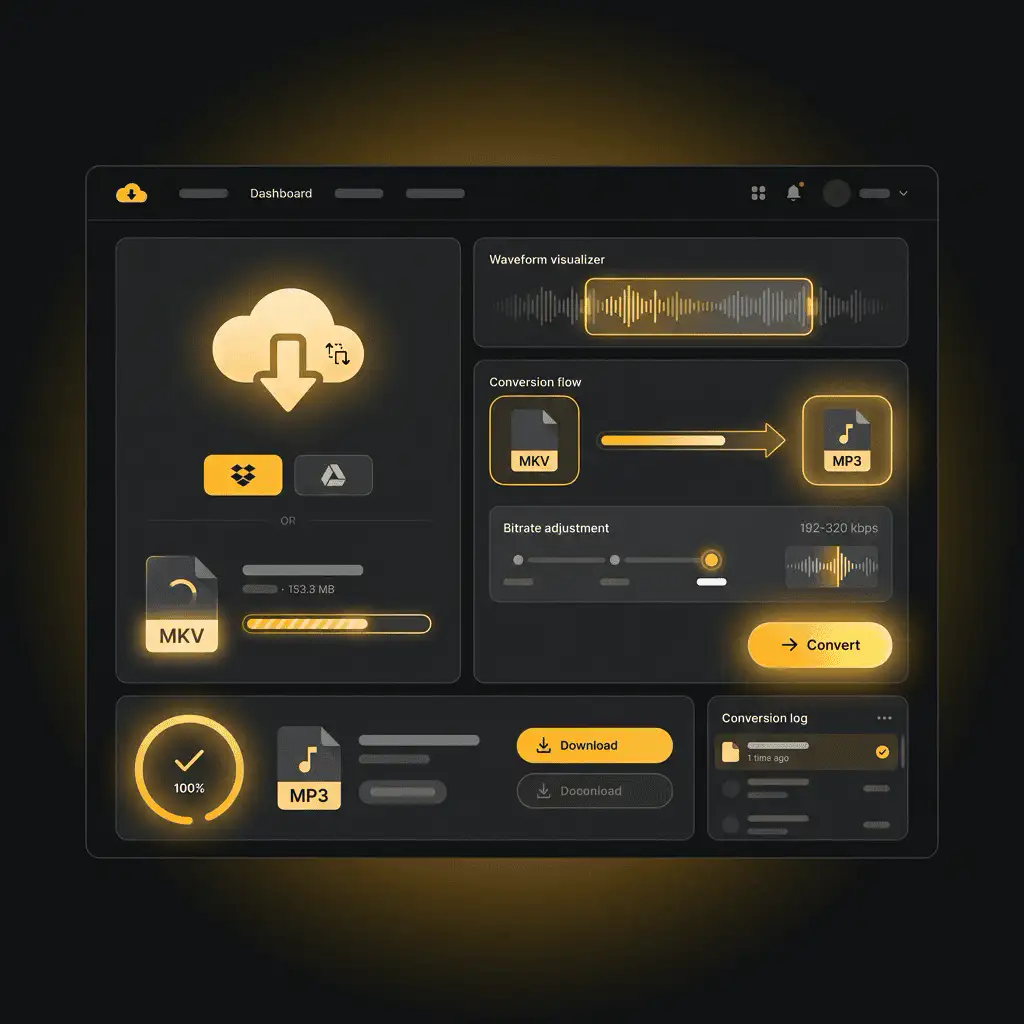
Drop your MKV file into the upload area or click to browse your device. You can also import from cloud storage like Dropbox or Google Drive. Once the file loads, MP3 is already selected as the output format. Adjust bitrate settings if needed — 192-320 kbps works well for most uses. Click convert, then download your new MP3 audio file.

How to Convert MKV to MP3 in 3 Steps
Step 1: Upload Your MKV File
Drag and drop your MKV video into the converter, or click the upload button to select a file from your computer. Cloud imports from Dropbox, Google Drive, and OneDrive work too. The tool accepts MKV and other common video formats like MP4, AVI, MOV, and WebM.
Step 2: Choose Your MP3 Settings
MP3 is set as the default output format. You can adjust the audio bitrate: 128 kbps for smaller files, 256-320 kbps for better quality. You can also trim the start and end times if you only need a portion of the audio. Most users stick with 192 kbps — it balances file size and audio quality well.
Step 3: Download Your Audio
Click convert. The tool extracts the audio from your MKV file and generates the MP3. When it's done, download directly to your device or save to cloud storage. Your audio is ready for any music player or device.

Why Convert MKV to MP3?
Smaller File Sizes for Easy Sharing
MKV files are huge. A feature-length movie in MKV format easily hits 2-4GB. Converting to MP3 strips out the video and leaves just the audio — usually 50-100MB for the same movie. That's 40 times smaller. Easier to email, faster to upload, simpler to store.
Audio-Only Playback on Any Device
Not every device plays MKV files well. Older phones, basic MP3 players, and car audio systems often don't recognize the Matroska format. MP3, on the other hand, plays everywhere. Extract the audio as MP3 and you can listen on literally any device with speakers.
Perfect for Music, Soundtracks, and Podcasts
Downloaded a concert video as MKV? Got a movie with an amazing soundtrack? Have video podcasts stored in Matroska format? Converting to MP3 gives you audio-only files you can add to your music library, sync to your phone, or listen to in the car.
Save Storage Space
Video takes up massive amounts of storage. If you only need the audio — dialogue from a lecture, music from a performance, sound from a video podcast — keeping the video portion wastes space. Converting MKV to MP3 frees up storage on your phone, tablet, or computer.
Better Compatibility Across Platforms
MP3 is the universal audio format. Windows, Mac, Linux, iOS, Android — every operating system supports it natively. Every audio player, podcast app, and music streamer handles MP3 without issues. MKV? Not so much. Converting ensures compatibility everywhere.

Why Use This MKV to MP3 Converter?
Completely Free — No Hidden Costs
This MKV audio converter costs nothing. No premium tier locking features behind a paywall. Convert as many MKV files as you need without paying a cent. No trial periods that expire, no credit card required.
Works in Your Browser
No software to download. No plugins to install. The converter runs online, so you can convert files on Windows, Mac, Linux, Chromebook, or your phone. Open the page and go. No waiting for installers, no compatibility worries.
Extract Audio from Multiple Formats
Not just MKV — this tool handles MP4, AVI, MOV, WebM, WMV, FLV, and most other video formats. Upload whatever video you have, and the converter extracts the audio track and saves it as MP3.
High-Quality Audio Extraction
The converter preserves the quality of your original audio track. At 256-320 kbps, the output sounds nearly identical to the source. You control the bitrate to balance quality and file size based on your needs.
Batch Conversion Support
Got multiple MKV files? Upload them all at once. The converter processes your entire batch and gives you individual MP3 downloads for each file. Saves time when you're converting a video series or building an audio library.
Adjustable Audio Settings
Fine-tune your output. Set the bitrate anywhere from 64 to 320 kbps. Trim the audio to extract only the section you need. Adjust volume levels, add fade effects, or keep defaults for quick conversion.
Privacy Protected
Your files are encrypted during upload and stored only temporarily. They're deleted automatically after conversion — usually within a few hours. Nobody else accesses your videos or audio. Your content stays private.
Zero Ads, Zero Sign-ups
No account creation. No registration forms asking for your email. No ads interrupting your workflow. Just a clean interface that converts files. Upload, convert, download. That's it.
Understanding MKV and MP3 Formats
What is MKV?
MKV (Matroska Video) is an open-source multimedia container format. It stores video, audio, subtitles, chapter markers, and metadata all in a single file. Think of it as a digital wrapper that can hold multiple types of content.
MKV files often contain high-definition video with multiple audio tracks (different languages, commentary, surround sound options) and multiple subtitle streams. This flexibility makes MKV popular for movie downloads, TV show archives, and video collections.
The format was designed to be future-proof and extensible. It supports virtually any video codec (H.264, H.265, VP9) and audio codec (AAC, MP3, FLAC, DTS). That's why many high-quality video downloads use MKV — it's flexible and doesn't lock you into specific encoding standards.
MKV files can get massive. A single Blu-ray rip in MKV format might hit 8-15GB because it includes uncompressed or lightly compressed video. Even compressed MKV files for TV episodes run 500MB-2GB per hour.
What is MP3?
MP3 (MPEG-1 Audio Layer III) is the universal audio format. Developed in the early 1990s, it revolutionized digital music by compressing audio files to about one-tenth their original size while maintaining acceptable quality.
MP3 uses lossy compression — it discards audio information your ear is least likely to notice. At higher bitrates (256-320 kbps), the loss is imperceptible for most listeners. At lower bitrates (128 kbps), you might notice some loss of detail in complex music, but speech remains clear.
MP3 plays everywhere. Every phone, music player, car stereo, smart speaker, and audio app supports it. When you need audio that works on any device without conversion, MP3 is the reliable choice.
The format supports various bitrates. 320 kbps is considered high quality and produces files around 2.4MB per minute of audio. 128 kbps is standard quality and creates files around 1MB per minute. Lower bitrates save more space but sacrifice audio fidelity.
Why These Formats Work Well Together
MKV files often contain high-quality audio tracks — sometimes even lossless FLAC or uncompressed PCM audio. When you convert MKV to MP3, you're extracting that audio and compressing it into a universally compatible format.
The MKV container doesn't dictate audio quality — the audio codec inside does. Many MKV files already use AAC or MP3 for audio. Converting to MP3 either extracts the existing audio directly or re-encodes it at your chosen bitrate.
For most use cases, converting MKV audio to 192-256 kbps MP3 provides excellent sound quality in a file size that's easy to manage and share.
What Happens During MKV to MP3 Conversion?
The Extraction Process
When you convert MKV to MP3, the tool first identifies the audio streams inside the MKV container. MKV files can have multiple audio tracks — different languages, commentary tracks, surround sound mixes. The converter typically selects the primary audio track, though advanced tools let you choose which one to extract.
The audio stream is then separated from the video, subtitle, and metadata streams. The video portion is discarded entirely — you're only keeping the sound.
Audio Encoding
If the MKV file's audio is already in MP3 format, the converter may extract it directly without re-encoding. This preserves perfect quality and processes quickly.
If the audio uses a different codec (AAC, FLAC, DTS, Vorbis), the converter decodes it first, then re-encodes it as MP3 at your chosen bitrate. Some quality loss may occur during re-encoding, especially at lower bitrates, but at 192 kbps or higher, the difference is minimal for most content.
Bitrate and Quality
Bitrate measures how much data is used per second of audio. Higher bitrates mean more detail and better quality, but larger file sizes.
- 64-128 kbps: Acceptable for voice, podcasts, audiobooks. Music sounds thin and compressed.
- 192 kbps: Good balance for most uses. Music sounds full, speech is crystal clear.
- 256 kbps: Very good quality. Suitable for music listening.
- 320 kbps: Maximum MP3 quality. Nearly indistinguishable from source for most listeners.
For speech content (lectures, podcasts, dialogue), 128-192 kbps is plenty. For music (concert videos, soundtracks), aim for 256-320 kbps.
Common Use Cases for MKV to MP3 Conversion
Music Video Collections
Downloaded music videos or concert recordings in MKV format? Converting to MP3 gives you audio-only files you can add to your music library. Play them on your phone, sync to your MP3 player, or listen in the car without needing video playback.
Movie Soundtracks
Love a movie's soundtrack? Extract the audio from the MKV file and you've got the full soundtrack as MP3. Great for background listening or building a collection of film scores.
Lecture and Educational Content
Video lectures in MKV format can be huge. If you're only interested in the audio — the professor's explanation, not the slides — converting to MP3 creates portable audio files you can listen to while commuting or exercising.
Podcast Archives
Some podcasts distribute video versions in MKV format. If you prefer audio-only for your podcast app, converting to MP3 creates standard audio files that work in any player.
Audiobook Creation
Have video content you want to turn into an audiobook? Converting MKV to MP3 extracts the narration or dialogue as audio-only files you can load onto audiobook players or apps.
Language Learning
Downloaded foreign language films or lessons in MKV? Extract the audio as MP3 for listening practice. Loop difficult sections, listen during your commute, or use as study material without needing video playback.
Who Needs an MKV to MP3 Converter?
Music Enthusiasts
Collectors who download concert videos, live performances, or music videos in MKV format benefit from extracting audio-only versions. You get the music without storing massive video files.
Podcast Listeners
Podcasters and listeners who prefer audio-only versions of video podcasts need a simple way to convert. MKV to MP3 conversion creates files that work in any podcast app without video overhead.
Students and Educators
Students who record or download lectures often end up with large MKV video files. Converting to MP3 creates portable audio versions for review and study without wasting storage on unnecessary video.
Film Buffs
Movie collectors who maintain libraries of films in MKV format sometimes want audio-only versions — soundtracks, director commentary, or dialogue tracks for study. MP3 conversion makes these accessible on any device.
Content Creators
Video creators and editors who need to work with audio separately from video benefit from extracting MP3 files. Import the audio into your editing software, use it for overdubs, or repurpose it for other projects.
Best Practices for MKV to MP3 Conversion
Choose the Right Bitrate
Match your bitrate to your content and needs:
- Audiobooks and podcasts: 96-128 kbps is fine. Voice doesn't need high bitrates.
- General listening: 192 kbps balances quality and file size well.
- Music from concerts or soundtracks: 256-320 kbps preserves detail and dynamics.
- Archival purposes: 320 kbps maintains maximum quality.
Higher bitrates create larger files. If storage or bandwidth is limited, test with a short clip at different bitrates to find the lowest acceptable quality.
Preview Before Converting
If the MKV file has multiple audio tracks, make sure you're converting the right one. Some files include commentary, descriptive audio for the visually impaired, or alternate language dubs. Pick the track you actually want before converting.
Trim Unnecessary Sections
Many MKV files have dead space at the beginning or end — black screens, long credits, trailers. Use the trimming feature if available to extract only the audio you need. Saves time and storage.
Organize Your Files
Converting multiple MKV files creates a bunch of MP3s. Name them clearly during download, or batch-rename them afterward. Organized filenames help when you're building an audio library.
Keep Originals Until You Test
Don't delete your MKV files immediately after converting. Play the MP3 first to confirm the audio quality meets your needs and that you converted the correct track. Once verified, you can remove the originals if you don't need them.
Advanced Features to Look For
Multiple Audio Track Selection
MKV files often contain several audio tracks. Advanced converters let you choose which one to extract — original language, dubbed version, director's commentary, or surround sound mix.
Subtitle Extraction
While converting to audio, you might want to extract subtitles as well for transcription or learning purposes. Some tools offer subtitle export alongside audio conversion.
Audio Normalization
If your MKV file has inconsistent volume levels, audio normalization balances the sound to a consistent level. This prevents you from constantly adjusting volume during playback.
Batch Processing with Custom Settings
Converting dozens of files? Look for batch conversion that lets you apply different settings to different files — higher bitrate for music videos, lower bitrate for dialogue.
Metadata Preservation
Good converters preserve or let you edit metadata tags — artist name, album, track number, album art. This keeps your MP3 library organized when you import the files into music players.
Troubleshooting Common Issues
File Size Too Large for Upload
Most online converters have file size limits, typically 100MB-1GB. If your MKV file exceeds this:
- Use a desktop converter like VLC or Audacity that handles unlimited file sizes
- Split the MKV file into smaller segments before converting
- Compress the MKV file first using a video compressor, then convert
Conversion Takes Too Long
Large MKV files naturally take time to process. A 2-hour movie might take 5-10 minutes. If it's taking longer:
- Check your internet connection speed for upload/download bottlenecks
- Try a different converter — some are optimized better than others
- Consider desktop software which processes locally without upload/download time
Audio Quality Sounds Poor
If your MP3 sounds worse than expected:
- Increase the bitrate. 128 kbps might not be enough for music.
- Check if the original MKV audio quality is low — you can't improve on the source
- Try a different converter — some use better encoding algorithms
Wrong Audio Track Converted
MKV files with multiple tracks might default to a different track than you want:
- Look for an "audio track selection" option before converting
- Use a desktop tool like VLC that shows all available tracks and lets you choose
- Check the MKV file's properties to see which tracks exist and identify the one you need
MP3 Won't Play on My Device
If the converted MP3 doesn't work:
- Verify the file isn't corrupted by playing it on your computer first
- Check if your device has restrictions on file types or sources
- Try a different audio format (AAC, WAV) if your device is particularly old or limited
Alternatives to Online Conversion
VLC Media Player
VLC isn't just a video player — it's also a powerful converter. Open your MKV file, go to Media > Convert/Save, select your audio codec (MP3), choose output destination, and convert. Free, works offline, no file size limits.
Audacity
This free audio editor can extract audio from video files. Import your MKV, then export as MP3. You'll need the LAME MP3 encoder plugin. Great if you also want to edit the audio — trim, adjust volume, apply effects.
FFmpeg
For tech-savvy users, FFmpeg is a command-line tool that converts virtually any media format. Run a simple command and it extracts MKV audio as MP3. Fast, powerful, but requires comfort with terminal commands.
Desktop Conversion Software
Dedicated converter apps like HandBrake, Freemake, or Format Factory offer more control than online tools. They handle larger files, process faster (no upload time), and work offline. Overkill for occasional conversions, but valuable if you convert regularly.
Start Converting Your MKV Files
Converting MKV to MP3 takes seconds. Upload your MKV file, choose your audio settings, and download the result. No software to install, no account to create, no cost.
Ready to convert? Try the free MKV to MP3 converter now.
Related Converters
Convert MP3 files to WMA format. Free, fast, and no sign-up required.
Convert WAV audio files to MP3. Reduce file size without losing quality.
Convert AAC audio files to OGG format quickly and for free.
Convert AAC files to M4A format. Fast and free online converter.
Convert WMA audio to AIFF format. No sign-up required.
Convert OGG files to uncompressed WAV audio. Free and fast.
Convert AAC audio files to WMA format online for free.
Convert AAC to lossless FLAC format. Free online converter.
Convert FLAC lossless audio to M4A format. Free and fast.
Extract MP3 audio from MPEG files. Fast, free, no sign-up.
Convert FLAC audio files to WMA format online for free.
Convert M4A audio files to MP3. Wide device compatibility guaranteed.
Convert FLAC audio to OGG format. Free and no sign-up needed.
Convert OGG files to AIFF audio format. Free online converter.
Convert MP3 files to uncompressed WAV audio. No quality loss.
Convert OGG audio to MP3 for maximum device compatibility.
Convert MP3 files to AIFF audio format. Free and fast.
Convert AAC audio to uncompressed WAV. No sign-up required.
Convert OGG audio files to WMA format online for free.
Convert OGG files to M4A audio format. Fast, free, online.
Convert Your Files Now
Upload your file, choose your settings, and download the result. No software, no sign-ups, no fees.