MKV to MOV Converter
Convert MKV files to MOV in your browser. Free to use, no account required, and files are deleted after processing.
Convert to
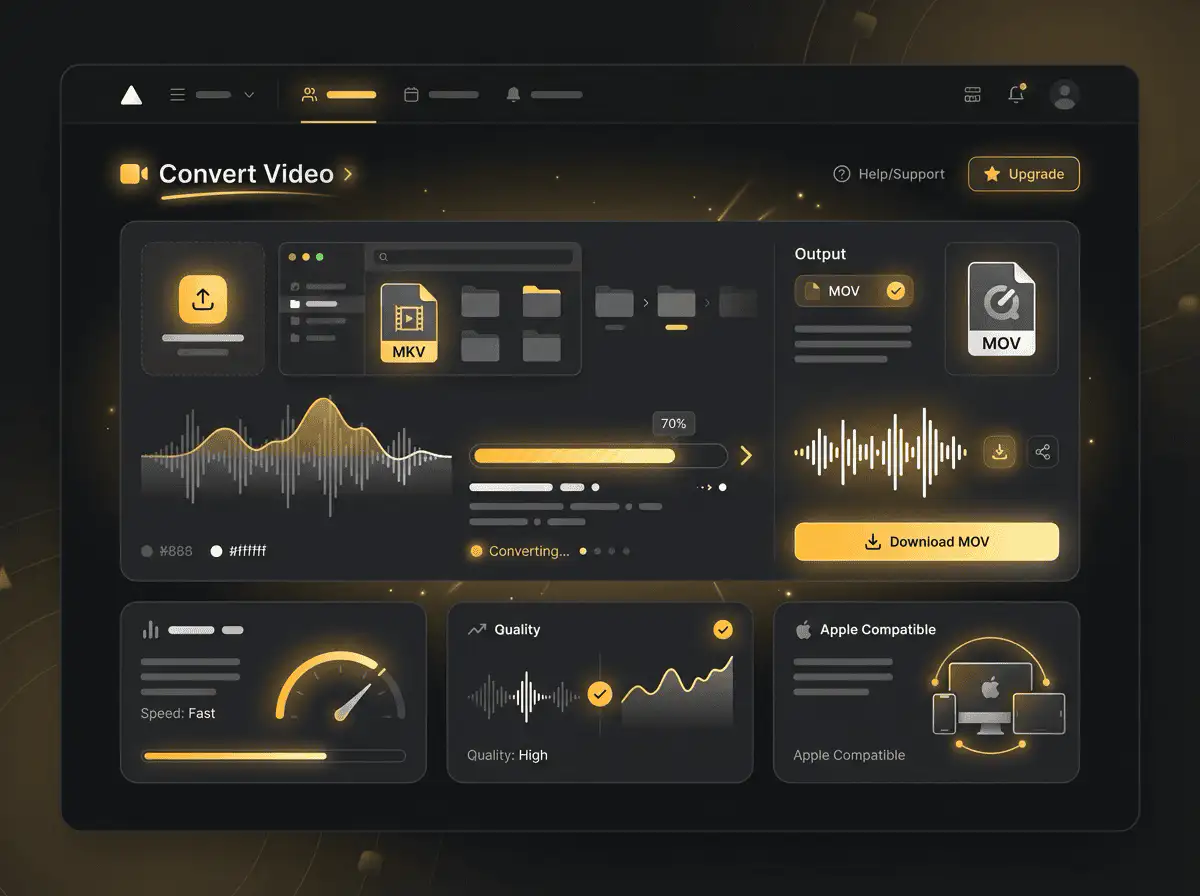
Convert MKV to MOV without setup
Convert MKV files to MOV in your browser. Free to use, no account required, and files are deleted after processing.
Upload your file
Choose the audio or video file from your device and keep the original as a backup.
Convert in the browser
Select the output format and let Sceneform prepare the converted file.
Download the result
Save the converted file and use it in your editor, player, archive, or publishing workflow.
Format note
Pick the output format based on where the file needs to go next: editing, playback, sharing, archiving, or web publishing.
What to know before converting MKV to MOV
A MKV to MOV converter changes your MKV file into a MOV file for compatibility, playback, editing, sharing, or publishing. The conversion can make the file easier to use, but it cannot add quality that was not present in the source.
Supported uploads
Video uploads: MP4, AVI, MOV, FLV, MKV, WebM, 3GP, MPEG, GIF, WMV, and TS files up to 500 MB.
Output
This page is configured for MOV output so you do not have to choose the format manually.
Quality rule
Conversion changes format and compatibility. It does not restore quality, resolution, or audio detail that was missing from the original file.
| Choice | Best for | Note |
|---|---|---|
| MOV | When your destination specifically needs MOV. | Choose the output based on playback, editing, sharing, or archive needs. |
| Source quality | Getting the best possible result from the conversion. | A converter cannot repair missing detail, noise, or low resolution. |
| Original file | Future edits or alternate conversions. | Keep the source until you verify the converted file works. |
Understanding MKV and MOV formats
What is MKV?
MKV is a flexible video container that can hold video, audio tracks, subtitles, chapters, and metadata in one file.
Best for: Video archives, files with multiple audio tracks, subtitles, and high-quality storage.
What is MOV?
MOV is Apple's QuickTime video container. It is common in iPhone, iPad, and Mac recording and editing workflows.
Best for: Apple devices, camera footage, editing handoff, and QuickTime-based workflows.
Why convert MKV to MOV?
- Use MOV when your current MKV file does not work in the player, editor, device, or upload destination you need.
- Format conversion is mostly about compatibility and workflow fit. It does not improve a weak source file.
- Keep the original file until you have checked that the converted output plays and uploads correctly.
Related Converters
Convert MP3 files to WMA for compatibility, editing, or publishing.
Extract or convert WAV audio to MP3 for easy playback and sharing.
Convert AAC files to OGG for compatibility, editing, or publishing.
Convert AAC files to M4A for compatibility, editing, or publishing.
Convert WMA files to AIFF for compatibility, editing, or publishing.
Convert OGG files to WAV for compatibility, editing, or publishing.
Convert AAC files to WMA for compatibility, editing, or publishing.
Convert AAC files to FLAC for compatibility, editing, or publishing.
Convert FLAC files to M4A for compatibility, editing, or publishing.
Convert FLAC files to WMA for compatibility, editing, or publishing.
Extract or convert M4A audio to MP3 for easy playback and sharing.
Convert FLAC files to OGG for compatibility, editing, or publishing.
Convert OGG files to AIFF for compatibility, editing, or publishing.
Convert MP3 files to WAV for compatibility, editing, or publishing.
Extract or convert OGG audio to MP3 for easy playback and sharing.
Convert MP3 files to AIFF for compatibility, editing, or publishing.
Convert AAC files to WAV for compatibility, editing, or publishing.
Convert OGG files to WMA for compatibility, editing, or publishing.
Convert OGG files to M4A for compatibility, editing, or publishing.
Convert FLAC files to AIFF for compatibility, editing, or publishing.
Convert MKV to MOV
Upload your MKV file, convert it to MOV, and download the result. Free to use, no account required.