Free AI Tools

Audio & Video Converters

More tools in this category without leaving this page.

All tools

FLAC to WAV: Complete Guide to Audio Conversion in 2026

Click to upload or drag and drop
MP3, AAC, FLAC, OGG, WMA, AIFF, WAV, M4A (Max 200 MB)

Convert to

Understanding FLAC and WAV Audio Formats

Before diving into the conversion process, it's crucial to understand the fundamental differences between these two audio formats and why you might need to convert between them.

What is FLAC?

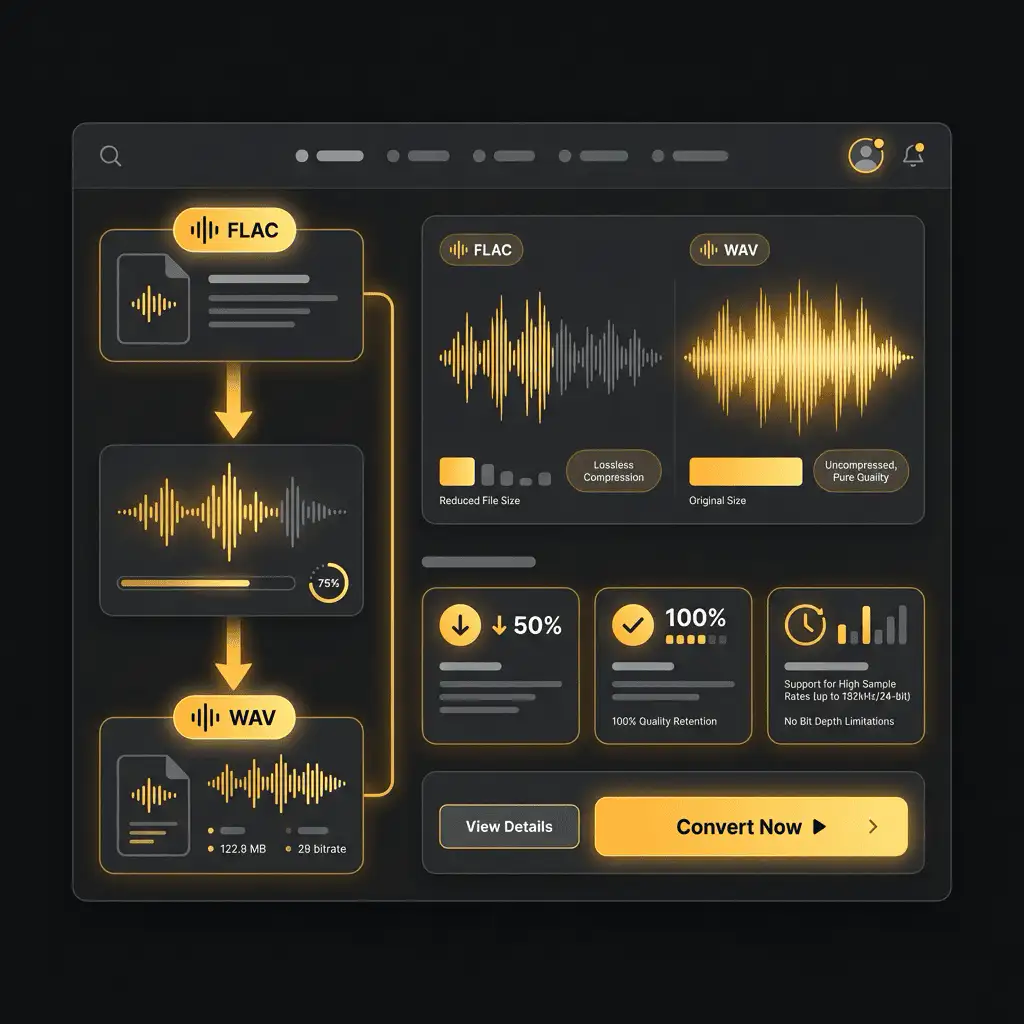
FLAC (Free Lossless Audio Codec) is a compressed lossless audio file format that maintains perfect audio quality while significantly reducing file size. It can compress an audio file up to half of its original size using a sophisticated lossless compression algorithm. Despite the compression, FLAC files retain 100% of the original audio data, making them mathematically identical to uncompressed formats.

FLAC is an open-source format, which means it's free to use and supported by a wide range of devices and software. The format supports metadata tagging and cover art, making it ideal for organizing large music libraries. FLAC files can support sampling rates of up to 192 kHz and bit depths of up to 24 bits, covering the entire range of professional audio requirements.

What is WAV?

WAV (Waveform Audio File Format) is an uncompressed audio file format developed by Microsoft and IBM. As the default audio format for Windows, WAV files store raw audio data exactly as recorded, representing the purest form of digital audio. Since WAV is uncompressed, it performs exceptionally well in terms of pure quality and bitrate, with no limitations on bit depth or sample rate.

WAV files support bit depths up to 32 bits and virtually any sample rate, making them the standard format in professional audio production. The format's universal compatibility means it's supported by virtually every program that plays or reads audio files, from simple media players to advanced digital audio workstations.

Understanding FLAC and WAV Audio Formats

FLAC vs WAV: Key Differences

Understanding the differences between these formats will help you make informed decisions about when and why to convert between them.

File Size Comparison

The most significant difference between FLAC and WAV is file size. FLAC files are typically 40-60% smaller than equivalent WAV files, with compression achieving up to 70% reduction in some cases. For example, a three-minute CD-quality track that takes about 30 MB as WAV will only occupy approximately 15 MB as FLAC. This means a 50MB WAV file becomes a 20-30MB FLAC file while maintaining perfect audio fidelity.

Sound Quality

Despite the dramatic file size difference, FLAC and WAV sound absolutely identical. FLAC uses lossless compression, meaning no audio data is lost during compression. In rigorous blind testing, even with high-end wireless headphones and professional monitoring equipment, listeners simply cannot distinguish between a FLAC and a WAV file. Since both are lossless formats, you can convert FLAC to WAV and back to FLAC indefinitely without any quality degradation.

Compatibility and Support

WAV files enjoy wider compatibility, particularly with older systems and professional audio equipment. Pro Tools, Cubase, and Reaper all treat WAV as the default recording format, making it the de facto standard in professional studios. FLAC, while widely supported by modern devices and software, may encounter compatibility issues with older equipment. However, as of 2026, FLAC support has become nearly universal across media players and audio production software.

FLAC vs WAV: Key Differences

Why Convert FLAC to WAV?

Understanding why you need to convert FLAC to WAV will help you choose the right conversion method and settings.

Professional Audio Production

WAV is the standard format for professional audio production and editing. Most digital audio workstations (DAWs) treat WAV as the default recording target, and audio engineers prefer WAV for its universal compatibility and straightforward format structure. When working in Pro Tools, Logic Pro, Cubase, or other professional DAWs, WAV files integrate seamlessly without requiring additional codec support. The uncompressed nature of WAV files also means faster processing times in some audio applications.

Video Production Requirements

Video editors often require WAV files because the format ensures consistent audio quality across different devices and platforms. The uncompressed nature of WAV allows for smooth syncing with video footage, which is crucial for maintaining audio-video synchronization. Many video editing applications, including Adobe Premiere Pro, Final Cut Pro, and DaVinci Resolve, work more efficiently with WAV files.

Hardware Compatibility

Some professional audio hardware, including certain audio interfaces, mixing consoles, and hardware samplers, only support uncompressed audio formats like WAV. Additionally, some DJ software and hardware controllers have better compatibility with WAV files, ensuring reliable playback during live performances.

Why Convert FLAC to WAV?

Best Methods to Convert FLAC to WAV

There are multiple approaches to converting FLAC to WAV, each with its own advantages depending on your needs and technical expertise.

Online Conversion Tools

Online converters offer the quickest and most accessible way to convert FLAC to WAV, requiring no software installation and working across all platforms.

FreeConvert provides a straightforward conversion process. Simply click the "Choose Files" button to select your FLAC files, then click the "Convert to WAV" button to start the conversion. The service is completely free and works on any web browser.

CloudConvert offers a similar experience with additional features for power users. You can upload FLAC files directly from your computer, cloud storage services, or via URL. The platform handles the conversion automatically, maintaining the original audio quality.

Restream's FLAC to WAV Converter provides a clean interface where you can drag and drop FLAC files or select them from your device. Once you click Convert, the tool processes your file and makes the WAV download available within moments.

Convertio supports batch conversion, allowing you to convert multiple FLAC files to WAV simultaneously. You can even drag and drop entire folders containing FLAC files, making it efficient for processing large numbers of files.

The main advantage of online converters is convenience and accessibility. However, they do require uploading your files to external servers, which may be a concern for sensitive audio material.

Desktop Software Solutions

Desktop software provides more control over conversion settings and often processes files faster than online tools, especially for large batches.

FFmpeg is a powerful, free, and open-source command-line tool that handles virtually any audio conversion task. The basic command to convert FLAC to WAV is simple:

ffmpeg -i input.flac output.wav

FFmpeg automatically selects the correct codecs and container formats based on the file extensions, making it remarkably easy to use despite being a command-line tool.

fre:ac is a free audio converter with a user-friendly graphical interface that converts between multiple formats including FLAC and WAV. The software supports batch conversion, allowing you to convert entire music libraries while retaining folder and filename structure.

Audacity, the popular free audio editor, can also convert FLAC to WAV. Import your FLAC files, then use File > Export > Export Audio and select WAV as the output format. The software also supports batch processing through its macro system.

Step-by-Step Conversion Process

Using Online Converters

  1. Select your conversion tool: Choose a reputable online converter like FreeConvert, CloudConvert, or Restream.

  2. Upload your FLAC file: Click the file selection button or drag and drop your FLAC file into the upload area.

  3. Choose output format: Select WAV as your target format.

  4. Start conversion: Click the convert or start button.

  5. Download the converted file: Once conversion is complete, download the WAV file to your device.

Using FFmpeg (Command Line)

  1. Install FFmpeg: Download and install FFmpeg from the official website or through your system's package manager.

  2. Open terminal or command prompt: Navigate to the directory containing your FLAC file.

  3. Run the conversion command: Execute ffmpeg -i input.flac output.wav, replacing filenames as needed.

  4. Verify the output: Check the output WAV file to ensure conversion completed successfully.

For batch conversion with FFmpeg, use a simple bash loop on Linux or Mac:

for file in *.flac; do ffmpeg -i "$file" "${file%.flac}.wav"; done

Technical Settings and Quality Considerations

Understanding audio specifications ensures you convert files with the appropriate quality settings for your intended use.

Sample Rate Settings

The sample rate determines how many times per second the audio waveform is measured:

44.1 kHz is the standard for music-only projects, including CDs, streaming platforms, and audio distribution. This sample rate accurately captures all frequencies audible to humans.

48 kHz is the standard for video production, including YouTube videos, DVDs, and broadcast media.

96 kHz and 192 kHz are higher sample rates used for archival purposes and professional mastering.

Both FLAC and WAV support all these sample rates, and the conversion process preserves the original sample rate by default.

Bit Depth Settings

Bit depth determines the dynamic range and accuracy of the digital audio representation:

16-bit is sufficient for music distribution and playback. It provides a dynamic range of approximately 96 dB, which is the standard for CD-quality audio.

24-bit is recommended for audio production, editing, and archiving. Choose 24-bit WAV when you plan to edit the audio in a DAW or perform signal processing.

32-bit is used in professional production environments and offers maximum precision for complex audio processing chains.

WAV supports bit depths up to 32 bits, while FLAC only supports up to 24 bits.

Quality Preservation

Since both FLAC and WAV are lossless formats, converting from FLAC to WAV results in no quality loss whatsoever. The conversion is essentially a decompression process, expanding the compressed FLAC data back to uncompressed WAV format. Every bit of audio information is preserved perfectly.

Batch Conversion Strategies

When dealing with multiple files or entire music libraries, batch conversion capabilities become essential for efficiency.

Software-Based Batch Conversion

Most desktop conversion software supports batch processing natively. Applications like fre:ac, VideoProc Converter AI, and Movavi Audio Converter allow you to add multiple FLAC files simultaneously and convert them all in a single operation. These applications typically maintain the original folder structure and filename conventions.

Command-Line Batch Processing

For users comfortable with command-line tools, FFmpeg offers powerful batch conversion capabilities through scripting.

A simple Windows batch script for converting all FLAC files in a directory:

for %%a in (*.flac) do ffmpeg -i "%%a" "%%~na.wav"

On Linux or macOS, a bash script accomplishes the same task:

for file in *.flac; do
    ffmpeg -i "$file" "${file%.flac}.wav"
done

Online Batch Conversion

Several online converters, including MConverter, FreeConvert, and Zamzar, support batch conversion of multiple files simultaneously. The main limitation is upload and download time, which can become significant for large file collections.

Common Issues and Troubleshooting

Conversion Fails or Produces Errors

If conversion fails, first verify that your source FLAC file is not corrupted. Try playing the file in a media player to confirm it works properly. Ensure you have sufficient disk space for the output WAV file, which will be significantly larger than the source FLAC file.

Audio Quality Issues After Conversion

If the converted WAV file sounds different from the source FLAC file, check that your conversion settings match the original file specifications. Ensure your media player or DAW supports the bit depth and sample rate of your WAV file.

File Size Concerns

Remember that WAV files are uncompressed and will always be significantly larger than FLAC files. This is expected behavior. A typical three-minute CD-quality track will occupy approximately 30MB as WAV compared to 15MB as FLAC.

Best Practices for Audio Conversion

Following these best practices ensures optimal results when converting FLAC to WAV:

Maintain Original File Quality

Always convert from the highest quality source available. Never convert lossy formats (MP3, AAC, OGG) to FLAC or WAV expecting quality improvement. While the file will be larger, the audio quality will remain identical to the lossy source.

Organize Your Files

Develop a consistent file naming and folder structure for your audio library. Many conversion tools can preserve folder structures during batch conversion, making organization easier.

Verify Conversions

After converting important files, especially during batch operations, spot-check several conversions to ensure they completed successfully. Compare file sizes, play portions of the audio, and verify that metadata transferred correctly.

Back Up Original Files

Maintain backups of your original FLAC files even after converting to WAV. Hard drive failures happen, and having multiple format versions provides additional security for valuable audio content.

Storage and Management Considerations

Managing both FLAC and WAV files requires thoughtful consideration of storage capacity and organization.

Storage Space Requirements

WAV files consume significantly more storage space than FLAC files. A 1TB hard drive that could hold approximately 2,000 hours of FLAC music would only accommodate about 1,000 hours of WAV files. For large audio libraries, consider maintaining your primary archive in FLAC format and converting specific albums or tracks to WAV only when needed.

Cloud Storage Implications

If you store audio files in cloud services like Google Drive, Dropbox, or iCloud, the larger size of WAV files will consume storage quota and upload bandwidth more quickly than FLAC files.

Local vs Network Storage

For professional audio production, storing working files (WAV) on local fast storage (SSD) provides optimal performance in DAWs. Archive files (FLAC) can be stored on slower, higher-capacity network storage or external hard drives.

Related Converters

Convert Your Files Now

Upload your file, choose your settings, and download the result. No software, no sign-ups, no fees.