Creator
$19/month
Billed monthly
For solo creators posting every week
500 credits every month
- Up to 250 AI images
- Up to 50 Studio exports, plus the first export of each project
- Up to 1.5 hours of AI voiceover
- Roll over up to 1,000 credits
Merge your clips into one video.
Pick your clips in Studio and they land end to end, in the order you picked them. Settle the shapes and sound at each join, then export one MP4.
Free, with no upload: use an app on your phone or computer. Studio is the paid route, for mixed shapes, sound and transitions.
4 clips in, one video out
0:26
Studio comes with every plan, from $19 a month. Each project's first export is included, up to 4K with no watermark. It runs in a desktop browser.
With FFmpeg, for clips from the same camera and settings: list them in list.txt, then run the command below. Clips that don't match need the re-encoding command further down the page.
ffmpeg -f concat -safe 0 -i list.txt -c copy joined.mp4The free steps above follow each maker's own help page, linked here.
In iMovie, Apple's free app
Save Video puts the joined video in your photo library. Apple's guide to editing video in the Photos app covers trimming, speed, cropping and sound, but not joining, so iMovie is the free way.
In Google Photos
Save keeps the highlight video in Google Photos; search for Highlight videos to find it. Google says older phones may not make highlight videos, and its music is for personal use only.
In Clipchamp, built into Windows 11
Clipchamp's free plan exports up to 1080p. Hover over a gap between two clips and press Delete this gap to close it. It also runs in a browser at app.clipchamp.com.
In QuickTime Player
Export As saves a QuickTime movie (.mov), not an MP4, at 4K, 1080p, 720p or 480p. Sizes larger than your movie are dimmed.
Free, on Windows, Mac or Linux
Write the clips into a file called list.txt, one line each, in the order they play. FFmpeg's docs say every file needs the same streams: same codecs, same time base. Then it joins them without re-encoding, so the picture doesn't change.
file '01-latte.mp4'
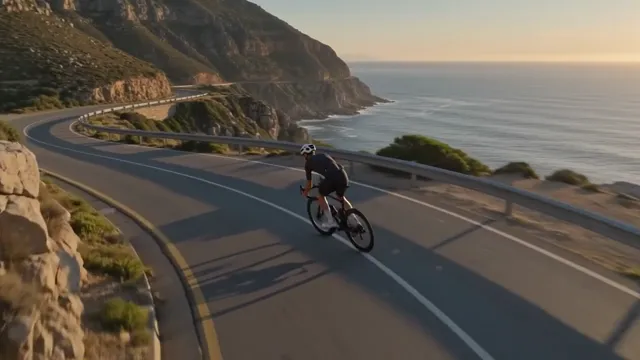
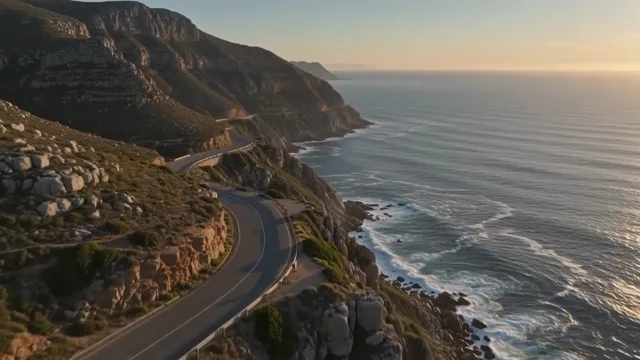
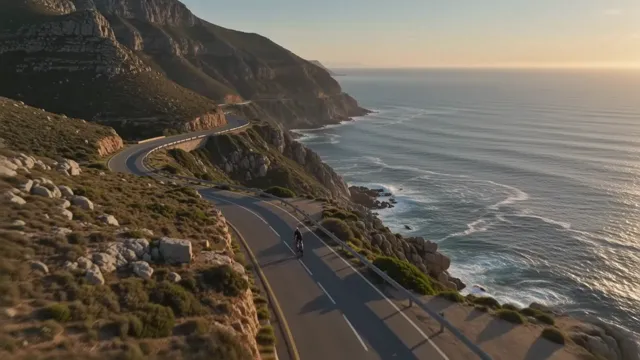
file '02-coast-road.mp4'
ffmpeg -f concat -safe 0 -i list.txt -c copy joined.mp4Fits both clips into a 1920 × 1080 frame at 30 fps and joins picture and sound. Both clips need a sound track for this one.
ffmpeg -i wide.mp4 -i upright.mp4 -filter_complex "[0:v]scale=1920:1080:force_original_aspect_ratio=decrease,pad=1920:1080:-1:-1,setsar=1,fps=30[v0];[1:v]scale=1920:1080:force_original_aspect_ratio=decrease,pad=1920:1080:-1:-1,setsar=1,fps=30[v1];[v0][0:a][v1][1:a]concat=n=2:v=1:a=1[v][a]" -map "[v]" -map "[a]" joined.mp4Start a Studio project. It opens upright, 1080 × 1920. For wide clips, click an empty part of the canvas and press Swap canvas width and height.
Upload them all. Cmd-click (Ctrl-click on Windows) each clip in the order it should play, then press Add to timeline. They land end to end, starting at the playhead.
Play it through once. Then choose MP4 or WebM, 720p, 1080p or 4K, and press Export video. There's no watermark.
Name the files in order first. The media panel sorts by name, so a Shift-click from the first to the last picks them in that order.
These are the four clips from the top of the page, as they came off the camera. Two sizes, two shapes, two frame rates, and only half of them have sound.
| Clip | Picture | Shape | Frame rate | Sound | Length |
|---|---|---|---|---|---|
 01-latte.mp4 | 1280 × 720 | 16:9 | 24 fps | Sound | 0:08 |
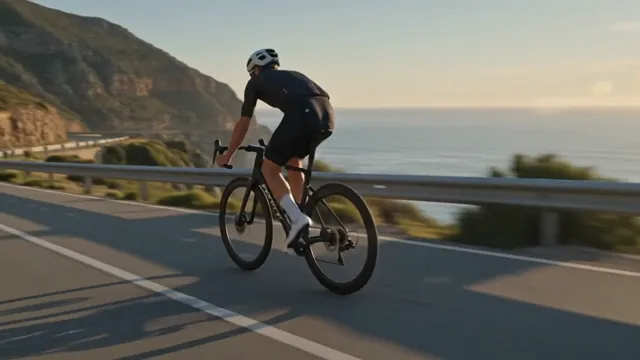 02-coast-road.mp4 | 1280 × 720 | 16:9 | 24 fps | Sound | 0:08 |
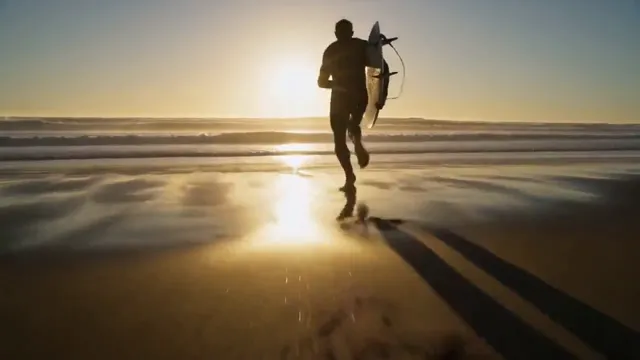 03-paddle-out.mp4 | 1280 × 720 | 16:9 | 60 fps | No sound | 0:05 |
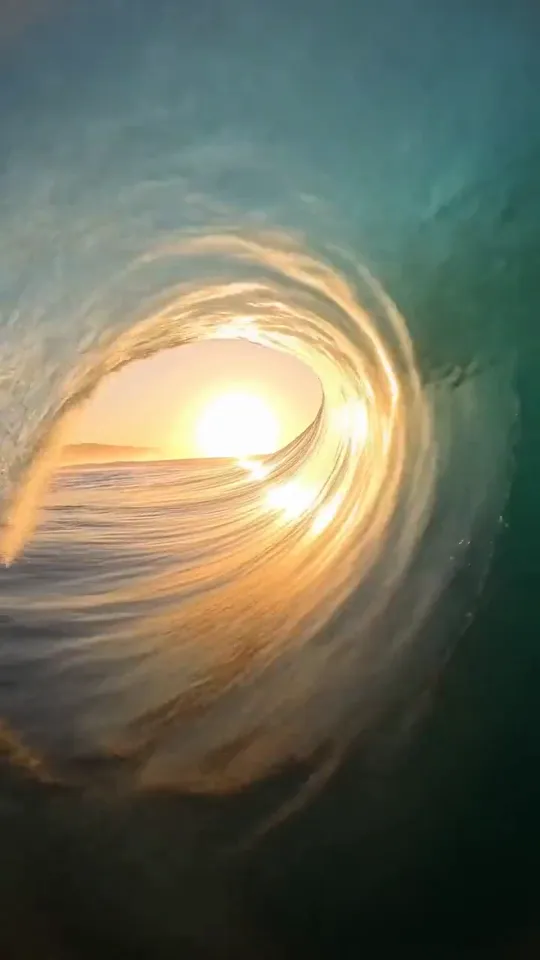 04-wave.mp4 | 720 × 1280 | 9:16 | 60 fps | No sound | 0:05 |
| The joined video | 1920 × 1080 canvas | 16:9 | 30 fps | One mix | 0:26 |
01-latte.mp4
1280 × 720 · 16:9 · 24 fps · Sound · 0:08
02-coast-road.mp4
1280 × 720 · 16:9 · 24 fps · Sound · 0:08
03-paddle-out.mp4
1280 × 720 · 16:9 · 60 fps · No sound · 0:05
04-wave.mp4
720 × 1280 · 9:16 · 60 fps · No sound · 0:05
The joined video
1920 × 1080 canvas · 16:9 · 30 fps · One mix · 0:26
The video has one canvas. Studio fits each clip inside it, so an upright clip on a wide canvas gets black bars. Fill the frame or fit it over a blurred copy instead.
Fit over a blurred copy
Clips shot at 24 and 60 frames per second play side by side on the timeline. The export picks one rate for the whole video: 24, 30 or 60.
Each clip has its own Volume and an Enable audio switch, so a loud clip can come down to match the rest. A music track under the whole timeline covers the silent ones.
Add music to video0:26 0:32
That's why a quick join can break. We ran FFmpeg's fast join, which copies the clips without re-encoding them, on these four files. It finished without an error and wrote a 0:32 file from 0:26 of video, with the upright wave squashed into the wide frame. A fast join only works when every clip matches. Studio renders every clip into the new size, so mixed clips come out right.
These are the real last and first frames at each join in the video above.

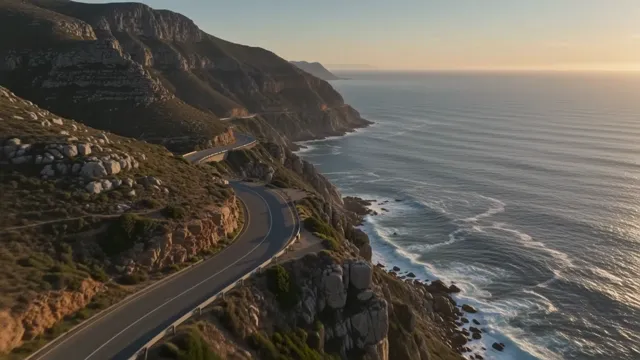
Join 1 · Latte to Coast road
Close-up to a wide view of a new place reads as the next moment. A straight cut does the job.
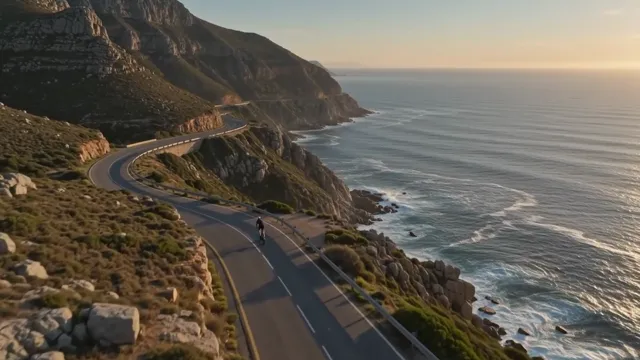
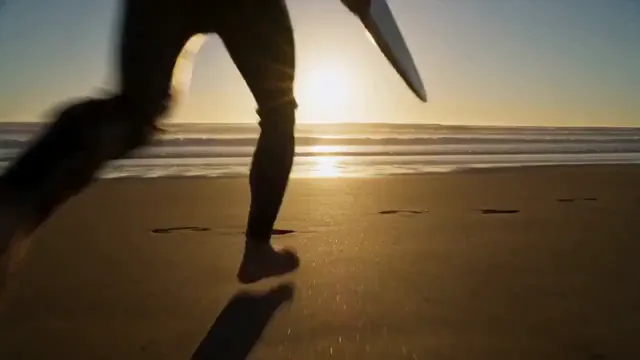
Join 2 · Coast road to Paddle out
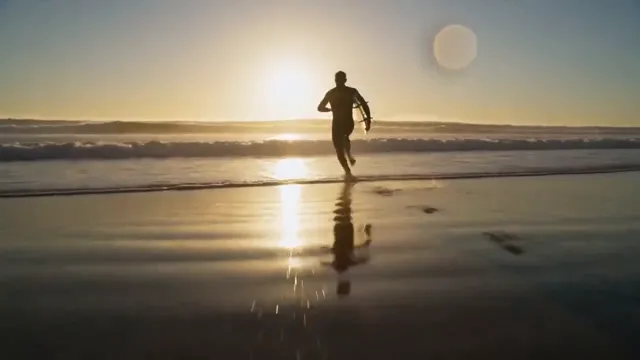
High and wide, then legs right at the lens. Give the second clip a Fade entry transition of 30 frames, half a second, to soften the jump.
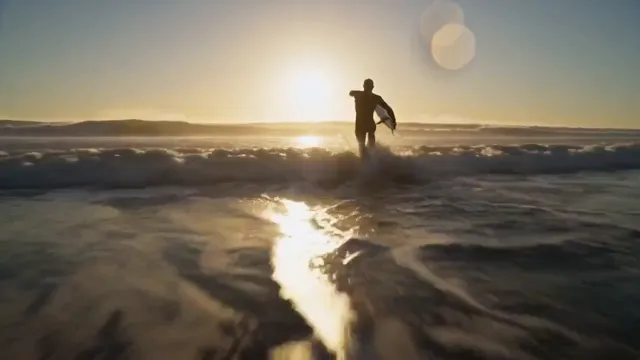
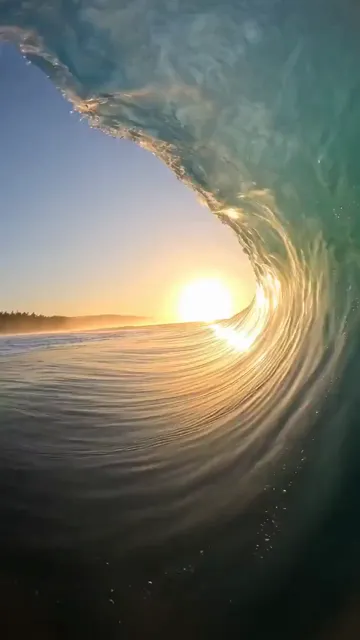
Join 3 · Paddle out to Wave
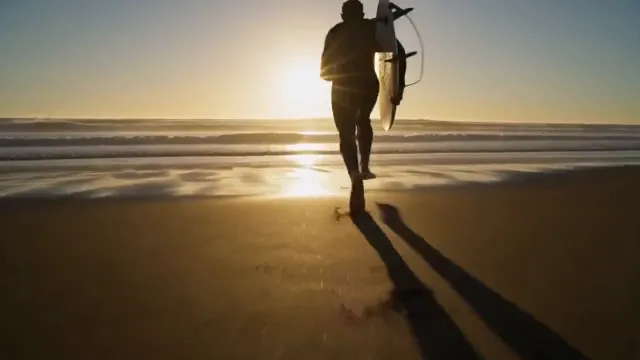
The wave was filmed upright. Fit it over a blurred copy of itself so the wide frame stays full, and the cut lands on the sun in both shots.
A clip that starts or ends on a wasted second needs a trim before the join: drag its edge on the timeline. How to trim a video. Every transition, played.
Pick the plan for how much you post. Every model on every plan. Unused credits roll over. Cancel anytime.
Billed monthly
For solo creators posting every week
500 credits every month
Billed monthly
For creators posting daily across channels
1,300 credits every month
Billed monthly
For brands and production teams
2,700 credits every month
Billed monthly
For agencies running always-on content
5,500 credits every month
Want checkout, comparison tables, or a custom volume? See the full pricing page
Plans from $19 a month. Commercial use and no watermark included.