Cut out, reframe and extend from your generated images and videos
Every card menu and the viewer now offer the tools that fit the item, with prices on the image transforms, including one-click Cut out background and Reframe.
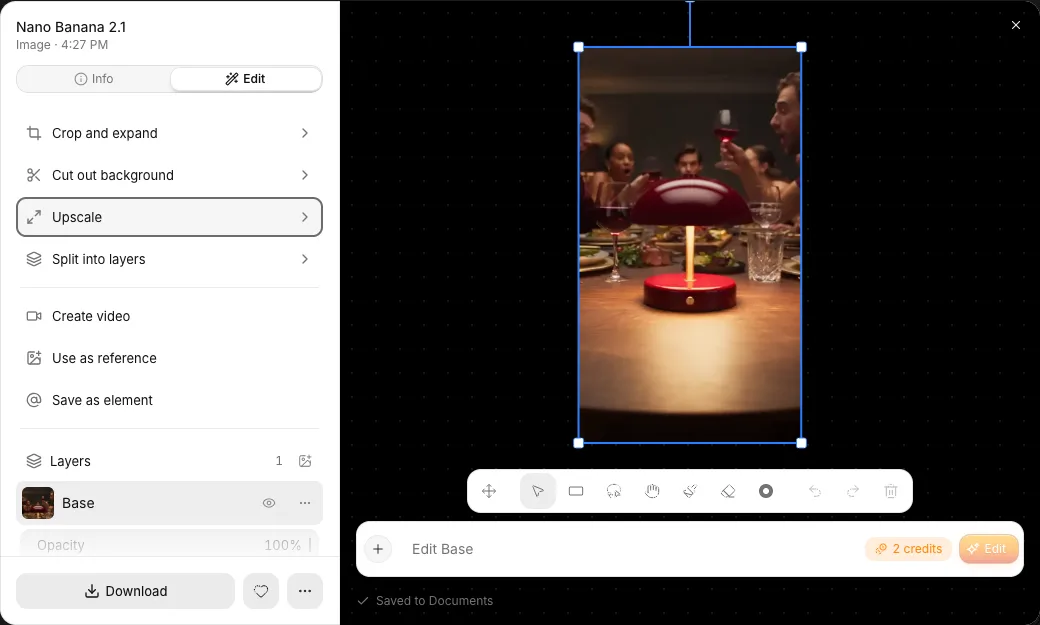
Open the ⋯ menu on any image or video, or open it in the viewer, and the tools that fit that item are one click away. The image transforms show their price before you run them.
New tools on generated images
- Cut out background and Reframe run straight from the menu on images you generated, and on their copies in your Media library. Reframe offers 9:16, 3:4, 1:1 and 16:9.
- The result lands in your image history next to the original, like Upscale.
- Copy image and Copy link sit next to Download.
New tools on every video
- Extend opens your clip in Veo 3.1 Fast, ready to continue it.
- Edit video opens it in Kling 3.0 Omni.
The same menu everywhere
- Your Media library shows the same tools as your history: a Library copy of a generated image offers the same Cut out background and Reframe as its original.
- Ad Studio's Remix headline, Resize for placements and Localize show only on Ad Studio ads.
A viewer built around what you can do next
- The sidebar shows the model and where the item came from.
- An Edit tab lists the tools for the item, with prices on Upscale, Cut out background and Reframe. Edit image still opens the editor in place.
- Run again, Post, Download and Favorite sit at the bottom, and ⋯ has the rest.