On YouTube, press > or <. On other sites, add the free Video Speed Controller extension for Chrome or Firefox, or copy a speed bookmark. How each works
2x8 seconds of footage plays in 0:04
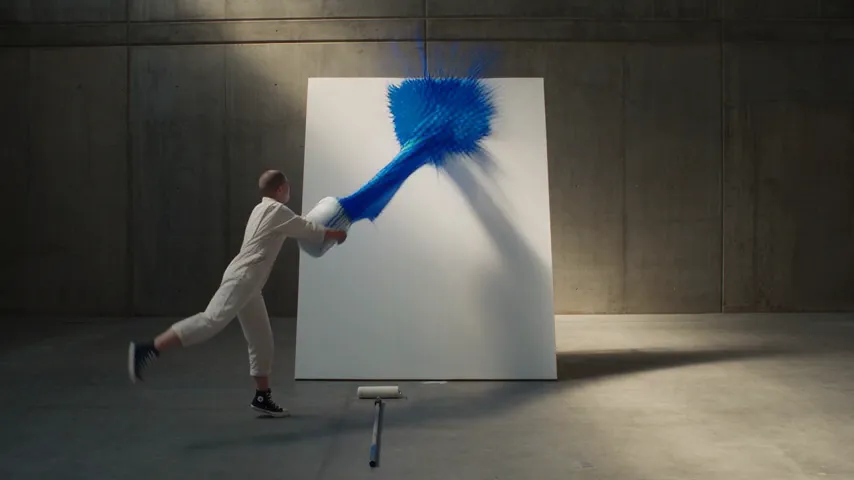
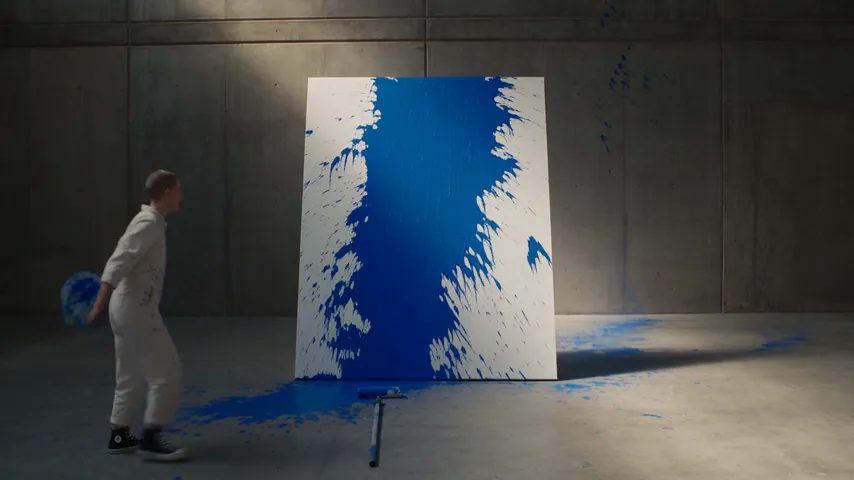
The splash0:04The toss0:04The spin0:04
Two things people mean by a speed controller.Watching faster, or changing the file.
Watching something faster?It's a player setting.
Speed while you watch lives in the player, not the file. You don't need an editor for it.
On YouTube
>
Faster
<
Slower
Or hover over the player, click Settings, then Speed, and pick one. Click and hold on the video to play it at 2x while you hold.
On any site: the Video Speed Controller extension
A free, open-source extension that works on any site with HTML5 video or audio, from 0.07x to 16x. Press D for faster, S for slower and R to go back to 1x.
It changes every video in the page, which covers most sites. It can't reach a player embedded from another site, and some players reset the speed when the next video starts.
Making a video faster or slower?Change it in the file.
For a reel, an ad, a tutorial or one slow-motion moment, the speed has to be part of the video. Change it in Studio and export it, and everyone sees the new speed in any player.
Add your video to a Studio project and click it on the timeline. To change only part of it, split it first with S.
2
Set the speed
In the Video settings, drag Playback rate. Left of 1x slows it to as little as 0.25x; right speeds it up to 5x, in steps of 0.05x.
3
Check and export
Play it back, then export MP4 or WebM, with no watermark. Everyone who plays the file sees the new speed.
Not using Studio?Speed on iPhone, Instagram, Premiere Pro and CapCut.
How to speed up a video on iPhone
In Apple's iMovie app
1Open a movie project in iMovie with your video in it.
2Tap the clip on the timeline, then tap the Speed button in the inspector at the bottom.
3Drag the slider right to speed it up or left to slow it down. 2x is twice the normal speed, 1/2x is half.
To change only part of the clip, drag the yellow range handles first, or tap Add to start a new range. iMovie keeps the sound's pitch unless you turn on Speed changes pitch. The Photos app can only slow down a video filmed at a high frame rate: open it, tap Edit, tap Video, then pick a playback speed.
How to speed up a video for Instagram
In Edits, Instagram's video editing app
1Open Edits on your phone and tap a project to open the editing view.
2Tap the video clip at the bottom to see its tools.
3Tap Speed and set the speed, then export straight to Instagram.
How to speed up a video in Premiere Pro
In the Speed/Duration dialog
1Select the clip in the Timeline panel, then choose Clip > Speed/Duration, or right-click the clip and choose Speed/Duration.
2Type a percentage in the Speed field. 100% is normal speed, 200% is twice as fast and 50% is half speed.
3Select Maintain audio pitch, and Ripple Edit to move the clips after it, then select OK.
For slow motion, its Optical Flow option makes new frames in between, which Studio doesn't do.
How to speed up a video in CapCut
In the CapCut phone app
1Tap New project and pick the video from your camera roll.
2Tap the clip on the timeline, then tap Speed in the bottom toolbar and choose Normal.
3Drag the slider to the speed you want, like 1.5x or 2x, then tap Export.
Curve, next to Normal, changes the speed within one clip.
How to speed up part of a video.One take, three speeds.
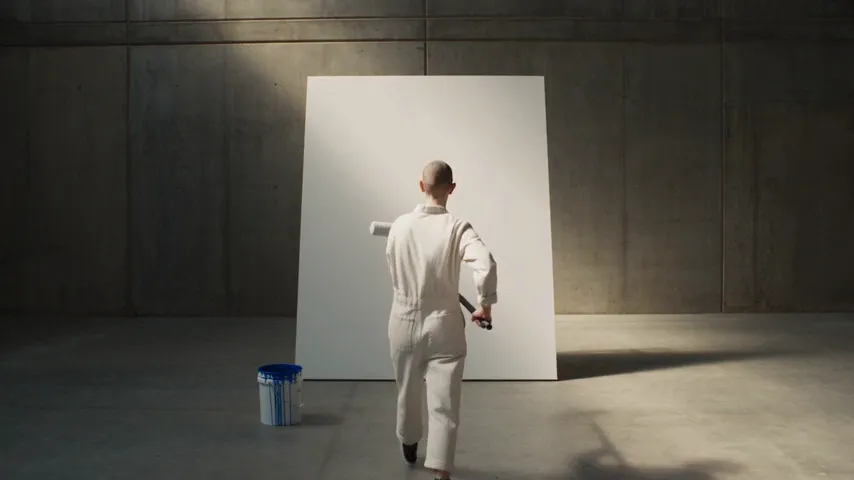
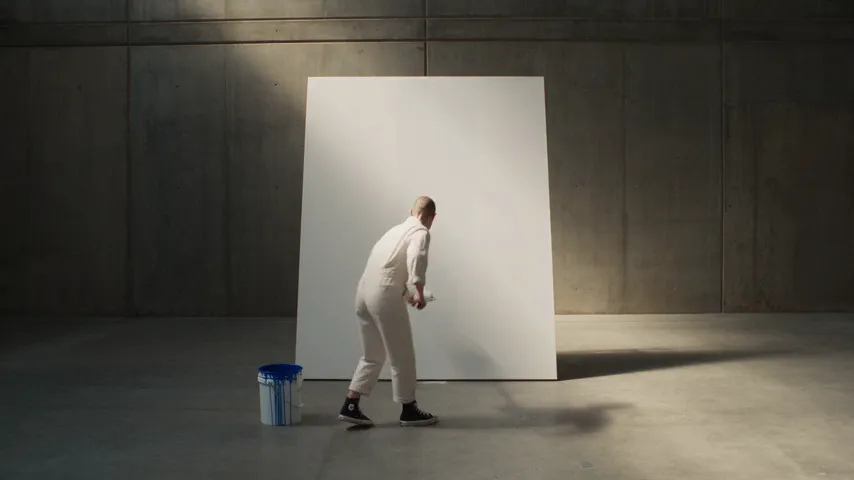
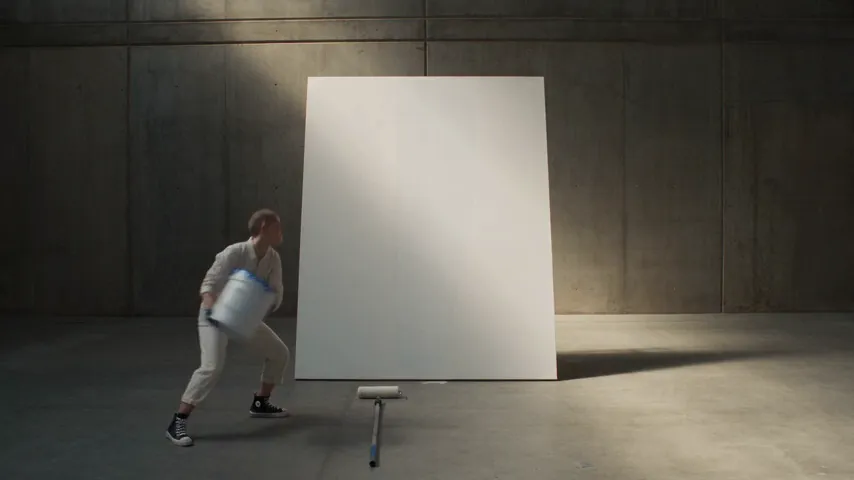
A painter's video as it was filmed: sixteen seconds of rolling primer and a throw that's over in a second and a half. Speed up the dull part, slow down the good one.
0:22down from 0:30
The intro0:05
Primingat 4x, filmed 0:160:04
The setup0:04.5
The throwat 0.25x, filmed 0:01.50:06
The result0:03
4x
0.25x
1
Split around the part
Put the playhead where the rolling starts and press S. Move to where it ends and press S again.
2
Speed up the piece
Select the piece between the splits and set Playback rate to 4x. Studio only shortens a clip when its footage runs out, and this piece has the rest of the take after it. So it keeps its old slot and runs on into later footage.
3
Close it up
Drag the piece's right edge left to the last stroke, a quarter of its old length, then slide the rest of the take left to meet it.
Slowing the throw works the other way. Move the later pieces right to make room, set 0.25x, then drag the throw's right edge out until the paint hits the canvas.
How fast should it play?Fit a clip to a length.
Type how long your clip is and how long it has to be. Minutes and seconds, like 1:15, or just seconds.
My clip is and has to be .
Has to be
Set it to 1.25x
It runs 1:00.
What changes with the speed.Length, sound and frames.
0:08 at 2x is 0:04
Length divided by speed. A whole clip gets shorter on the timeline by itself, because Studio shortens a clip when its footage runs out. A split piece has more footage after it, so it keeps its slot until you trim it. A slowed clip keeps its length and shows less footage until you drag its right edge out.
Same pitch
The sound plays at the clip's speed and keeps its pitch, so a voice at 2x sounds quick, not squeaky. To hide it, switch the sound off in the clip's Audio settings and put music under it.
No new frames
Slowing down holds each frame on screen longer. Studio doesn't invent the frames in between, so smooth slow motion starts with footage filmed at 60, 120 or 240 frames a second.
1xA new frame every 1/24 of a second
1
2
3
4
5
6
7
8
9
10
11
12
0.25xEach frame held for 4/24 of a second
1
1
1
1
Frame 1, four times
2
2
2
2
Frame 2, four times
3
3
3
3
Frame 3, four times
The same half second on screen: twelve new frames at 1x, three at 0.25x. This clip was filmed at 24 frames a second, so its quarter speed shows 6 new frames a second.
Simple pricing that scales with you.
Pick the plan for how much you post. Every model on every plan. Unused credits roll over. Cancel anytime.
Creator
$19/month
Billed monthly
For solo creators posting every week
500 credits every month
Up to 250 AI images
Up to 50 Studio exports, plus a free first export per project
Add the video to a Studio project, click it on the timeline, and drag Playback rate in its Video settings past 1x, up to 5x. A whole clip gets shorter to match. Play it back, then export it as MP4 or WebM.
Drag the same Playback rate control below 1x, as far as 0.25x. A slowed clip keeps its length on the timeline, so it shows less of the footage. Drag its right edge out to bring the rest back.
Yes. Split the clip with S at the start and end of the part, select the piece in between and change its Playback rate. Then trim the piece to the footage you want and slide the rest of the clip to meet it.
Anything from 0.25x to 5x, in steps of 0.05x. 1x is the speed it was filmed at. Each video, audio or GIF clip on the timeline has its own speed.
The clip's sound plays at the same speed as the picture and keeps its pitch, so a voice at 2x sounds fast, not high. If you'd rather not hear it, switch the clip's sound off in its Audio settings and put music under it.
Only as smooth as the footage allows. Studio doesn't invent new frames, so a 24 or 30 frames a second clip at 0.25x shows each frame four times. For smooth slow motion, film at 60, 120 or 240 frames a second.
No. Studio changes the speed of the video file, so everyone who watches it sees the new speed. To watch something faster yourself, use the player's own speed menu, YouTube's > and < keys, the free Video Speed Controller extension for Chrome or Firefox, or the speed bookmark on this page.
Use Apple's iMovie app. Open a movie project with the video in it, tap the clip, tap the Speed button and drag the slider right. The Photos app can only slow down a video filmed at a high frame rate.
Plans start at $19 a month, and every plan includes Studio. The speed bookmark and the iPhone and CapCut steps on this page cost nothing.
Changing the speed costs nothing. The first export of each project is free, and each export after it costs 10 credits. The $19 Creator plan has 500 credits a month. Every paid plan includes commercial use and exports without a watermark.