




Skip to content

AI background generator

Keep the subject. Change the place.

Upload a photo of a product or a person and type where it should be. The image editor draws the new background around your subject.

Plans from $19 a month

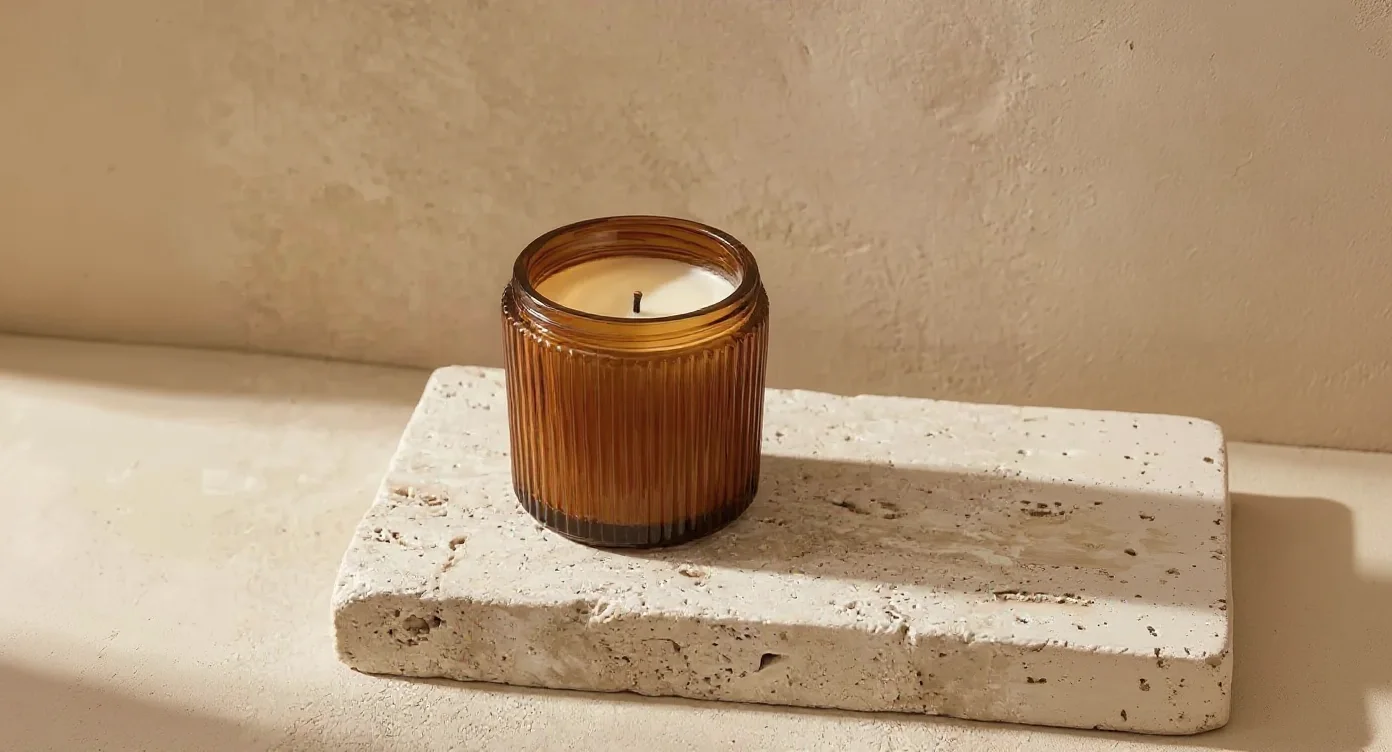
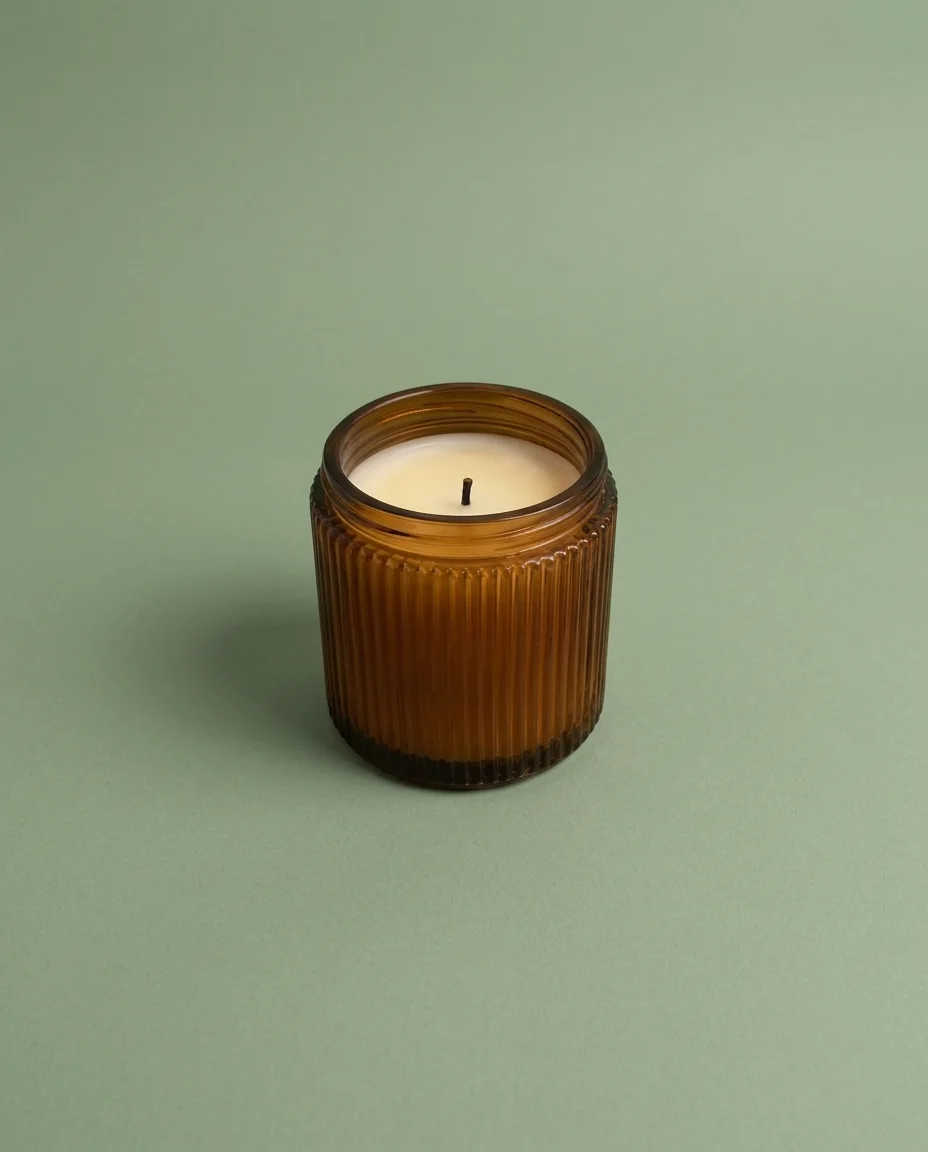
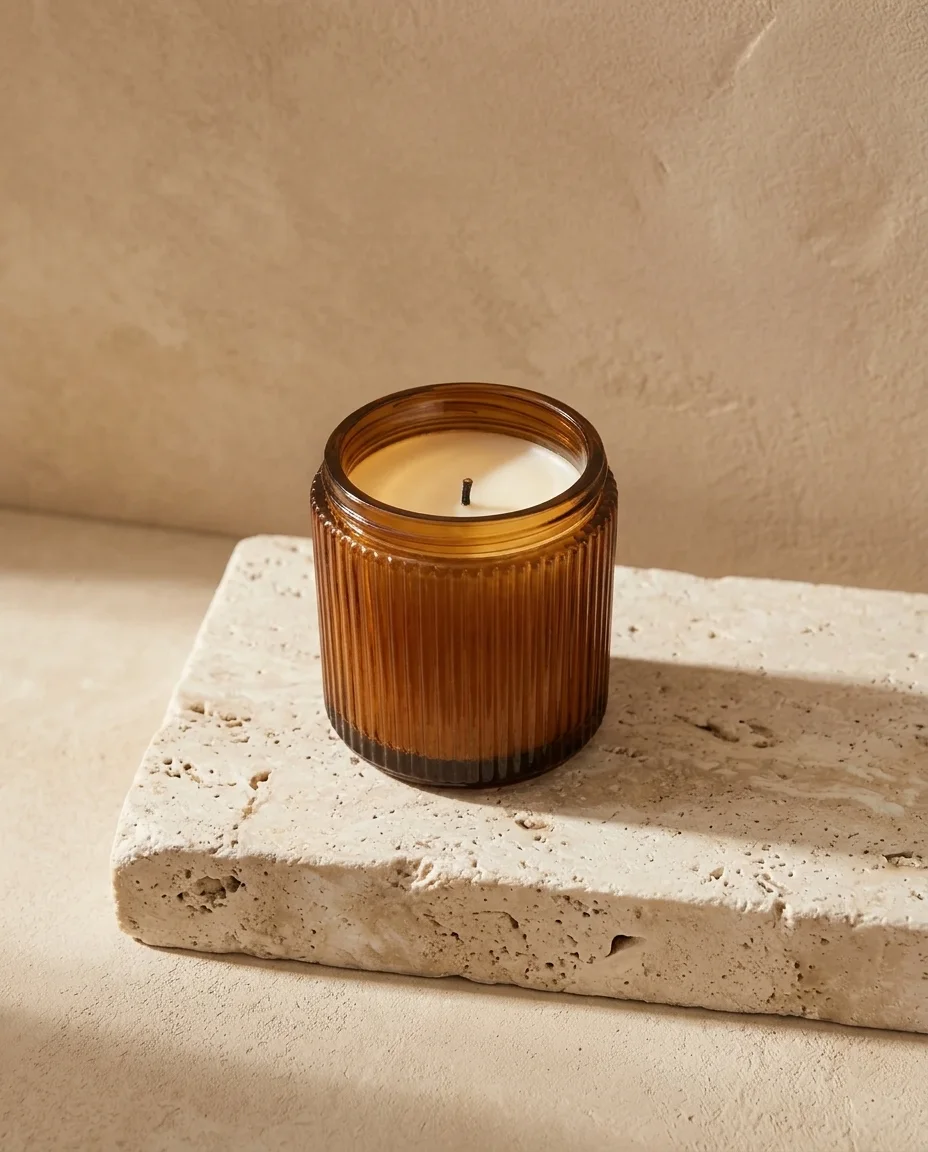
The same candle on a pale travertine block against a warm plaster wall, lit from a window on the left
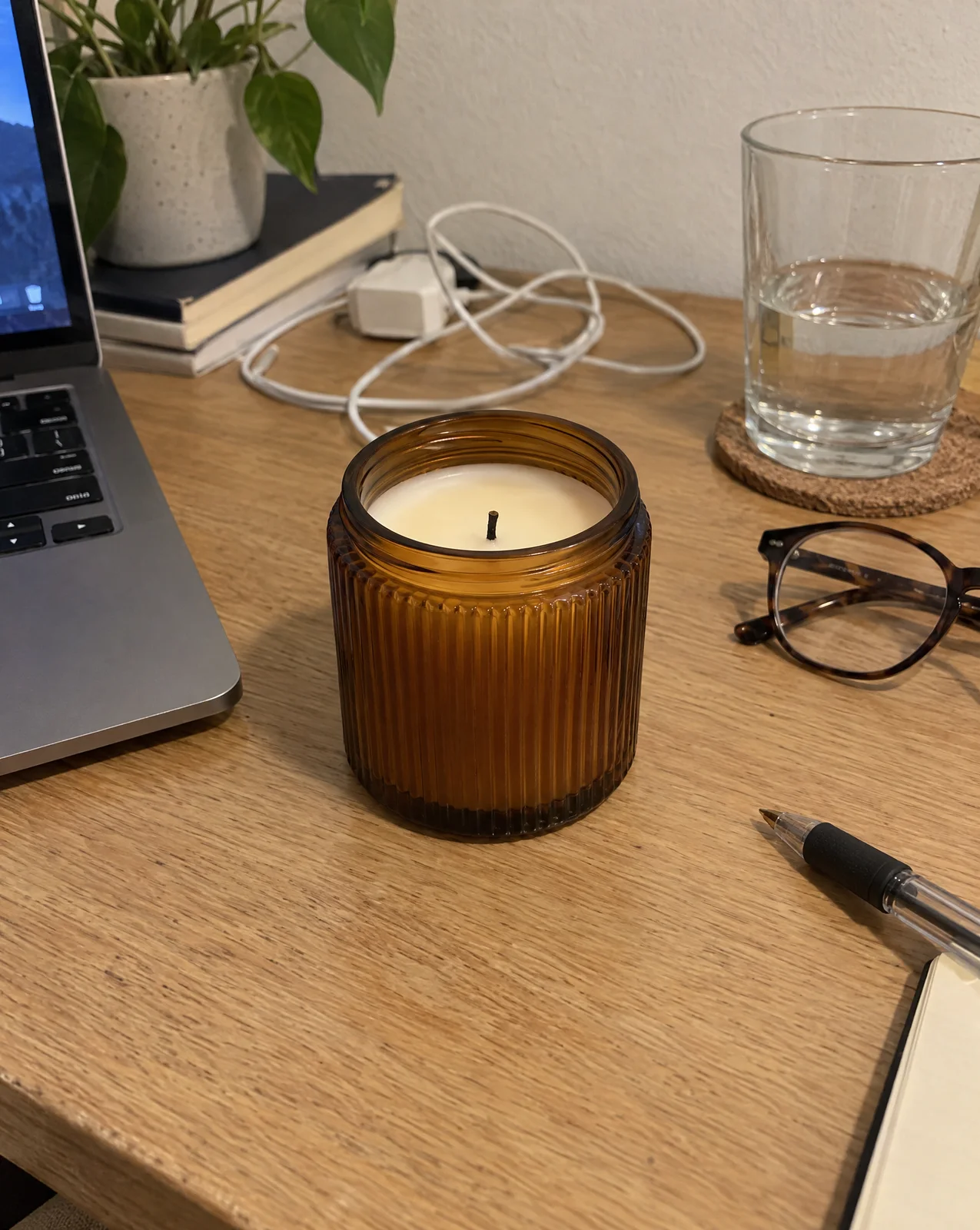
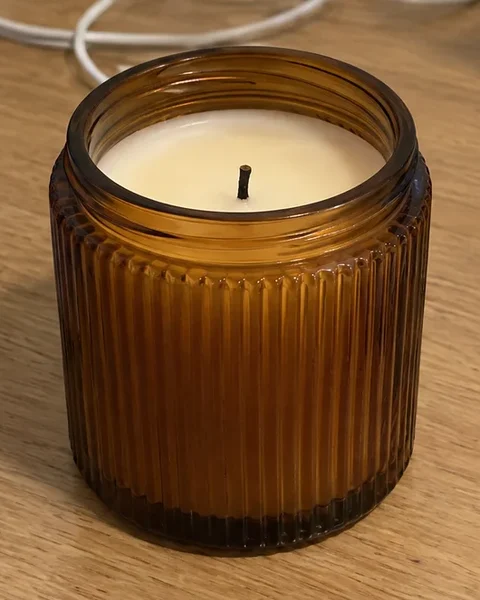
A phone photo of an amber ribbed glass candle on a cluttered desk, next to a laptop, glasses, a pen, a charging cable and a glass of waterBefore
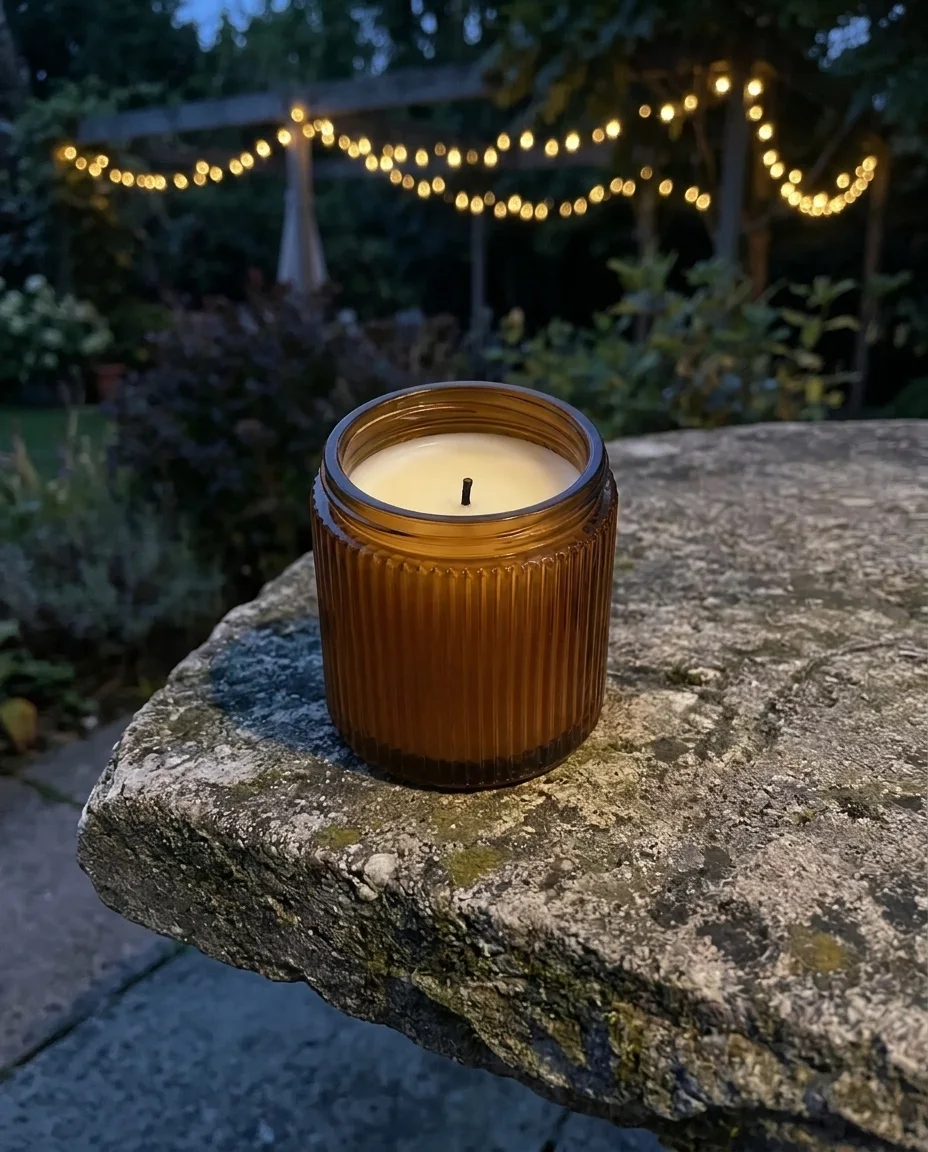
The same selfie with a home office behind her: an oak bookshelf, a trailing plant and a warm wall
A phone selfie of a laughing woman with shoulder-length twists in a rust cardigan, in her living roomBefore
Candle prompt
Replace the desk and everything around the candle with a pale travertine block against a warm sand-colored plaster wall, with the candle standing on the block and soft window light from the left. Keep the candle, its glass and its wax exactly the same.
Selfie prompt
Replace the living room behind her with a calm home office: a light oak bookshelf, a trailing plant and a warm off-white wall, softly out of focus. Keep her face, her hair, her cardigan and her expression the same.

The prompt asks the editor to keep your subject, so compare the result with your photo before you use it. To keep the original pixels, use Cut out and place it on the new background.

How to change a backgroundSay the new place. Say what stays.

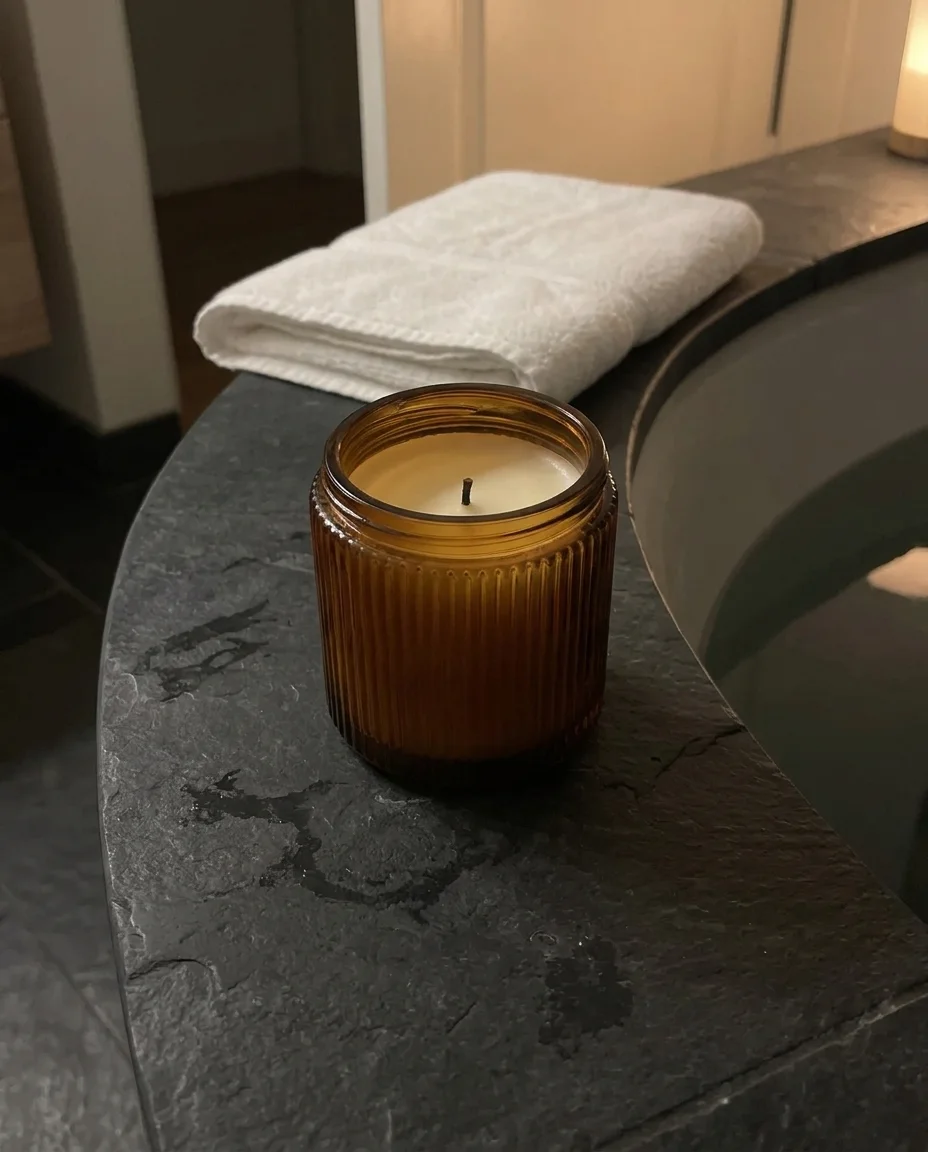
The same candle on the dark slate ledge of a bathtub in the evening, a folded white towel behind it
A phone photo of an amber ribbed glass candle on a cluttered desk, next to a laptop, glasses, a pen, a charging cable and a glass of waterBefore
  1. 1. What goes

    Replace the desk and everything around the candle

  2. 2. The new place and its light

    with the dark slate ledge of a bathtub in the evening, a folded white towel behind it and warm low light.

  3. 3. What stays

    Keep the candle, its glass and its wax exactly the same.

  1. 1

    Open your photo

    Upload a JPG, PNG or WebP in the image editor, or open one from your media library.

  2. 2

    Type the new place

    Say what goes, where the subject should be and how the light falls. Then say what must stay.

  3. 3

    Compare and download

    Check the subject against your photo. Download a PNG or save it to your library.

Behind a personThe living room goes. She stays.

One phone selfie and three prompts. Each prompt names the face, the hair and the clothes to keep.

  • A phone selfie of a laughing woman with shoulder-length twists in a rust cardigan, in her living room

    Original

    A selfie in her living room, taken at arm's length.

  • The same selfie with a home office behind her: an oak bookshelf, a trailing plant and a warm wall

    Indoors

    Replace the living room behind her with a calm home office: a light oak bookshelf, a trailing plant and a warm off-white wall, softly out of focus. Keep her face, her hair, her cardigan and her expression the same.

    This one framed her smaller, moved her to the right and straightened her head.

  • The same selfie in front of a plain warm grey studio backdrop

    Grey backdrop

    Replace the background with a plain warm grey studio backdrop with soft, even light. Keep her face, her coily hair, her cardigan and her expression the same.

  • The same selfie in a park in autumn, orange trees behind her in late sun

    Outdoors

    Replace the living room behind her with a park in autumn, trees with orange leaves softly out of focus, late afternoon sun from behind her. Keep her face, her hair, her cardigan and her expression the same.

    This one straightened her head a little and lightened her lip color.

The selfie cut out: only the woman remains, on a transparent background
The hair edge, up close

Or take the background awayCut out, then put her on anything

Cut out removes the background in one step and keeps her on a transparent layer. Download the PNG, or add it over another image in the editor. Cut out follows each twist at the edge. The fine frizz around them comes out softer than the rest.

Behind the cut out

Redraw or placeTwo ways to put a product somewhere new

A prompt draws the whole photo again, product included. Cut out keeps the product's own pixels. Here is the same candle both ways.

  • The candle cropped from the desk photo

    Your photo

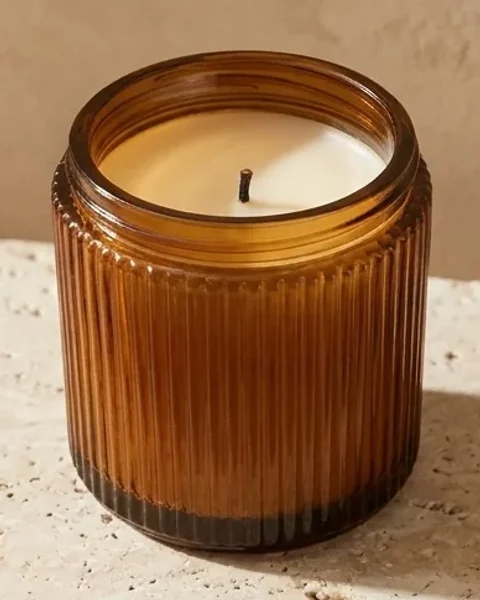
  • The candle cropped from the redrawn image

    Redrawn

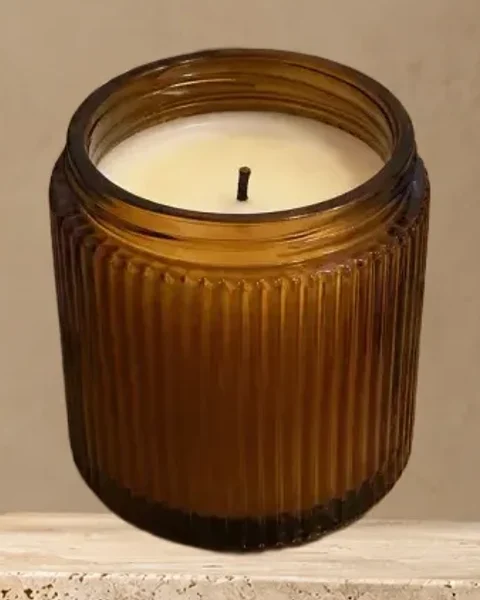
  • The candle cropped from the placed image

    Placed

The candle redrawn on a travertine block, with a shadow falling to the right

Redraw with a prompt

Prompt
Replace the desk and everything around the candle with a pale travertine block against a warm sand-colored plaster wall, with the candle standing on the block and soft window light from the left. Keep the candle, its glass and its wax exactly the same.
What you get
The light and the shadow fit the new place.
The candle sits on the block with real contact.
What to check
The candle is drawn again. Its rim, its ribs and the dark band at the base changed a little.

Use it for: Lifestyle shots, social posts and ads.
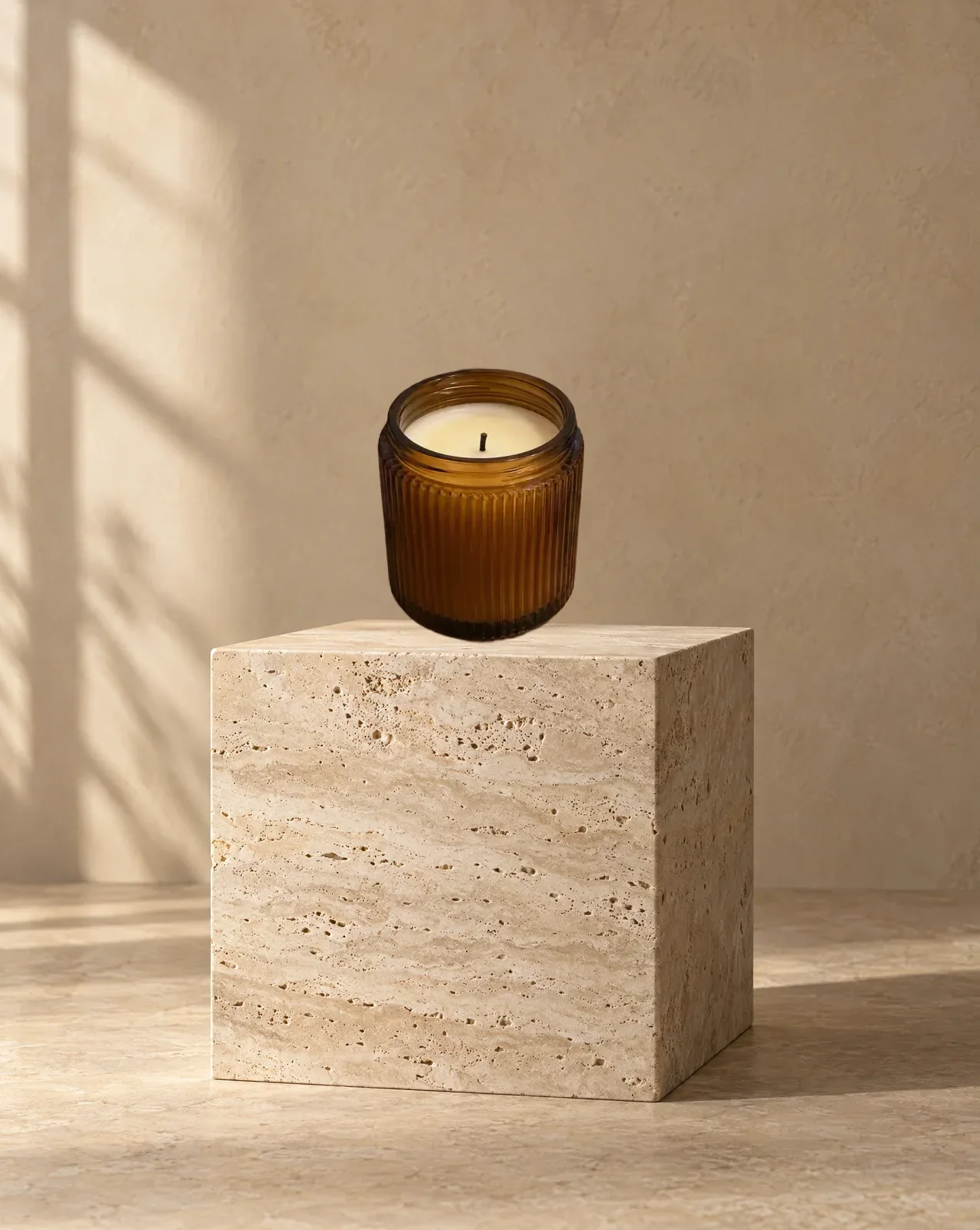
The original candle cut out and set on an empty travertine block, with no shadow under it

Cut out and place

  1. Cut out the candle from the desk photo and save it to your library.
  2. Open the empty travertine backdrop.
  3. Add the candle as a second image, move it onto the block and download the PNG.
What you get
Every pixel of the candle is the one you photographed.
What to check
It keeps your desk's light and camera angle.
Nothing draws a shadow under it, so it looks set on top.

Use it for: Listings where the product must match the photo exactly.

Fill with AIOne background, every frame

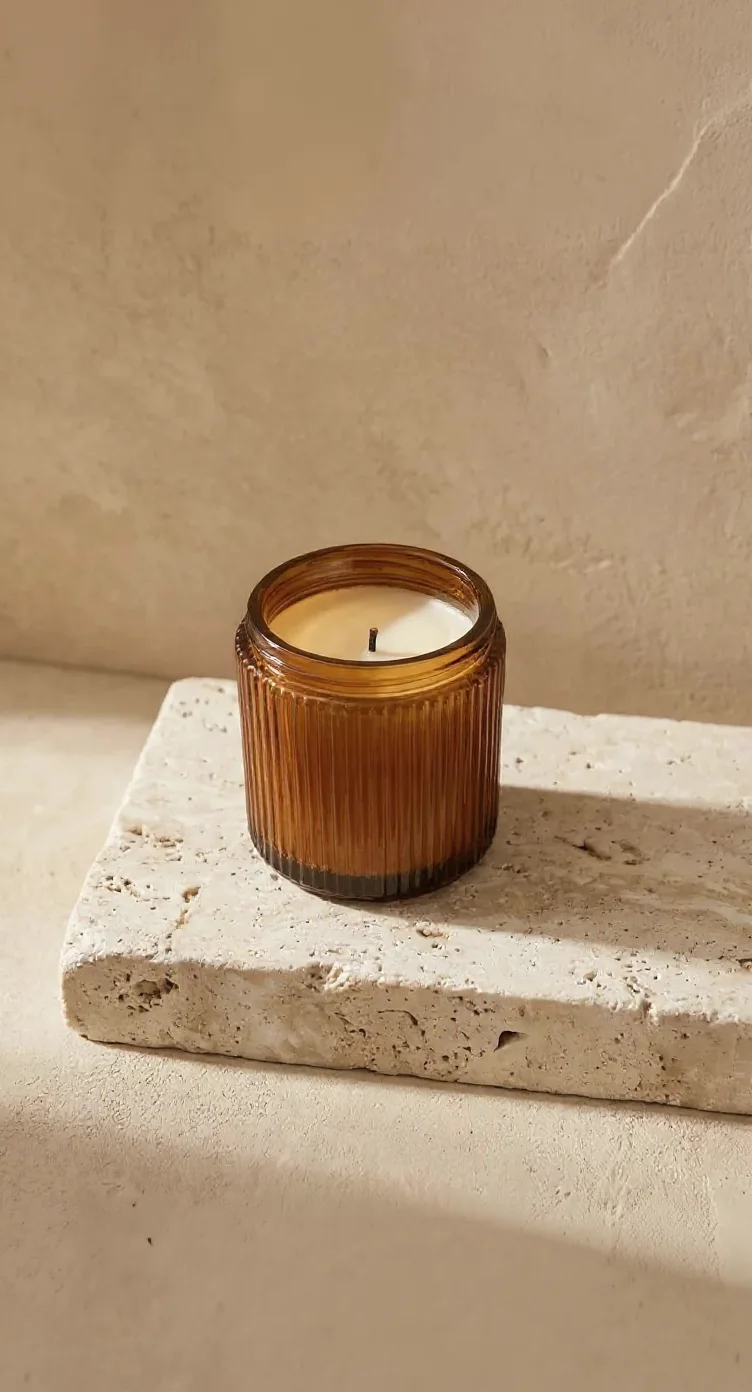
Turn on Fill with AI in the Crop tool and pick a ratio. The editor draws the new area around your image. Here is the travertine edit at three sizes.

  • The candle on the travertine block at 4:5

    4:5The edit

    The background change, as it came out.

  • The same scene extended to 16:9, with more block and wall on both sides

    16:9Banner

    More block and wall on both sides. The candle also came back larger in the frame.

  • The same scene extended to 9:16, with more wall above and floor below

    9:16Story

    Wall above, floor below. The middle stayed where it was.

No photo yet?Generate the background on its own

Describe a place in the image generator and say where the empty space goes. These three came from text alone.

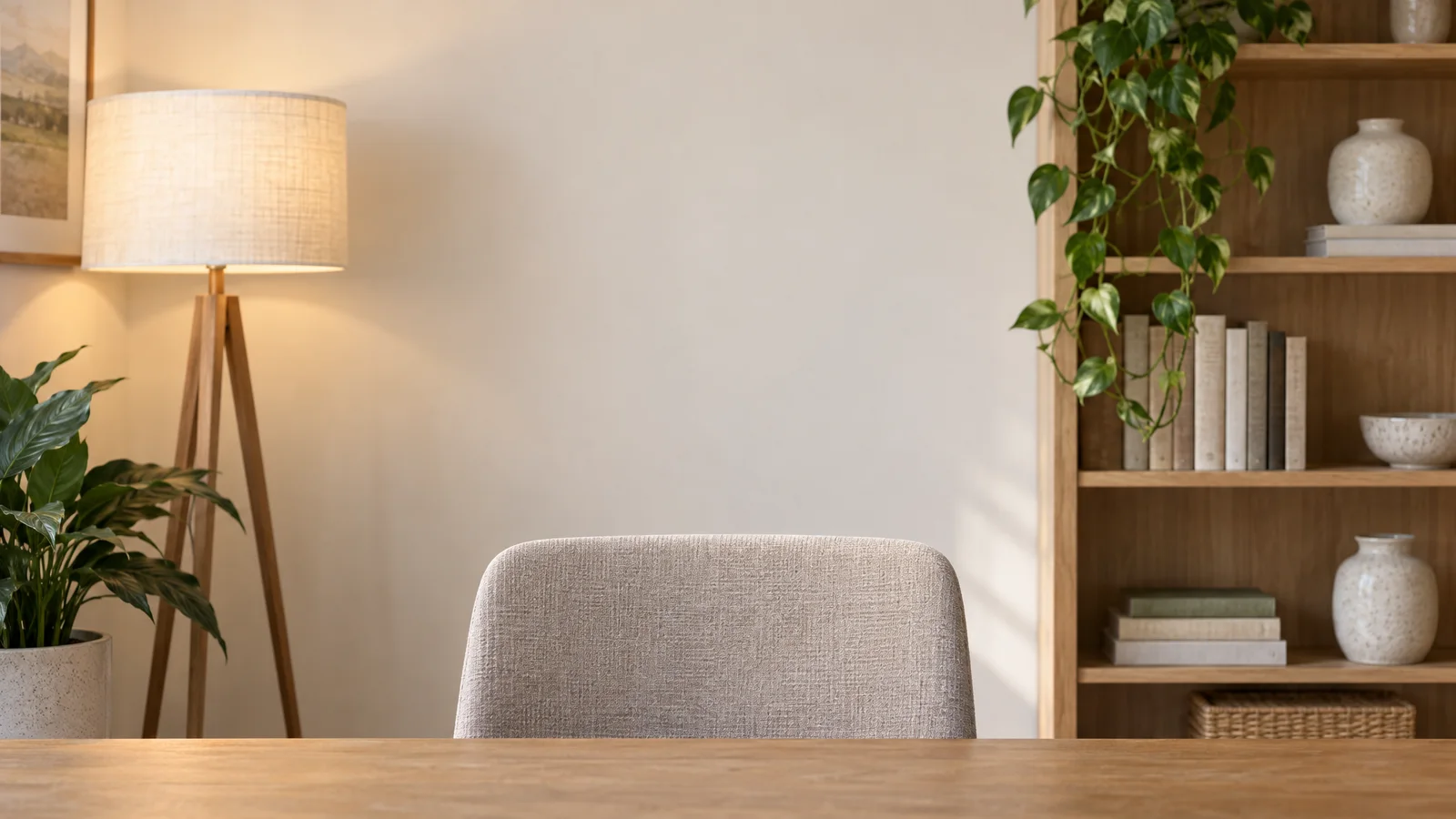
An empty home office with an oak bookshelf, a plant and a linen floor lamp, open in the middle
Video call
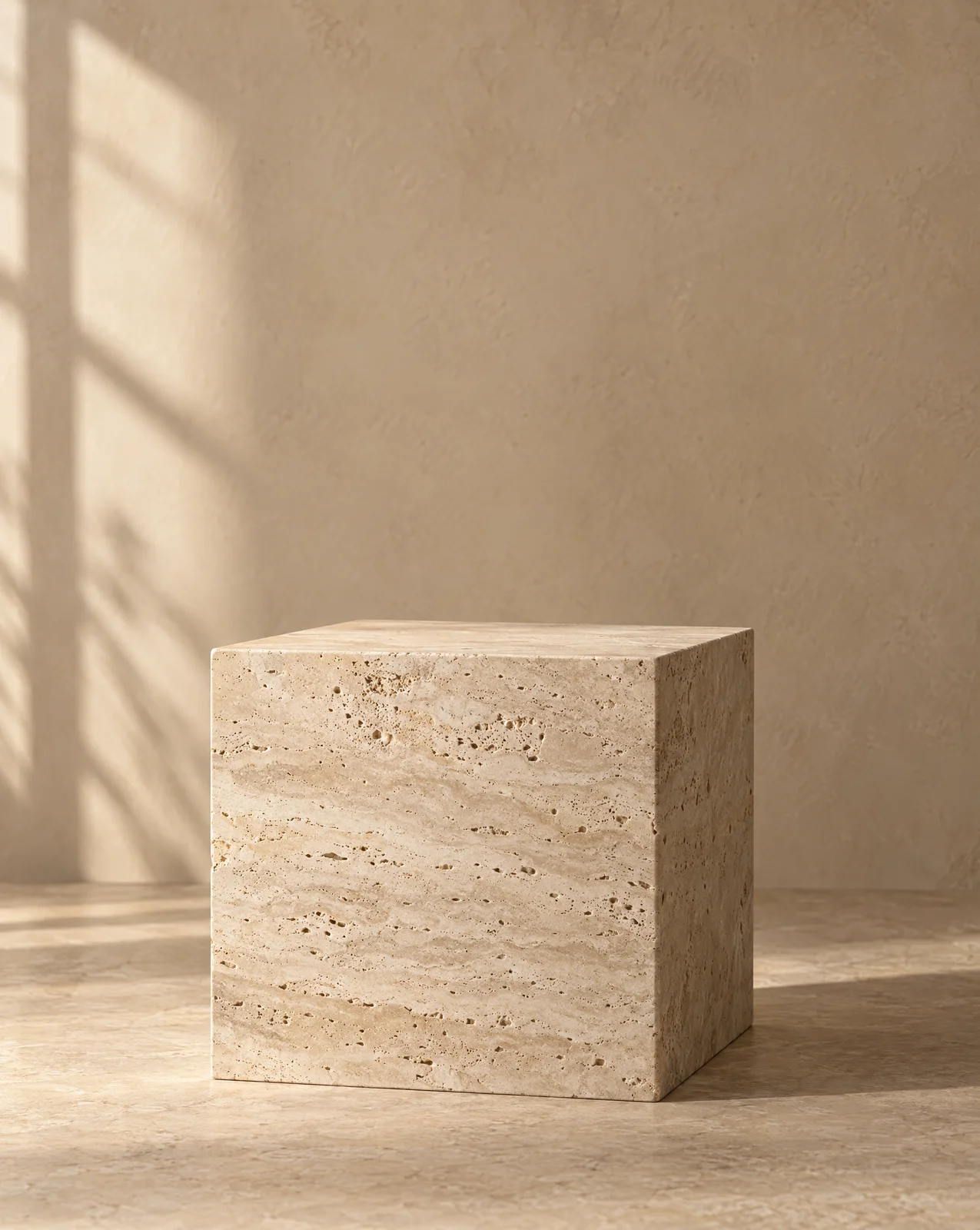
An empty travertine block against a warm plaster wall, lit from a window on the left
Product backdrop
Folds of sage green and cream paper on the right, a plain cream area on the left
Slide or banner
  • Video call

    A calm home office background for video calls, seen straight on at seated eye height with nobody in it: a light oak bookshelf on the right with a few plain linen-bound books and two ceramic vases, a trailing pothos plant, a floor lamp with a linen shade on the left, and a warm off-white wall in the middle left open where a person would sit. Soft daylight, slightly shallow depth of field so the shelf is a little soft. Photorealistic. No text on the books, no logos, no screens.

  • Slide or banner

    A soft abstract background: large overlapping folds of matte paper in sage green and warm cream, curving across the right half of the frame, lit by gentle studio light with soft shadows between the folds. The left half is a calm, plain cream area left empty for a headline. Minimal, quiet, photorealistic paper texture. No text, no logos, no objects.

  • Product backdrop

    Product photography backdrop with no product in it: an empty pale travertine block standing on a warm sand-colored floor, against a smooth warm sand-colored plaster wall. Soft window light from the left, gentle shadows to the right. The top of the block is clear and empty, ready for a product to be placed on it. Calm, minimal, photorealistic. No objects, no text, no logos.

Simple pricing that scales with you.

Pick the plan for how much you post. Every model on every plan. Unused credits roll over. Cancel anytime.

Creator

$19/month

Billed monthly

For solo creators posting every week

500 credits every month

  • Up to 250 background changes
  • Up to 50 AI videos
  • Up to 1.5 hours of AI voiceover
  • Roll over up to 1,000 credits

Pro

Most popular
$49/month

Billed monthly

For creators posting daily across channels

1,300 credits every month

  • Up to 650 background changes
  • Up to 130 AI videos
  • Up to 4 hours of AI voiceover
  • Roll over up to 2,600 credits

Studio

$99/month

Billed monthly

For brands and production teams

2,700 credits every month

  • Up to 1,350 background changes
  • Up to 270 AI videos
  • Up to 9 hours of AI voiceover
  • Roll over up to 5,400 credits

Scale

$199/month

Billed monthly

For agencies running always-on content

5,500 credits every month

  • Up to 2,750 background changes
  • Up to 550 AI videos
  • Up to 18 hours of AI voiceover
  • Roll over up to 11,000 credits
Every plan includesEvery model, 90+ and countingReusable AI personasSceneform Studio editorCommercial usage rights

Want checkout, comparison tables, or a custom volume? See the full pricing page

Before you uploadCommon questions

The amber candle on a travertine block in warm window light

Bring one photo.Put it anywhere.

Change a background

Products, people and empty backgrounds.