Skip to content

Reaction and commentary video maker

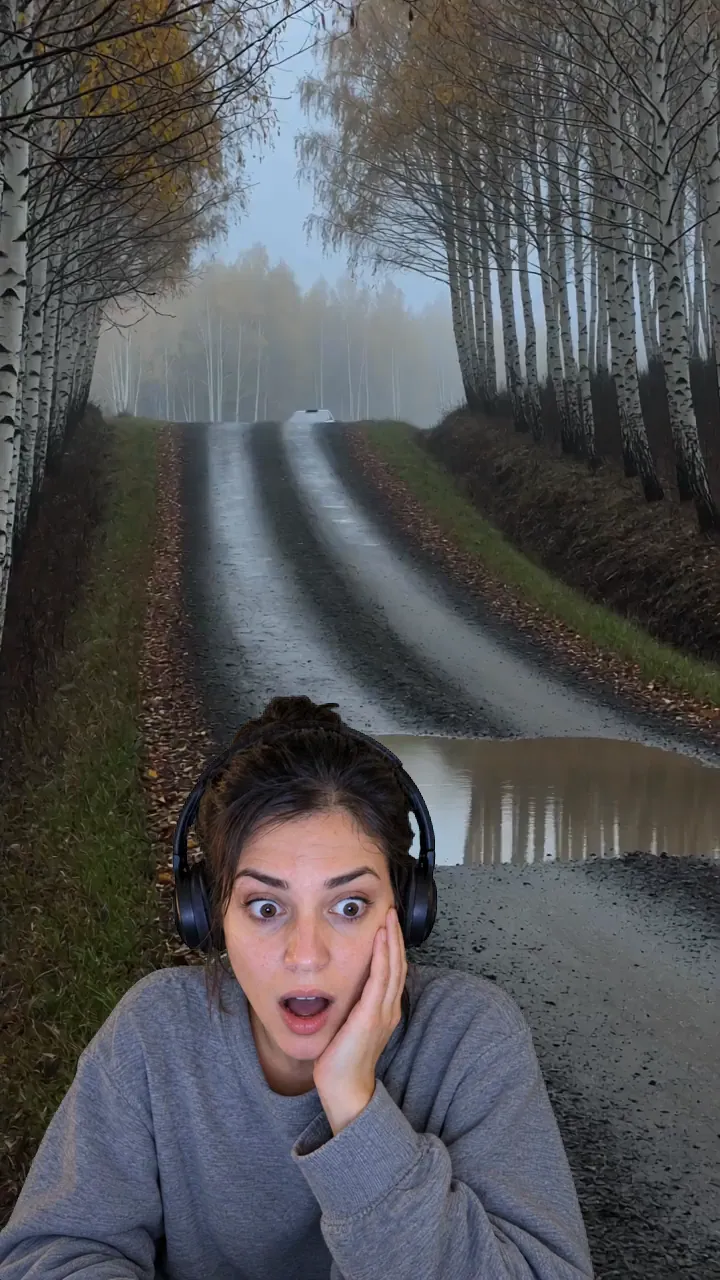
Your face in the corner, your voice over the clip

Put the clip, your face cam and your voice in one frame. Cut the clip to your points, caption what you say, and export it for TikTok, Shorts or YouTube.

Make a reaction video in Studio

Studio runs in a desktop browser, on plans from $19 a month. Each project's first export is included.

Free on a phone: TikTok, iMovie, CapCut
ReactionThe clip and your face, as you watch it for the first time.
CommentaryThe clip cut to your point, and your voice explaining it.

Free: put your face on a clip with an app you already have.

TikTok
On the video you're reacting to, tap Share, then Duet. Record yourself beside it, tap the check mark, then Post. Not every video allows Duet. TikTok Help
iPhone
In iMovie, free from Apple, put the clip in a movie project. Tap Add Media, pick your face cam video, tap More, then Picture in Picture or Split Screen. Apple iMovie guide
Android
In CapCut, free on Google Play, start a New project with the clip. Tap Overlay, pick your face cam, tap Add overlay, then pinch and drag it into place. CapCut
Mac
In iMovie, drag your face cam above the clip in the timeline. Click Video Overlay Settings, choose Picture in Picture, drag its corners to size it, then click Apply. Apple iMovie guide
Windows
In Clipchamp's free plan, open Record & create and choose Screen & camera. Share the tab playing the clip and react. Both recordings land on the timeline; move the camera one over the clip. Microsoft Clipchamp help

Where your face goesFour layouts, with the numbers to type

Put the clip on one track and your face cam on the track above. Select a layer and its settings open in the sidebar: Position holds X and Y, Dimensions holds W and H, in canvas pixels.

Split screen

Reactions on TikTok, Reels and Shorts

  • Canvas 1080 x 1920
  • Clip: X 0, Y 0, W 1080, H 960
  • Face cam: X 0, Y 960, W 1080, H 960
  • Keep aspect ratio off on both, then Crop focus

Face bubble

Commentary over a vertical clip

  • Canvas 1080 x 1920
  • Clip fills the canvas
  • Face cam: X 60, Y 200, W 360, H 360
  • Corner radius 180 turns the square into a circle

Green screen

You, standing in front of the clip

  • Canvas 1080 x 1920
  • Film yourself in front of a green sheet
  • Face cam: X 0, Y 1020, W 900, H 900
  • Effects: turn on Greenscreen

Corner cam

Commentary on YouTube

  • Canvas 1920 x 1080
  • Face cam: X 1440, Y 600, W 432, H 432
  • Corner radius 24

How to make a commentary videoSix steps, one project

  1. 1

    Know your point first

    Write down the one thing you want viewers to take away, then pick the moments of the clip that show it. A reaction can stay loose. A commentary needs a point.

  2. 2

    Record yourself, or type it

    Film your face cam with a webcam or phone while you watch. Clap once at the start so you can line your recording up with the clip later. No mic? Type the script under Audio, Voiceover.

  3. 3

    Start in the right shape

    New projects open at 1080 x 1920 for TikTok, Reels and Shorts. For YouTube, set 1920 x 1080 in the Canvas panel. Put the clip on one track and your face cam on the track above it; the top track draws on top.

  4. 4

    Place your face

    Select the face cam and type its X, Y, W and H. Turn off Keep aspect ratio to fit a square, then move Crop focus onto your face. Corner radius rounds it. Greenscreen, under Effects, drops a green backdrop.

  5. 5

    Cut to your points, keep your voice on top

    Press S to split the clip and delete what you don't talk about. Where you speak, lower the clip's Volume to about -14 to -18 dB. Turn off Enable audio where the clip should be silent.

  6. 6

    Caption it and export

    Open Captions and press Auto captions. Pick a preset and fix any word it got wrong, then export an MP4 at 1080p or 4K.

No mic? No camera?Three ways to voice it

Your own voice
Record it with any mic, even a phone in a quiet room, and upload it to the project.
Your recording, another voice
Voice change in the Audio tool re-voices a recording of up to five minutes. Your timing and emotion stay.
A typed script
Type it under Voiceover and pick a voice from the library, or clone your own voice from a sample and type with it.

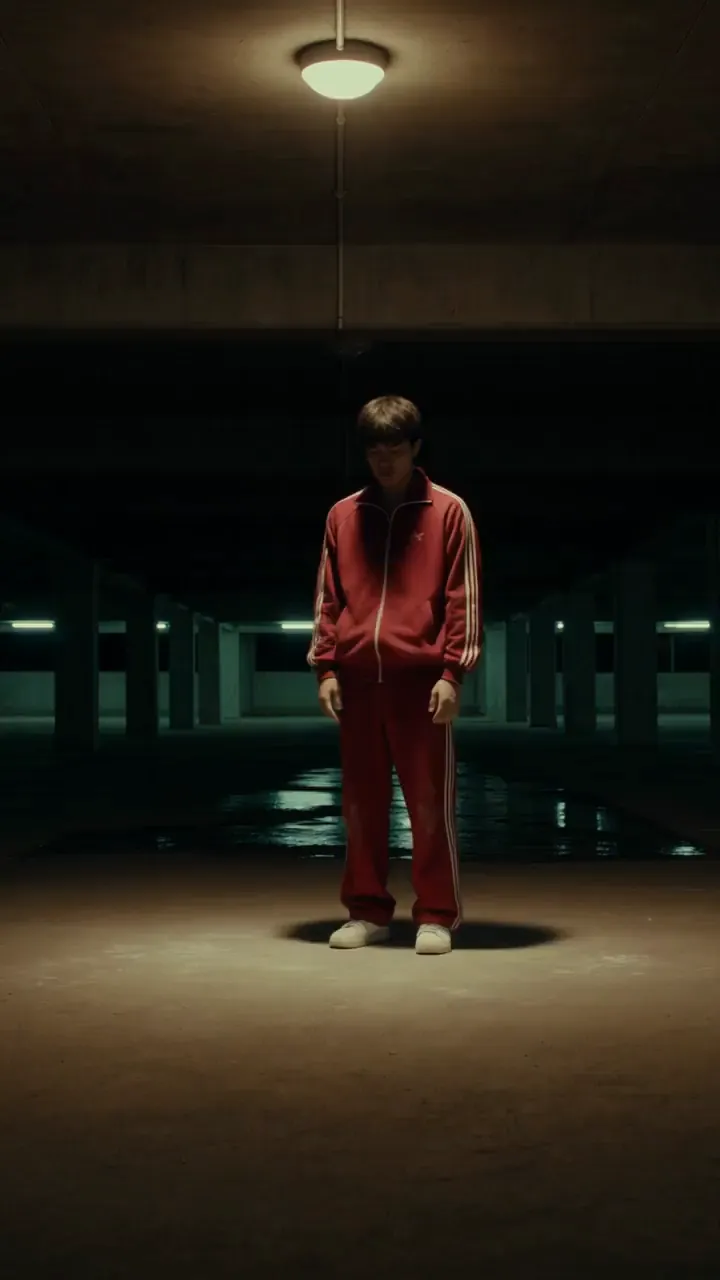
Watch his left hand. The windmill builds all that speed, and one hand has to stop it. That's the freeze.

Read by library voices from the typed line. The same line plays over the breakdancer in the commentary at the top of the page.

Simple pricing that scales with you.

Pick the plan for how much you post. Every model on every plan. Unused credits roll over. Cancel anytime.

Creator

$19/month

Billed monthly

For solo creators posting every week

500 credits every month

  • Up to 250 AI images
  • Up to 50 Studio exports, plus the first export of each project
  • Up to 1.5 hours of AI voiceover
  • Roll over up to 1,000 credits

Pro

Most popular
$49/month

Billed monthly

For creators posting daily across channels

1,300 credits every month

  • Up to 650 AI images
  • Up to 130 Studio exports, plus the first export of each project
  • Up to 4 hours of AI voiceover
  • Roll over up to 2,600 credits

Studio

$99/month

Billed monthly

For brands and production teams

2,700 credits every month

  • Up to 1,350 AI images
  • Up to 270 Studio exports, plus the first export of each project
  • Up to 9 hours of AI voiceover
  • Roll over up to 5,400 credits

Scale

$199/month

Billed monthly

For agencies running always-on content

5,500 credits every month

  • Up to 2,750 AI images
  • Up to 550 Studio exports, plus the first export of each project
  • Up to 18 hours of AI voiceover
  • Roll over up to 11,000 credits
Every plan includesEvery model, 90+ and countingReusable AI personasSceneform Studio editorCommercial usage rights

Want checkout, comparison tables, or a custom volume? See the full pricing page
Before you hit recordCommon questions

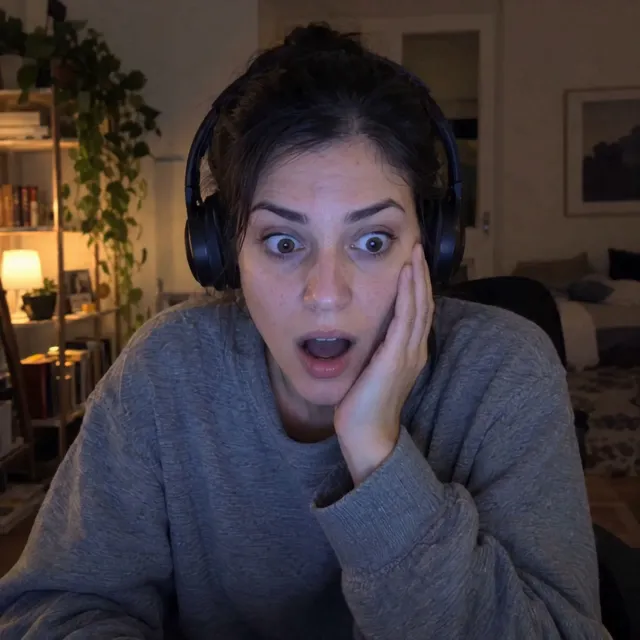
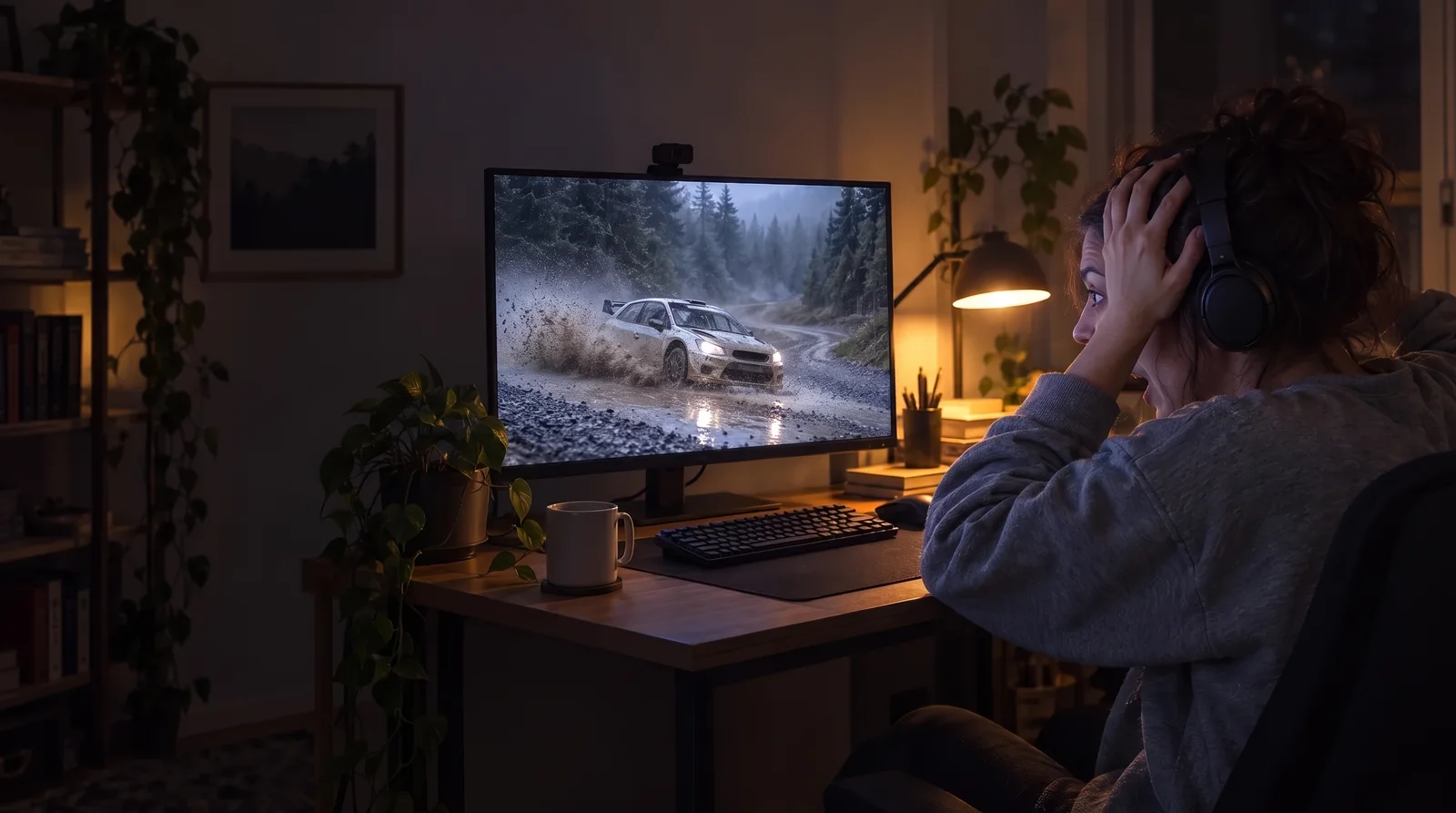
A woman in headphones at her desk at night grabs her head as a rally car slides through a puddle on her monitor.

Watch it once.Then say what you saw.

Make a reaction video in Studio

Plans from $19 a month. Commercial use and no watermark included.