Braces Filter
Explore a braces look in an existing portrait through Image Editor. Upload a clear photo with visible teeth and describe the appearance you want. Try simple metallic brackets or a specific band color, then inspect the result. This creates a visual concept, not a dental assessment or a preview of treatment results.
Compare plans and credits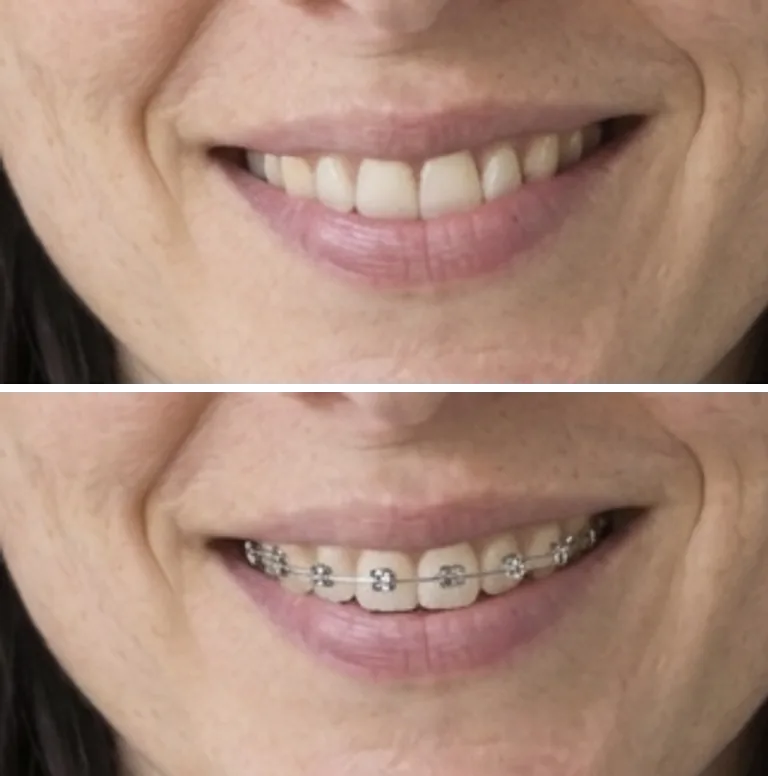
What you can create
Describe the visible details
Name the bracket color and whether you want visible colored bands. Keep the request specific to what the photo shows. A close portrait gives the model more visual information than a distant face. Start with a simple metallic look before comparing more detailed color combinations.
Keep the original expression as context
Use a photo where the lips already reveal the teeth. Ask to retain the smile, camera angle, and surrounding skin. A closed mouth requires the model to invent more of the visible teeth. Check that the output still resembles the source before using it as a creative portrait concept.
Review the small details closely
Inspect the brackets, wires, lips, and visible teeth at full size. Watch for floating parts, repeated shapes, or metal extending beyond the mouth. Request a simpler design if the edit becomes crowded. The image shows an imagined appearance and does not describe a real appliance's fit or performance.
From your idea to finished content
Start with a visible smile
Open Image Editor and upload a clear portrait. Choose a photo with even light across the mouth and visible teeth. Review the credit cost shown next to the Edit button. Avoid starting with a tiny face inside a larger scene.
Request one braces style
Describe the brackets and any band color in plain words. Ask to retain the existing expression and face shape. Change one visual detail per request so comparisons stay useful. Keep the instructions focused on appearance rather than tooth movement.
Inspect the generated concept
Zoom in on the mouth and compare it with the source. Check whether the brackets follow the visible teeth without changing their shape. Review the rest of the face for unintended edits. Save useful concepts or revise the prompt for another interpretation.
Prompts to start with
Use these briefs as a starting point. Replace the details with your own product, audience, and style.
A simple metallic look
Add small silver braces to the visible upper teeth in this portrait. Retain the current smile and tooth shapes. Keep the wires subtle and within the mouth. Preserve the lighting, lips, and background.
A colored band concept
Create a braces concept with small silver brackets and dark blue bands on the visible teeth. Retain the original expression. Keep the details restrained and avoid changing the face shape. Preserve the portrait's lighting and clothing.
Frequently asked questions
- How does the braces filter work?
- You upload a photo and describe the braces in Image Editor. Image Editor generates an edited image from that request. This workflow uses prompts rather than a dedicated braces sticker or preset.
- Can this show how actual braces will look?
- It creates an imagined visual concept. It cannot measure your teeth, select an appliance, or predict a treatment result. Use a qualified dental professional for questions about real orthodontic treatment.
- Can I try different braces colors?
- You can request a specific band color in each edit. Keep the source photo and other instructions consistent when comparing concepts. The generated shade can vary with the model and lighting in the image.
- Does my mouth need to be open in the photo?
- A photo with visible teeth gives the model a clearer starting point. With closed lips, the model must invent the teeth and expression. Choose another photo if you want a closer connection to the source.
- Can I apply the braces look to a video?
- This page opens a still-image editing workflow. It does not track braces across video frames. Review and save the portrait as an image, and use separate video tools for projects that require motion.
Explore related tools
Create your next project
Start with a clear brief. Review the result. Make it yours.