AI Smile Generator
Give an existing portrait a different expression with a written request. Upload your photo, describe the smile, and generate an edited image. Start with a small change, such as relaxed lips or a gentle closed-mouth smile. Sceneform opens Image Editor, which shows the credit cost before you generate.
Compare plans and credits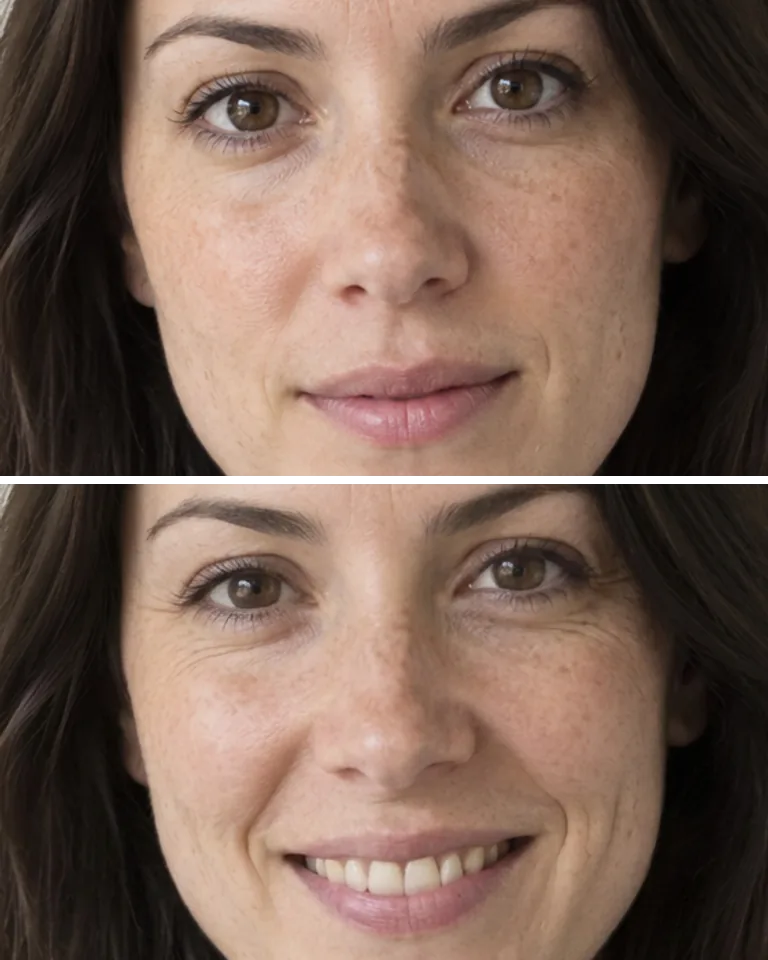
What you can create
Choose the expression in words
Describe whether the mouth stays closed or shows teeth. Add a clear instruction for the cheeks and eyes. A request for a gentle smile gives more direction than a general instruction to improve the portrait. Keep your first request focused so you can judge the expression separately from other changes.
Work with the original portrait
Use a clear photo with visible facial features and enough space around the face. Ask to retain the hairstyle, clothing, lighting, and camera angle. Image editing generates a new interpretation, so those details can still change. Compare the output with your source before choosing a version for a profile or presentation.
Check more than the mouth
A convincing expression involves the whole face. Inspect the lip shape, teeth, cheeks, and eyes at full size. Check for repeated teeth, uneven edges, or a smile that does not match the eyes. Refine one part of your request when the result feels too broad or too stiff.
From your idea to finished content
Upload a clear portrait
Open Image Editor and add your source photo. Pick an image with an unobstructed face rather than a distant group shot. Check the credit cost shown next to the Edit button before you submit your request.
Describe the smile and retained details
Specify the mouth shape and the expression's intensity. Name the parts of the photo you want to retain. Avoid combining a new smile, hairstyle, outfit, and background in the first request. A focused edit makes it easier to identify what needs refinement.
Review the face before saving
Compare the generated portrait with the original. Inspect the teeth and lip edges, then view the image at its intended display size. Keep a result that fits the photo's mood. Revise the prompt if the face changes more than you intended.
Prompts to start with
Use these briefs as a starting point. Replace the details with your own product, audience, and style.
A relaxed profile picture
Give the person a gentle closed-mouth smile with relaxed cheeks. Retain the hairstyle, clothing, background, and original lighting. Keep the expression understated. Avoid changing the face shape or adding visible teeth.
A cheerful announcement portrait
Change the expression to a warm smile with a small amount of upper teeth visible. Keep the eyes relaxed. Retain the camera angle and background. Use subtle changes around the mouth instead of an exaggerated grin.
Frequently asked questions
- How do I make a pic smile?
- Upload the picture in Image Editor and describe the expression you want. Specify whether teeth should show and how broad the smile should look. Generate the edit, then check the whole face before saving your preferred result.
- Does Sceneform have a smile preset?
- This workflow uses a written prompt rather than a dedicated smile preset. You control the request through your description. Start with one of the examples and adapt the instructions to your portrait.
- Will my face stay exactly the same?
- Generated edits can change facial details beyond the expression. Ask to retain important features and compare the output carefully. Use the original photo when you need an unchanged record of someone's appearance.
- Can I add a smile without showing teeth?
- Yes. Request a closed-mouth smile and explicitly ask the model to keep the lips together. Review the result because the model can interpret subtle expressions differently. Reduce the requested intensity if the smile looks too strong.
- Does the smile generator create a moving face?
- Image Editor returns a still image. It does not animate the smile or create spoken dialogue. Image Generation and video tools have separate settings and costs, so choose the workflow that matches your intended output.
Explore related tools
Create your next project
Start with a clear brief. Review the result. Make it yours.