AI Age Filter
Create an imagined older version of a portrait with written image editing instructions. Describe visible changes such as gray hair or more pronounced facial lines. Ask to retain the pose, expression, and lighting so you can compare the concept with the original. This age filter workflow creates fiction and cannot predict how a person will age.
Compare plans and credits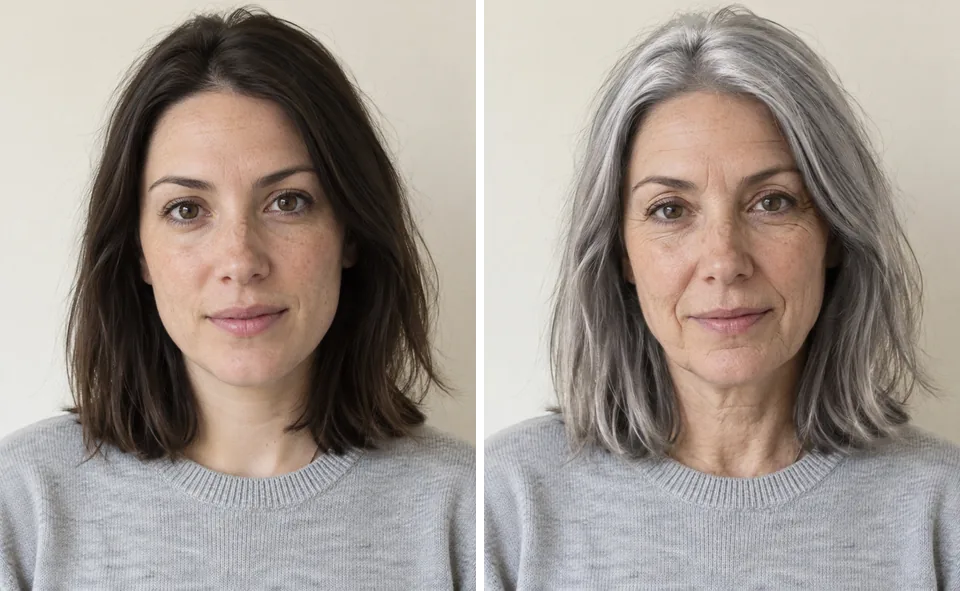
What you can create
Describe the changes you want to explore
Name specific visual details instead of asking for a vaguely older face. Describe the hair color, forehead lines, or texture around the eyes. Keep the amount of change clear, such as subtle or pronounced. The model interprets these instructions creatively rather than applying a measured relationship between age and appearance.
Keep a consistent portrait setting
Use the same source photo when comparing different concepts. Ask to retain clothing, background, camera angle, and expression. These details help you focus on the requested changes. Check the output carefully because generation can alter facial structure or other parts of the image. A narrow prompt cannot guarantee identical features.
Build a character direction
Use an imagined older portrait to explore a fictional character, illustration, or visual story. Choose details that support the character's appearance without assuming personality from age. Compare several restrained ideas before selecting a direction. Review each image on its own because separate generations may not preserve the same face consistently.
From your idea to finished content
Upload the starting portrait
Open Image Editor and select a clear image with visible facial features. Review the credit cost shown next to the Edit button. Keep the original photo available for comparison. A straightforward portrait makes it easier to inspect subtle changes.
Write a specific appearance brief
Describe a few visible details, such as silver hair and gentle lines around the eyes. State what should remain consistent. Avoid requesting an exact future age as a factual prediction. Treat any age label as creative direction for the model.
Review the imagined result
Compare the facial features, expression, and image setting with your source. Check whether the result matches the requested amount of change. Revise overly strong details individually. Present the finished image as an imagined edit when its context could imply a real future appearance.
Prompts to start with
Use these briefs as a starting point. Replace the details with your own product, audience, and style.
A subtle older portrait
Create an imagined older version of this adult portrait. Add a few silver strands and gentle lines around the eyes. Retain the expression, face shape, clothing, and lighting. Keep the changes understated and the skin texture natural.
An older fictional character
Reimagine this fictional adult character with silver hair and more pronounced forehead lines. Keep the original confident expression. Retain the camera angle, clothing, and background. Create a character concept rather than an exaggerated caricature.
Frequently asked questions
- How does the AI age filter work?
- You supply a portrait and describe an older appearance in Image Editor. Image Editor generates an interpretation of those instructions. Sceneform uses a written prompt here rather than a dedicated age slider or fixed filter.
- Can it make a face look younger?
- No. This workflow only creates older looks. Sceneform's image editor refuses requests to make a person look younger, and refused requests are recorded on your account.
- Can this predict what I will look like later?
- No. The image is an imagined edit, not a prediction. The model does not know your future appearance. Use the output for creative exploration rather than as evidence of how your face will change.
- Can I choose an exact age?
- You can mention an age in your prompt, but it only guides a creative interpretation. Specific visual details give a clearer request. Describe hair and facial texture rather than expecting an accurate age simulation.
- Will the older portrait still look like me?
- Ask the model to retain the original facial structure and expression. Results vary, and generation can change recognizable details. Compare the image with your source and revise the prompt when the face changes too much.
- Can I apply this as a live camera filter?
- This workflow edits an uploaded still image. It does not provide a live camera filter or continuous face tracking. Generate and review a portrait first, then use the saved image in your creative project.
Explore related tools
Create your next project
Start with a clear brief. Review the result. Make it yours.