Turn your campaign brief into banner artwork
Create visual concepts for website banners and campaign graphics with Image Generation. Describe the subject and reserve space for your message. Choose a supported aspect ratio and review the artwork before preparing your final layout.
Compare plans and credits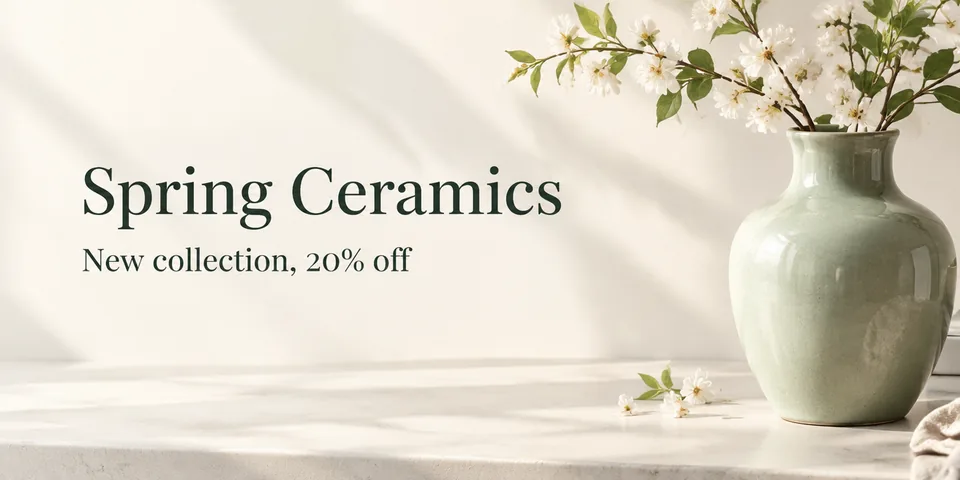
What you can create
Compose around your message
Place the subject on one side and request open space for a headline. State which details should attract attention first.
Explore a campaign palette
Describe the background, accent colors, and overall mood. Generate alternative directions before choosing artwork for your campaign.
Choose a suitable shape
Select a supported aspect ratio for your intended placement. Check the final dimensions and crop against your publishing requirements.
From your idea to finished content
Write the campaign brief
Identify the audience, message, and main subject. Decide where your headline and other layout elements need space.
Generate the artwork
Choose a model and supported aspect ratio. Describe the composition, background, and color palette, then generate a concept.
Prepare the final placement
Review generated text and image details. Check the destination's dimensions and safe areas before completing your banner layout.
Prompts to start with
Use these briefs as a starting point. Replace the details with your own product, audience, and style.
A clean website hero
Create wide banner artwork for a fictional ceramic homeware collection. Place a pale green vase on the right. Use soft morning light and open cream space on the left. Include no text.
A bold seasonal campaign
Create a colorful banner concept with abstract orange and blue paper shapes. Keep the center clear for a short headline. Use crisp shadows and a lively composition without lettering.
Frequently asked questions
Explore related tools
Create your next project
Start with a clear brief. Review the result. Make it yours.