Sceneform for AI apps and the terminal

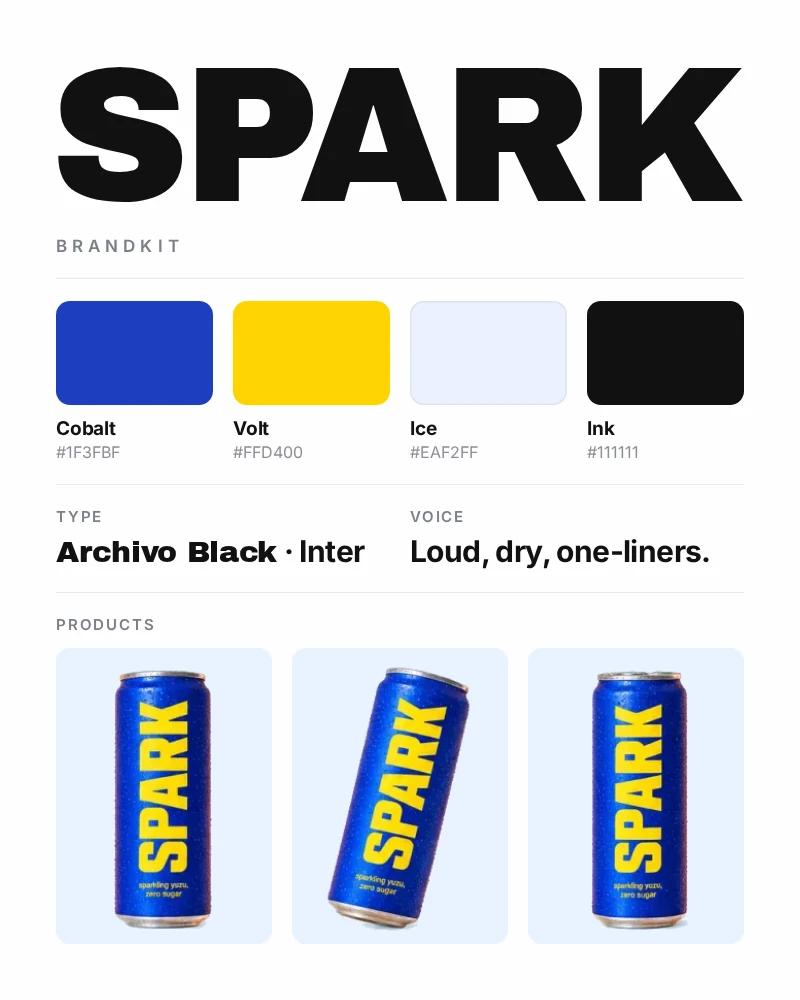
Sceneform runs as an MCP server, so any assistant that speaks the Model Context Protocol can generate images, video, and speech with your brand kits and personas, and schedule the result to your social accounts. The sceneform command line tool does the same from a terminal or a coding agent.

Every spend is quoted first. The assistant shows you the summary and the exact credit cost, and nothing is charged until you confirm.

Connect an assistant

The server lives at https://sceneform.ai/api/mcp. Sign-in uses OAuth: the assistant sends you to Sceneform, you choose what it may do, and you can disconnect it any time under Settings, Connections.

  • Claude: Settings, Connectors, Add custom connector, paste the server URL.
  • ChatGPT: Settings, Connectors, Create, paste the server URL.
  • Cursor: add { "mcpServers": { "sceneform": { "url": "https://sceneform.ai/api/mcp" } } } to ~/.cursor/mcp.json.
  • Claude Code: claude mcp add --transport http sceneform https://sceneform.ai/api/mcp
  • Codex: codex mcp add sceneform --url https://sceneform.ai/api/mcp
  • Gemini CLI: add "sceneform": { "httpUrl": "https://sceneform.ai/api/mcp" } under mcpServers in ~/.gemini/settings.json.

Or let the CLI do it: sceneform setup writes the entry for every client it finds.

Use the CLI

npm i -g sceneform
sceneform login
sceneform options image
sceneform generate image --prompt "A ceramic mug on oak, soft window light" --yes --max-credits 20 --out ./out
sceneform generate video --prompt "Slow dolly-in, steam rising" --start ./out/1.png --yes --max-credits 40 --out ./out
sceneform publish --asset ./out/1.mp4 --platform tiktok --caption "New drop" --yes

login prints a code to approve in any browser, so it works inside a coding agent with no browser of its own. Without --yes --max-credits, generate prints the quote and exits so you can confirm with sceneform confirm. Output is JSON whenever it is piped.

Teach your agent

Skills are short instruction files that tell Claude Code, Codex, Cursor, and Gemini how to use Sceneform well: discover an option, quote, confirm, wait, deliver.

npx skills add https://sceneform.ai

What it can do

  • generate quotes an image, video, speech, or lipsync generation. It picks a model for you; query_generation_options is there when you want a specific one or its settings.
  • confirm_action executes a quoted generation, persona, or post. In Claude the quote is a card with a Confirm button.
  • wait_operation, get_operation, and list_operations follow running and finished work. Finished outputs come back with their URL, and Claude shows them inline.
  • search_library, get_asset_url, and upload_asset find, download, and bring in media. ChatGPT also sees search and fetch in its own connector format.
  • analyze_media describes an image or video, or answers a question about it.
  • list_brand_kits, list_personas, and generate_persona read your brand identity and characters, and create a new reusable character.
  • schedule_post quotes a post to TikTok, Instagram, YouTube, or LinkedIn.
  • load_skill hands the assistant Sceneform's own playbooks for generation, brand work, and publishing.
  • get_credit_balance shows your plan and remaining credits.

An assistant only sees the tools you granted it. A read-only connection never sees generate.

Questions

Does it use my credits? Yes, the same credits as the app. Each generation shows its exact cost before you confirm, and a confirmed generation is never charged twice.

Can an assistant post without asking? No. Publishing follows the same quote-then-confirm step as generation.

Where do the outputs go? Into your Sceneform media library, the same as generations made in the app.

How do I disconnect an assistant? Settings, Connections, then Disconnect next to the app. Every token it holds stops working at once.