Edit images with layers, cutouts, reframing, and upscaling
Work from one canvas to edit an image, crop or extend its frame, remove its background, improve its resolution, or split it into layers.
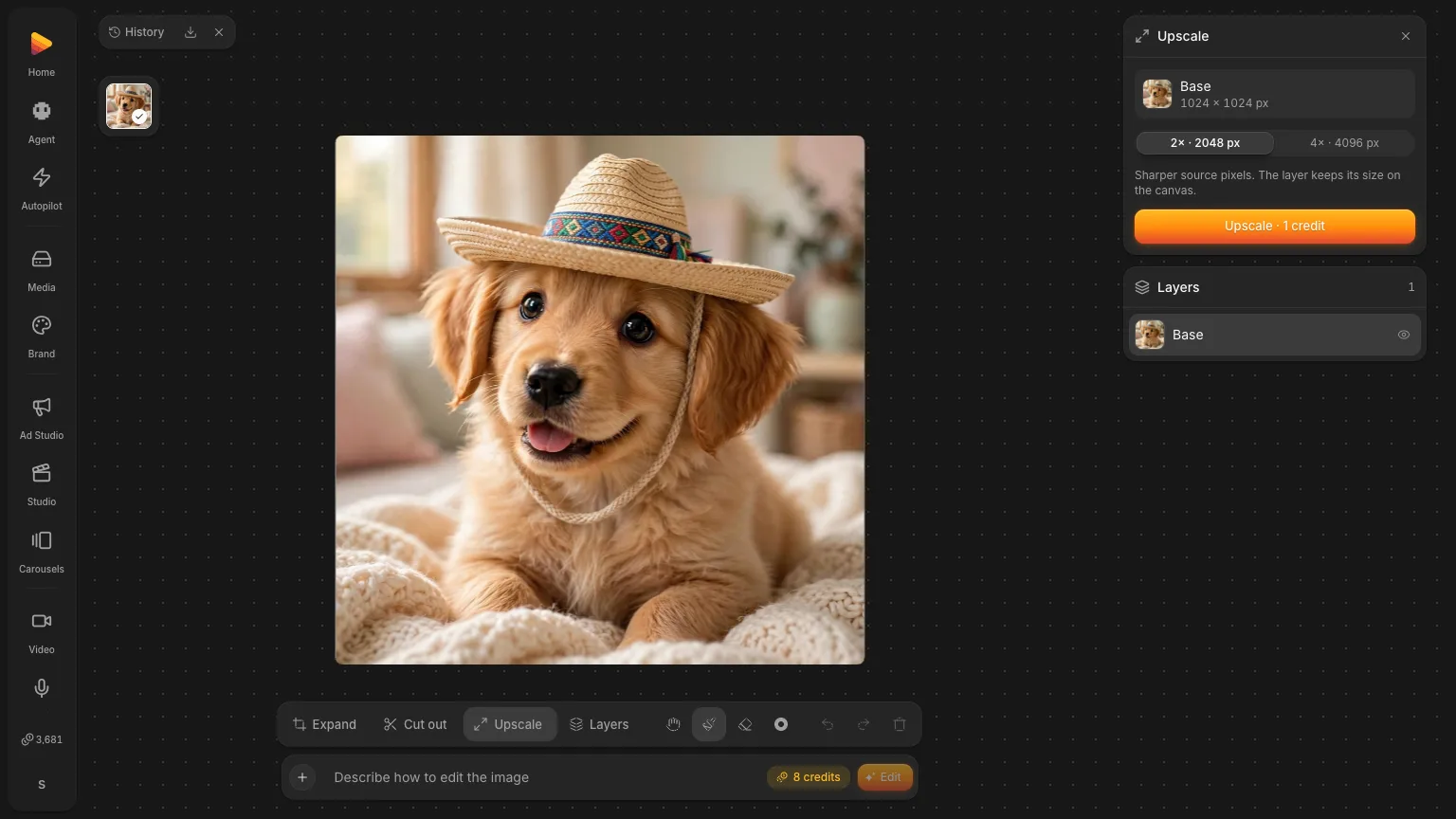
Edit Image now keeps the canvas, versions, controls, and layers together. Start with one image, describe the change, and pick the other tools from a dock beside the prompt. Edits run on one model; Upscale lets you pick.
Make each change from the same canvas
- Describe an edit, paint a mask for one area, and keep the result as a new version.
- Drag the frame to crop or expand. Turn on Fill with AI to paint the new space in the same scene.
- Move and resize a layer on the canvas.
- Remove the background from the selected layer.
- Upscale to 2x or 4x with Topaz, Topaz Generative, or SeedVR, each with its own presets and controls. Transparent cut-outs keep their transparency.
- Split an image into named, transparent layers that you can select, hide, and edit on their own. Choose Auto to let the image determine the layer count, or set the count yourself.
Edit from the media library
Open any image in the library and switch to the Edit tab. Describe an edit, cut out the background, or upscale without leaving the viewer. Tools that need the canvas open the editor with your image and prompt ready.
Your canvas size, layers, and latest version stay with the edit session when you return.